Web Application Development with R Using Shiny
eBook - ePub

Web Application Development with R Using Shiny

Build stunning graphics and interactive data visualizations to deliver cutting-edge analytics, 3rd Edition

  1. 238 pages
  2. English
  3. ePUB (mobile friendly)
  4. Available on iOS & Android
eBook - ePub

Web Application Development with R Using Shiny

Build stunning graphics and interactive data visualizations to deliver cutting-edge analytics, 3rd Edition

About this book

Analyze, communicate, and design your own sophisticated and interactive web applications using the R (v 3.4) Shiny (1.1.0) package

Key Features

  • Explore the power of R Shiny to make interactive web applications easily
  • Create engaging user interfaces using elements such as HTML5 shiny tags and Ttabsets
  • Build and deploy your interactive Shiny web application using shinyapps.io

Book Description

Web Application Development with R Using Shiny helps you become familiar with the complete R Shiny package. The book starts with a quick overview of R and its fundamentals, followed by an exploration of the fundamentals of Shiny and some of the things that it can help you do. You'll learn about the wide range of widgets and functions within Shiny and how they fit together to make an attractive and easy to use application.

Once you have understood the basics, you'll move on to studying more advanced UI features, including how to style apps in detail using the Bootstrap framework or and Shiny's inbuilt layout functions.

You'll learn about enhancing Shiny with JavaScript, ranging from adding simple interactivity with JavaScript right through to using JavaScript to enhance the reactivity between your app and the UI.

You'll learn more advanced Shiny features of Shiny, such as uploading and downloading data and reports, as well as how to interact with tables and link reactive outputs. Lastly, you'll learn how to deploy Shiny applications over the internet, as well as and how to handle storage and data persistence within Shiny applications, including the use of relational databases.

By the end of this book, you'll be ready to create responsive, interactive web applications using the complete R (v 3.4) Shiny (1.1.0) suite.

What you will learn

  • Harness the power of JavaScript to customize your applications
  • Build dashboards with predefined UI and layouts
  • Engage your users and build better analytics using interactive plots
  • Learn advanced code patterns to make your applications easy to write and maintain.
  • Develop a full understanding of Shiny's UI functions to give you the power to build a wide variety of attractive applications.
  • Store data and interact with databases with Shiny.
  • Learn how to share your Shiny applications
  • Understand reactivity at the conceptual level to build more efficient and robust apps

Who this book is for

Web Application Development with R Using Shiny is for you if you are interested in creating compelling web applications and interactive data visualization over the web using Shiny. Programming experience with R is required.
Frequently asked questions

Yes, you can cancel anytime from the Subscription tab in your account settings on the Perlego website. Your subscription will stay active until the end of your current billing period. Learn how to cancel your subscription.
No, books cannot be downloaded as external files, such as PDFs, for use outside of Perlego. However, you can download books within the Perlego app for offline reading on mobile or tablet. Learn more here.
Perlego offers two plans: Essential and Complete
  • Essential is ideal for learners and professionals who enjoy exploring a wide range of subjects. Access the Essential Library with 800,000+ trusted titles and best-sellers across business, personal growth, and the humanities. Includes unlimited reading time and Standard Read Aloud voice.
  • Complete: Perfect for advanced learners and researchers needing full, unrestricted access. Unlock 1.4M+ books across hundreds of subjects, including academic and specialized titles. The Complete Plan also includes advanced features like Premium Read Aloud and Research Assistant.
Both plans are available with monthly, semester, or annual billing cycles.
We are an online textbook subscription service, where you can get access to an entire online library for less than the price of a single book per month. With over 1 million books across 1000+ topics, we’ve got you covered! Learn more here.
Look out for the read-aloud symbol on your next book to see if you can listen to it. The read-aloud tool reads text aloud for you, highlighting the text as it is being read. You can pause it, speed it up and slow it down. Learn more here.
Yes! You can use the Perlego app on both iOS or Android devices to read anytime, anywhere — even offline. Perfect for commutes or when you’re on the go.
Please note we cannot support devices running on iOS 13 and Android 7 or earlier. Learn more about using the app.
Yes, you can access Web Application Development with R Using Shiny by Chris Beeley, Shitalkumar R. Sukhdeve in PDF and/or ePUB format, as well as other popular books in Computer Science & Software Development. We have over one million books available in our catalogue for you to explore.

Information

Persistent Storage and Sharing Shiny Applications

Having made all of those wonderfully intuitive and powerful applications, you are quite naturally going to want to show them off. You may wish to share them with colleagues or members of the worldwide R community. You may wish to share them with individuals in your department or field who, while not R users, can handle a little bit of effort to get an application working. Or you may wish to share them transparently and freely with the whole world by hosting them on a server. Shiny offers quite a lot of approaches to sharing applications, and you'll be glad to hear that even the most complex should not be too taxing, with the right hardware and OS on your server.
In this chapter, we will take a look at the following:
  • Sharing over GitHub
  • An introduction to Git using Git and GitHub within RStudio
  • Sharing applications using Git
  • Sharing using .zip and .tar
  • Shinyapps.io
  • Shiny Server
  • Running Shiny in AWS and Google Cloud
  • Scoping, loading, and reusing data in Shiny applications
  • Temporary data input/output
  • Permanent data functions
  • Databases
  • SQL injection
  • Databases with the pool package
There are a few ways of sharing with R users running the Shiny package within R summarized in the following sections.

Sharing over GitHub

By far, the easiest way to share your creations with fellow R users is over GitHub (github.com). Of course, other R users can also use all the other methods in this chapter, but this is probably the most frictionless method (short of hosting the application) for both you and the end user.

An introduction to Git

You will no doubt have heard of Git (git-scm.com—the version-control system that has collaborative sharing features at GitHub), even if you have never used it. Git is a version-control system that can be used locally on your computer, or in order to get the best out of it, the version-control repository on your computer can be synced online at GitHub. Hosting of open source code at GitHub is free, and there are paid options for closed source code. If you haven't already used a version control, this is an excellent reason to start. It is a little intimidating for newcomers, but over time, the resources and tutorials on the site have improved and perhaps one day of head-scratching awaits you. Trust me that one day I will be paid back hundredfold. The Pro Git book can be downloaded for free from the Git site at git-scm.com/book/en/v2. There is also a wonderful interactive tutorial (try.github.io) on the Git site. As a die-hard Linux enthusiast, it pains me to admit it, but I actually found learning on Windows easier because they provide a wonderful GUI to get you started (also on OS X). This does not mean that you need to use Windows or should stick to Windows; I happily dropped the GUI and went to the terminal in Linux once I'd found my feet a bit.
It's also worth noting that there are some great GUIs for Linux as well, so you can check your package-management system. I didn't find any that supported beginners so well as the official Windows or OS X versions, though. Git has a list of GUIs at git-scm.com/downloads/guis. Note that some of these support GitHub and others support Git itself. The list includes the Windows, OS X, and Linux GUIs.
Finally, RStudio itself actually supports Git and GitHub, and once you've installed Git and set up your account, you can pretty much run the whole show from within RStudio itself.

Using Git and GitHub within Rstudio

To install Git, simply go to the URL mentioned earlier and download the .exe file for Windows, or on Ubuntu, run the following command:
sudo apt-get install git 
For other flavors of Linux, check the package-management system. Having installed Git, you now need to set up a new project within RStudio. A version-control with Git (or SVN, a different version-control system, which we will not consider here) is only possible when we use a project within RStudio.

Projects in RStudio (h3)

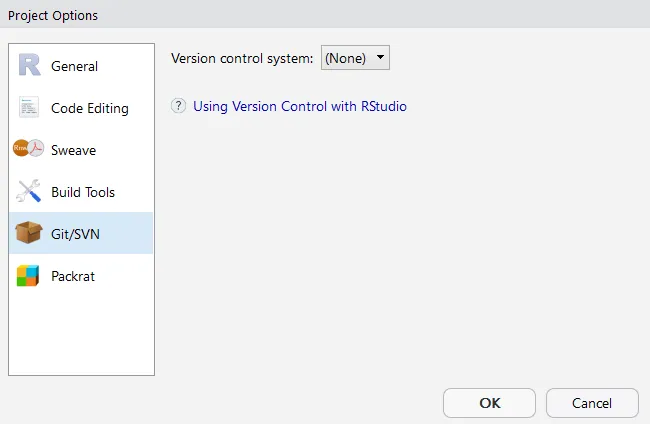
Using projects in RStudio is a good way to organize your work. Each project has its own working directory with a separate R session, workspace, console input history, and open editor tabs (among other things). Each time a project is opened, each of these will be set to the value currently associated with the project, in effect launching a new R session, loading the data and console history since the last time the project was used (if they are selected as the default behavior or individually for this project), setting the working directory to the one associated with the project, and so on. This allows you to switch in and out of different projects either as you work or when you pick up work the next day. To set up a new project, go to File | New Project in RStudio. Select either New Directory if this is a completely new set of code and files that you want to create a new folder for, or Existing Directory if you have already started and just want to point the project to a directory that you have already created. Once you have a project set up, go to Tools | Version control | Project Setup.... The following menu will appear:
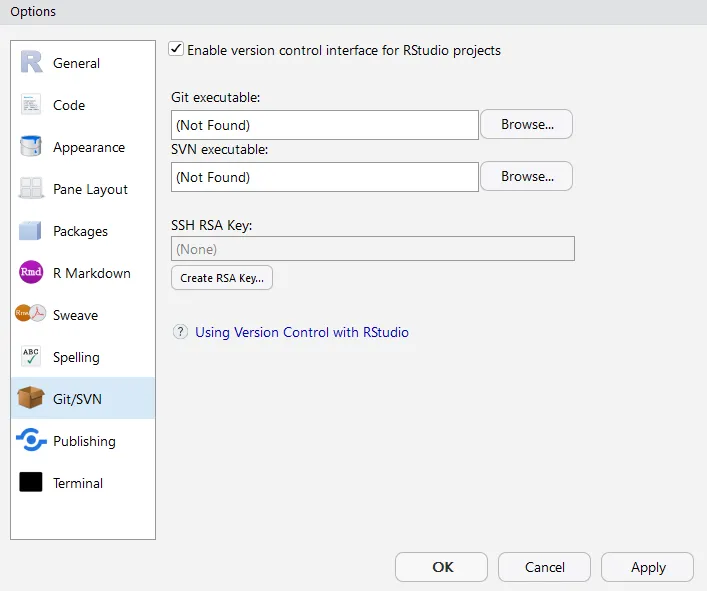
Make sure that the Git/SVN tab on the left-hand side of the page is selected and use the version-control system control on the right-hand side of the page to select Git/SVN, if you prefer, but this will only appear if you have installed it, and this will not be covered in this chapter. You may need to reopen the project at this point by going to File | Recent projects. You will need to configure the remote connection between your local .git repository and the GitHub account yourself. Go to your GitHub account, and go to Repositories | New. Give it a name and description, and select Create repository. Having done this, some instructions will appear on the screen that will help you to set up a connection between this remote repository and the local version on your machine. At the time of writing, the simplest way of doing this is the third box down. Keep these instructions as you will need them later, but for now, we need to configure RStudio a little further. Go to the Tools | Global options, and select the Git/SVN tab. The following menu will appear:
Check whether the Git executable is set up correctly in the first line. If you already have an SSH RSA key, it should be displayed in the bottom line. If not, click on Create RSA Key, and you will be guided to create one. If you have not previously paired your RSA key with your GitHub account (which you would not have done if this is your first experience with GitHub), click on View public key above the third line, and then copy the resulting text into your GitHub account by going to your account settings. This can be achieved by clicking on your user portrait at the top-right corner of the GitHub web page. Next, click on Settings, and then click on the left-hand side of the screen and select SSH keys, and finally, click on Add SSH key, paste your key, and click on Add key. Having done this, you will need to commit your code to Git, that is, to the local copy on your machine. This is very easy in RStudio. Select the Git tab in the Environment pane in RStudio (by default, it's the top-right tab on the screen), as shown in the following screenshot:

Select the elements that you want to commit by clicking on the boxes to the far left of the screenshot. This will be anything that you want to commit to Git for your first submission and anything that has changed for subsequent submissions. Click on Commit in the menu bar, which is visible in the screenshot. You will be prompted to review the changes in a new window as well as instructed to write a commit message in the top-right corner of this window. You cannot commit without a message. For your first commit, you might like to write First commit of beta version, and then for subsequent commits, you might make comments such as Fixed jQuery bug and Added dashboard elements, depending on the changes you have made. Finally, to push to GitHub for the first time, select More | Shell in the Git tab. This will open a terminal window. Remember the terminal commands that the GitHub web page gave us when we set up the new repository and the two-liner I told you to keep track of? This is where we need them. Line by line, copy the two-liner from the web page. This will set up the connection between RStudio and GitHub. From now on, you can push your code (that is, upload it to GitHub) by committing and clicking on the Push button in the Git tab menu bar. This is a very brief introduction to Git, GitHub, and RStudio...

Table of contents

  1. Title Page
  2. Copyright and Credits
  3. www.PacktPub.com
  4. Contributors
  5. Preface
  6. Beginning R and Shiny
  7. Shiny First Steps
  8. Integrating Shiny with HTML
  9. Mastering Shiny's UI Functions
  10. Easy JavaScript and Custom JavaScript Functions
  11. Dashboards
  12. Power Shiny
  13. Code Patterns in Shiny Applications
  14. Persistent Storage and Sharing Shiny Applications
  15. Other Books You May Enjoy