This text outlines the test requirements and explains the basic subject knowledge essential to completing the test. The fourth edition is fully updated to comply with the latest TDA standards and includes new self-assessment questions.
- 96 pages
- English
- ePUB (mobile friendly)
- Available on iOS & Android
eBook - ePub
Passing the ICT Skills Test
About this book
All trainee teachers hoping to gain Qualified Teacher Status (QTS) need to pass a computerised ICT skills test. The test is designed to ensure all those qualifying as teachers have a sound grasp of fundamental ICT skills such as databases, word processing and the Internet and can apply these in their work both in and out of the classroom.
Information
1 | Word processing
Introduction
The skills to use a word processing program are now fundamental to the professional development of teachers. Walk into any school and you will find that the shift to the use of this technology has made a significant difference to the work of even the most diehard technophobe.
It is important for you to have the skills to take advantage of the text management and manipulation facilities offered by word processing. Your life as a teacher will be made so much easier, as you prepare materials for the children, work on planning documents, write letters to parents, etc., by the editing and storage functions of the word processor. No longer will whole pages of Schemes of Work, etc. have to be retyped to incorporate some small change.
The main word processing software used in schools is Microsoft Word. However, there are a range of office suites that include a range of word processors, e.g. Open Office, Corel Office and Star Office. Although not common, many of these offer almost all the functionality of Microsoft Word at a lower cost. It is worth remembering that Microsoft Word is an ‘industrial strength’ program which has some very advanced features – the majority of users only scratch the surface of its capabilities.
All these programs will save and load Word documents, provided they are of the correct version. What is important is that they have a range of common core features. The QTS test will be looking for you to have the skills to operate these common core features. The test will use a generic word processor that will look and feel like Word. There might be slight differences which, if you are not ready for them, could cause you to waste time searching for a specific tool. All word processors operating in the Windows environment use icons to give quick access to common features, with more advanced or less-used functions being found in the menu bar.
The Windows Operating System has ensured that all software has a common look and feel. In this section you will find examples from the toolbars of several word processors, emphasising their common features.
The QTS test is an online test of your skills. To pass this test you must have practised your skills and be certain you know how to perform all the functions mentioned in this chapter. Many of the skills you will already possess and use regularly in your work, but others might not be so common and you will need to refresh your memory.
The test is 35 minutes long and you will not have a lot of time to spare, so practice will ensure that you are up to speed and do not waste time.
Word processing basic
Here is the main menu and tool bars for Microsoft Word. Most word processors (e.g. Open Office) look very similar.

It is useful to remember that functions you find in one program under one heading do not always appear in the same place in another program.
We have already covered the basic computing skills you will require. Here are the main core things you should be able to do with your text using a word processor.
Basic operations
There will be many ways of achieving these operations but here are the most common.
Note: When selecting an item from the menu bar it will either make something happen immediately, e.g. changing the page view, or it will produce a floating dialogue box for you to use. The icons provide fast access to specific functions. An example of this is the print icon in Word. This causes the document to be printed without any further input from you. However, if you choose Print from the File menu then you are offered choices through a dialogue box.
Inserting a character/word/sentence/paragraph or chunk of text. This is very basic and involves moving the cursor to where you want to insert, clicking the left mouse button and typing. The body of the text will arrange itself in response to the additional text you are typing.
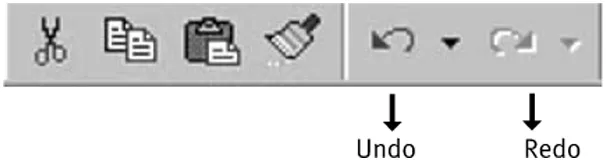
Using the Undo command. The most valuable tool. You can undo your mistakes! In older programs this would only ’undo’ the last thing you did. However, now you have multiple ’undoes’, which means you can recover text after several changes. Be careful as it does not always do what you expect and it is still possible to lose text even with this facility. Note that all the tool bars have an icon for this feature and it is also under the Edit menu.
Inserting a special symbol. You will find you will need this quite often to insert accents, copyright symbols, etc. Move to where you want the insertion and click the left mouse button to place the insertion cursor (like an I beam), go to the Insert menu and choose Symbol, choose the symbol you want and insert.
Inserting a page break. It is often useful to force a page to break where you want it rather than have a paragraph split over two pages. Place your cursor where you want the break and press Ctrl and Enter to insert the break.
Selecting text. This is easy but poor mouse skills can make it difficult to select a single letter, so practise. Selection is most commonly done by placing the cursor at the start of the text, holding down the left-hand button of the mouse and dragging over the text you want to highlight. In Word you can go to the left-hand margin of the text where the cursor changes to an arrow facing the text. Clicking here will select the whole line and, by moving down, the whole paragraph, etc.
HINT The best way to select text accurately is to click at the start of the text you wish to select and then move the cursor to the end of the text, hold down the shift key and click again. This will then select all the text between the two points.
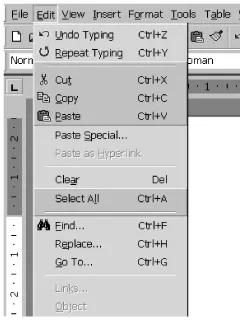
If you need to select all the text use the Edit/Select All menu option.
If you need to select all the text use the Edit/Select All menu option.
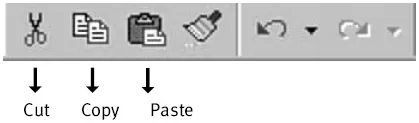
Using copy and paste. This allows you to duplicate text in different parts of the document. Select the text as above then press the Copy icon or select Copy from the Edit menu. Move the cursor to where you want the text and click the Paste icon or use Paste from the Edit menu.
HINT Sometimes it is faster using the keyboard short cuts for particular functions. However, these are not always common across programs, so you will need to learn the most useful for the one you use, e.g. Ctrl+C copies the selected text and Ctrl+V pastes the text. Note the test does not allow keyboard short cuts. However, these are so useful it is worth acquiring the commonest ones.
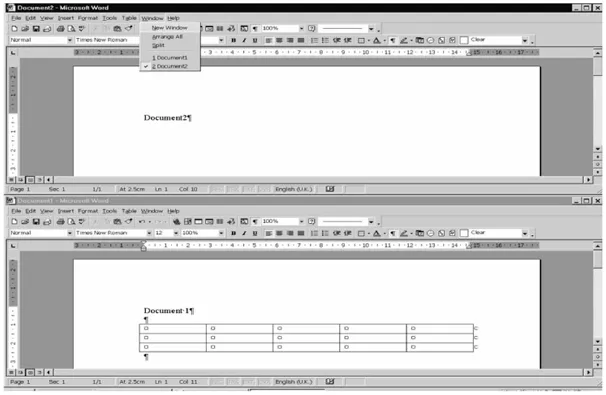
Copying or moving text between two open documents. This is a very valuable skill. For example, you can have the National Curriculum subject document open in one window and your planning document in another. Extracts from the National Curriculum can be selected, copied and pasted into your document. To do this you open your first document using the file menu, then you open the second using the same menu. Move to the Window menu and select Arrange all. This will give you one document above another and you can then scroll through either and move or copy text backwards and forwards.
In later versions of Microsoft Office there is the ‘Office Clipboard’; which is to be found under the Edit menu option. Using this allows you to copy several different parts of a document to the clipboard and paste them in any order to wherever you want them. It is a very useful function to learn but is not available in the test.
Deleting text. This is easy but make sure you know the effect of the delete key and backspace key. You can also select text and press delete. It is useful to know that if you select text and then start typing again the selected text will be deleted in favour of the new text being entered. This can save a bit of time.
Find and replace. Try to learn this, as it is useful for working on standard letters or placing information into the text that was not available at the time. You could, for instance, use the ‘@’ sign where you want a child’s name to be placed in a standard letter. Then using find and replace change the ‘@’ to the child’s name for all occurrences. This is usually found in the Edit menu.
Changing fonts: size, type, colour and weight. You can select text and change this to bold, italics or underline using the icons on the toolbar. Most toolbars also show dropdown menus to select a different font for your selected text, and to cha...
Table of contents
- Cover
- Title
- Copyright
- Contents
- Acknowledgements
- Series introduction
- Introduction
- 1 Word processing
- 2 Spreadsheets
- 3 Databases
- 4 E-mail
- 5 The Internet
- 6 Presentation software
- 7 File compatIbility
- 8 Preparing for the test
- Further reading
- Glossary
Trusted by 375,005 students
Access to over 1.5 million titles for a fair monthly price.
Study more efficiently using our study tools.
Frequently asked questions
Yes, you can cancel anytime from the Subscription tab in your account settings on the Perlego website. Your subscription will stay active until the end of your current billing period. Learn how to cancel your subscription
No, books cannot be downloaded as external files, such as PDFs, for use outside of Perlego. However, you can download books within the Perlego app for offline reading on mobile or tablet. Learn how to download books offline
Perlego offers two plans: Essential and Complete
- Essential is ideal for learners and professionals who enjoy exploring a wide range of subjects. Access the Essential Library with 800,000+ trusted titles and best-sellers across business, personal growth, and the humanities. Includes unlimited reading time and Standard Read Aloud voice.
- Complete: Perfect for advanced learners and researchers needing full, unrestricted access. Unlock 1.5M+ books across hundreds of subjects, including academic and specialized titles. The Complete Plan also includes advanced features like Premium Read Aloud and Research Assistant.
We are an online textbook subscription service, where you can get access to an entire online library for less than the price of a single book per month. With over 1.5 million books across 990+ topics, we’ve got you covered! Learn about our mission
Look out for the read-aloud symbol on your next book to see if you can listen to it. The read-aloud tool reads text aloud for you, highlighting the text as it is being read. You can pause it, speed it up and slow it down. Learn more about Read Aloud
Yes! You can use the Perlego app on both iOS and Android devices to read anytime, anywhere — even offline. Perfect for commutes or when you’re on the go.
Please note we cannot support devices running on iOS 13 and Android 7 or earlier. Learn more about using the app
Please note we cannot support devices running on iOS 13 and Android 7 or earlier. Learn more about using the app
Yes, you can access Passing the ICT Skills Test by Clive Ferrigan in PDF and/or ePUB format, as well as other popular books in Education & Education General. We have over 1.5 million books available in our catalogue for you to explore.