QGIS Quick Start Guide
eBook - ePub

QGIS Quick Start Guide

A beginner's guide to getting started with QGIS 3.4

  1. 164 pages
  2. English
  3. ePUB (mobile friendly)
  4. Available on iOS & Android
eBook - ePub

QGIS Quick Start Guide

A beginner's guide to getting started with QGIS 3.4

About this book

Step through loading GIS data, creating GIS data, styling GIS and making maps with QGIS following a simple narrative that will allow you to build confidence as you progress.

Key Features

  • Work with GIS data, a step by step guide from creation to making a map
  • Perform geoprocessing tasks and automate them using model builder
  • Explore a range of features in QGIS 3.4, discover the power behind open source desktop GIS

Book Description

QGIS is a user friendly, open source geographic information system (GIS). The popularity of open source GIS and QGIS, in particular, has been growing rapidly over the last few years. This book is designed to help beginners learn about all the tools required to use QGIS 3.4.

This book will provide you with clear, step-by-step instructions to help you apply your GIS knowledge to QGIS. You begin with an overview of QGIS 3.4 and its installation. You will learn how to load existing spatial data and create vector data from scratch. You will then be creating styles and labels for maps. The final two chapters demonstrate the Processing toolbox and include a brief investigation on how to extend QGIS.

Throughout this book, we will be using the GeoPackage format, and we will also discuss how QGIS can support many different types of data.

Finally, you will learn where to get help and how to become engaged with the GIS community.

What you will learn

  • Use existing data to interact with the canvas via zoom/pan/selection
  • Create vector data and a GeoPackage and build a simple project around it
  • Style data, both vector and raster data, using the Layer Styling Panel
  • Design, label, save, and export maps using the data you have created
  • Analyze spatial queries using the Processing toolbox
  • Expand QGIS with the help of plugins, model builder, and the command line

Who this book is for

If you know the basic functions and processes of GIS, and want to learn to use QGIS to analyze geospatial data and create rich mapping applications, then this is the book for you.

Frequently asked questions

Yes, you can cancel anytime from the Subscription tab in your account settings on the Perlego website. Your subscription will stay active until the end of your current billing period. Learn how to cancel your subscription.
No, books cannot be downloaded as external files, such as PDFs, for use outside of Perlego. However, you can download books within the Perlego app for offline reading on mobile or tablet. Learn more here.
Perlego offers two plans: Essential and Complete
  • Essential is ideal for learners and professionals who enjoy exploring a wide range of subjects. Access the Essential Library with 800,000+ trusted titles and best-sellers across business, personal growth, and the humanities. Includes unlimited reading time and Standard Read Aloud voice.
  • Complete: Perfect for advanced learners and researchers needing full, unrestricted access. Unlock 1.4M+ books across hundreds of subjects, including academic and specialized titles. The Complete Plan also includes advanced features like Premium Read Aloud and Research Assistant.
Both plans are available with monthly, semester, or annual billing cycles.
We are an online textbook subscription service, where you can get access to an entire online library for less than the price of a single book per month. With over 1 million books across 1000+ topics, we’ve got you covered! Learn more here.
Look out for the read-aloud symbol on your next book to see if you can listen to it. The read-aloud tool reads text aloud for you, highlighting the text as it is being read. You can pause it, speed it up and slow it down. Learn more here.
Yes! You can use the Perlego app on both iOS or Android devices to read anytime, anywhere — even offline. Perfect for commutes or when you’re on the go.
Please note we cannot support devices running on iOS 13 and Android 7 or earlier. Learn more about using the app.
Yes, you can access QGIS Quick Start Guide by Andrew Cutts in PDF and/or ePUB format, as well as other popular books in Computer Science & Computer Science General. We have over one million books available in our catalogue for you to explore.

Information

Expanding QGIS 3

In this final chapter, we will look at expanding QGIS. We will look at combining tools into a model using the model builder. This effectively allows us to build our own reusable model, using parameters we either hardcode in or leave to the user to adjust. We will look at the ever-increasing range of plugins, before finally taking a brief look at the Python command line, where we can create scripts in the future as confidence grows with QGIS.
These are the topics covered in this chapter:
  • Model builder
  • Plugins
  • Python command line

Model builder

You may recall that in the Chapter 6, Spatial Processing we ran several tools to utilize the zonal histogram answer to the distribution of terrains (Landcover) in a buffered pipeline corridor. Open a new QGIS project and load in the Pipeline layer and the Landcover.
To create a model, go to Processing | Graphical Modeler to open the modeler, where we can select from different Inputs and Algorithms for our model. Graphical Modeler is shown in the following screenshot:
The Graphical Modeler
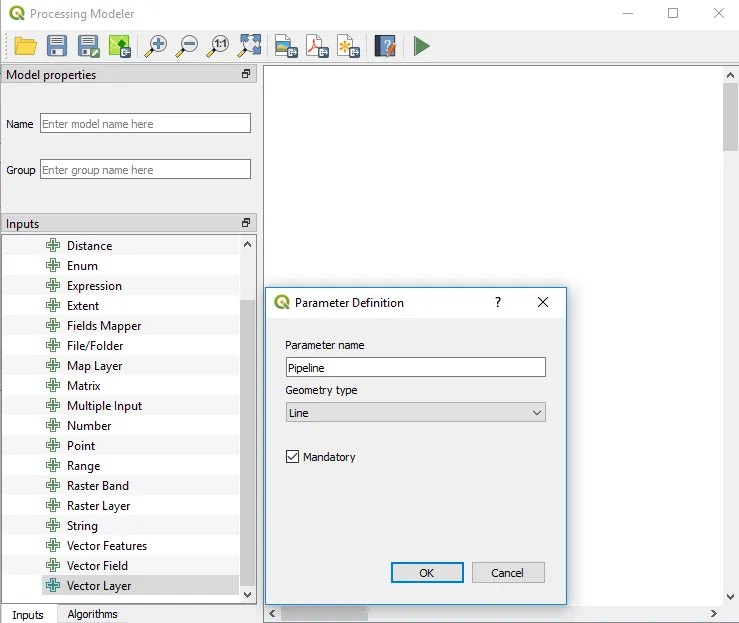
Select the Inputs tab and choose Vector Layer. Add a new parameter called Pipeline and set Geometry type to Line; this is shown in the following screenshot:
Creating a Pipeline attribute as a Geometry type—Line
Click on OK. Now, add Raster Layer and call it Landcover. In the Algorithms tab, we can use the filter at the top to narrow down our search for the correct algorithm. Search for buffer and double-click to open the algorithm. Fill in Distance as 15000 and check the box to make sure the layer is dissolved.
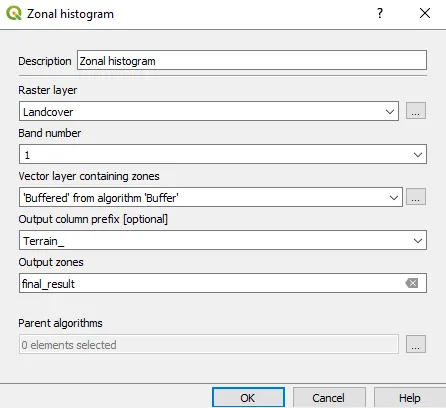
Now, search for and open the Zonal histogram tool and change the prefix to Terrain_. This is our final output so tell the model it is the final result. The final output is what is returned to the user once the model has been successfully run. The inputs should look like the following dialog box:
Zonal histogram tool
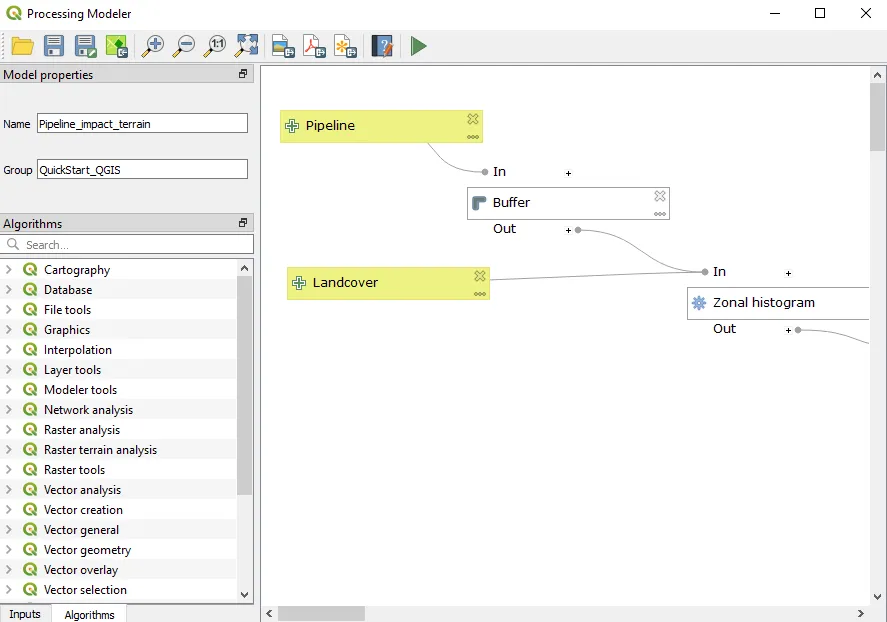
Click on OK. To finish the model, we need to enter a model Name (Pipeline_impact_terrain) and a Group name (QuickStart_QGIS). Processing will use the Group name to organize all the models that we create into different toolbox groups. The model is now complete. The finished model will look like this:
The Graphical Modeler with the model displayed
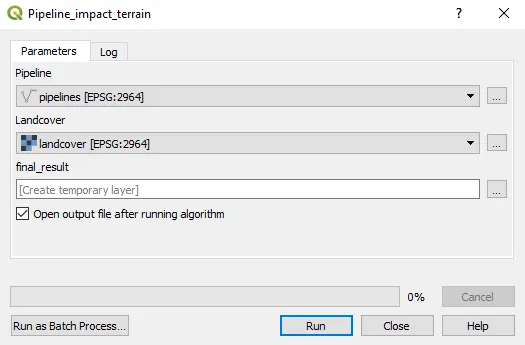
Click the save icon and save as terrain_stats.model3. Click on the green triangle or press F5 to run the model. A dialog box should appear as follows:
The model represented as a tool
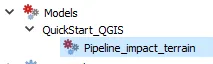
Click on Run to execute the model. The pipeline output will appear in the QGIS map window. After closing the modeler, we can run the saved models from the toolbox like any other tool. Look in Processing Toolbox under Models. This newly created model will appear there, as shown in the following screenshot. It is even possible to use one model as a building block for another model:
Model appears in the Processing Toolbox under Models
Another useful feature is that we can specify a layer style that needs to be automatically applied to the processing results. This default style can be set by right-clicking and selecting Edit, rendering styles for outputs in the context menu of the created model in the toolbox. This means that you can automate building maps if you wish.
You can share your models by giving the .model3 file to others. This is the first step in expanding the use of QGIS. Save your project.

Plugins in QGIS

We briefly touched on plugins in Chapter 5, Creating Maps. We used qgis2web to convert our Alaska map into a web map. The top plugins by download are listed here: https://plugins.qgis.org/plugins/popular/. You can use this page to search for plugins or look at tags to view the different plugins and their capabilities.
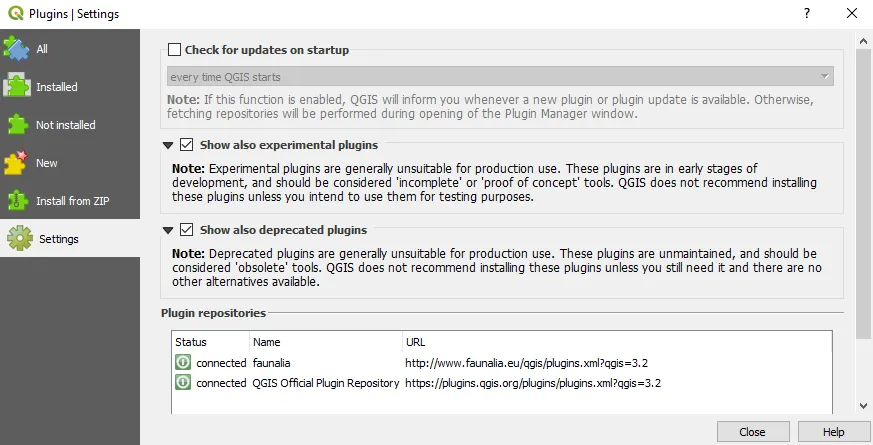
Plugins are accessed via the Plugins menu. Some plugins are experimental. By experimental, we mean they could be unstable or in the early stages of development, but it is worth turning these on in case a plugin is available that might help your workflows; just use them with caution. From the Plugins dialog, choose Settings and check the box next to Show also experimental plugins:
Plugin settings

Semi-Automatic Classification Plugin

The Semi-Automatic Classification Plugin (SCP) for QGIS allows for the supervised classification of remote sensing images, providin...
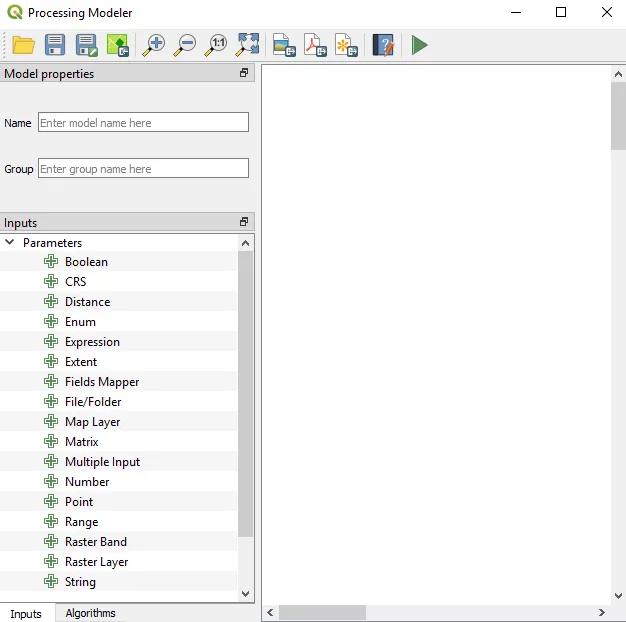
Table of contents

  1. Title Page
  2. Copyright and Credits
  3. Dedication
  4. About Packt
  5. Contributors
  6. Preface
  7. Getting Started with QGIS 3
  8. Loading Data
  9. Creating Data
  10. Styling Data
  11. Creating Maps
  12. Spatial Processing
  13. Expanding QGIS 3
  14. Other Books You May Enjoy