eBook - ePub
Available until 23 Dec |Learn more
50 Things You Can Do With Google Classroom
This book is available to read until 23rd December, 2025
- English
- ePUB (mobile friendly)
- Available on iOS & Android
eBook - ePub
Available until 23 Dec |Learn more
50 Things You Can Do With Google Classroom
About this book
It can be challenging to add new technology to the classroom, but it's a must if students are going to be well-equipped for the future. Alice Keeler and Libbi Miller shorten the learning curve by providing a thorough overview of the Google Classroom App. Part of Google Apps for Education (GAfE), Google Classroom was specifically designed to help teachers save time by streamlining the process of going digital. Complete with screenshots, 50 Things You Can Do with Google Classroom provides ideas and step-by-step instructions to help teachers implement this powerful tool.
Frequently asked questions
Yes, you can cancel anytime from the Subscription tab in your account settings on the Perlego website. Your subscription will stay active until the end of your current billing period. Learn how to cancel your subscription.
At the moment all of our mobile-responsive ePub books are available to download via the app. Most of our PDFs are also available to download and we're working on making the final remaining ones downloadable now. Learn more here.
Perlego offers two plans: Essential and Complete
- Essential is ideal for learners and professionals who enjoy exploring a wide range of subjects. Access the Essential Library with 800,000+ trusted titles and best-sellers across business, personal growth, and the humanities. Includes unlimited reading time and Standard Read Aloud voice.
- Complete: Perfect for advanced learners and researchers needing full, unrestricted access. Unlock 1.4M+ books across hundreds of subjects, including academic and specialized titles. The Complete Plan also includes advanced features like Premium Read Aloud and Research Assistant.
We are an online textbook subscription service, where you can get access to an entire online library for less than the price of a single book per month. With over 1 million books across 1000+ topics, we’ve got you covered! Learn more here.
Look out for the read-aloud symbol on your next book to see if you can listen to it. The read-aloud tool reads text aloud for you, highlighting the text as it is being read. You can pause it, speed it up and slow it down. Learn more here.
Yes! You can use the Perlego app on both iOS or Android devices to read anytime, anywhere — even offline. Perfect for commutes or when you’re on the go.
Please note we cannot support devices running on iOS 13 and Android 7 or earlier. Learn more about using the app.
Please note we cannot support devices running on iOS 13 and Android 7 or earlier. Learn more about using the app.
Yes, you can access 50 Things You Can Do With Google Classroom by Alice Keeler, Libbi Miller in PDF and/or ePUB format, as well as other popular books in Education & Education Technology. We have over one million books available in our catalogue for you to explore.
Information
50 Things You Can Do with Google Classroom
1. Make Class Announcements
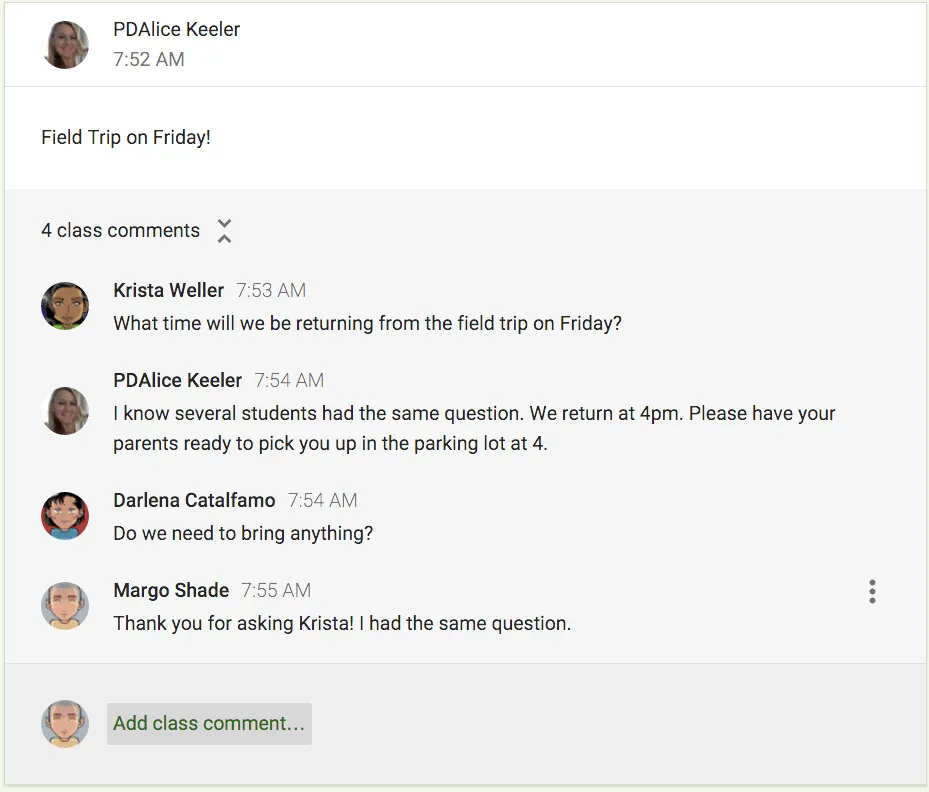
Google Classroom gives teachers a place to post their class announcements. Teachers can post announcements to the stream and send an email to the students’ Gmail accounts. Students are able to locate older announcements by scrolling down in the stream. Unlike verbal announcements or those written on a whiteboard, announcements in Google Classroom are accessible outside of class. The Google Classroom also allows students to make comments on the announcement. This transforms what might traditionally be one-way communication into two-way communication.
2. Share Resources
Google Classroom allows teachers to take a document, video, or link and push it out to their students. Utilizing Google Classroom as the consistent location for students to obtain digital resources maximizes classroom instruction time. When students are not being directed to multiple locations to find resources, the flow of the classroom is improved.
To share a resource, click on “Announcement” at the top of the Google Classroom stream. There are four icons along the bottom of the announcement creation box.
- The paperclip icon attaches files that are saved on the computer.
- The Google Drive icon allows Google Docs or other files stored in the teacher’s Google Drive to be attached to the announcement. If the file in the Google Drive is shared privately, the sharing settings are modified to allow students in the class to view the file without additional steps by the teacher.
- The YouTube icon allows the teacher to paste the URL of a YouTube video they already have located. Alternatively, Google Classroom provides a search box to locate YouTube videos.
- The fourth icon allows the teacher to paste the URL of an Internet resource.
Documents that are shared through the Announcements tool in Google Classroom are shared with the students as view-only files. These resources are not viewable to students not in the class, unless the teacher has also shared them in other locations besides Google Classroom.

3. Keep Multiple Files in an Assignment
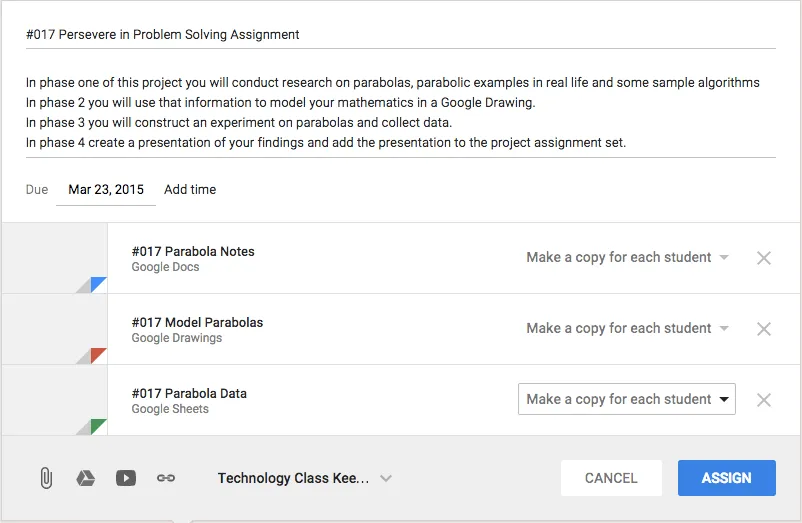
Google Classroom allows for multiple attachments to a single assignment. Teachers can assign the students multi-phase projects and provide a template for each of the different phases.
4. Create a Lesson
More than simply assigning work to students, Google Classroom allows the teacher to build a complete lesson. At the top of the stream in the Classroom, the teacher can click on “Assignment” to start building a lesson set. The description area of the assignment allows the teacher to provide directions to students for completing the lesson and assignment.
Students are able to move through the lesson more efficiently when resources and materials are presented in a logical order. Creating an instructional document in Google Drive and attaching it using the Google Drive icon can start the lesson set.
To supplement the instructional document, the teacher can attach YouTube videos or videos located in the teacher’s Google Drive as the next part of the lesson set. Engaging videos, screencasts, or short instructional pieces can provide additional understanding beyond the instructional text. Videos can also be utilized to differentiate instructions for students. Providing multiple videos that address different learning modalities or ability levels can help students choose an instructional option that works for them.
Websites that allow students to practice some of the skills in the lesson can be provided as part of the lesson set. Collaborative documents may also be added to the lesson set to allow students to brainstorm or crowd-source information. Typically, the last part of the lesson set is the assignment for the student to complete. Attaching a graphic organizer or template document provides the task for the student to complete.

5. Go Paperless
Passing out and collecting papers in class can take up valuable instructional minutes. Using Google Docs and Google Drive allows the teacher to go paperless. Teachers can require students to create a Google Document from scratch right in Google Classroom, or the teacher can provide a template for the students to fill out. Google Classroom can create a copy for each student, giving them turn-in buttons for when they are done.
6. Easily View Student Submission
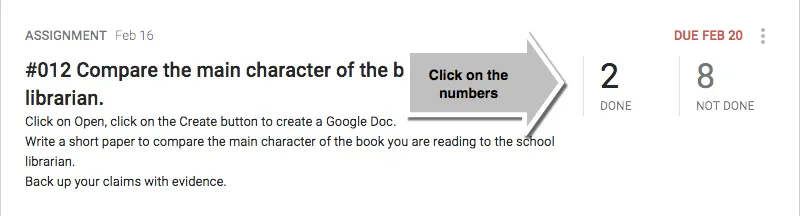
Google Classroom counts how many students have and have not submitted an assignment. Teachers can find the number of student submissions clearly displayed in the upper right side of each assignment in the stream. Click on the number done to see a list of students who have submitted along with their assignment submission.
7. Simplify the Turn-In Process
When using Google Documents, students often forget to change the sharing settings or to turn in their work. As a result, the teacher cannot view or access the assignment. Google Classroom eliminates this issue by placing the document in the teacher’s and the student’s Google Drive immediately. This gives both of them access to the document.
Google Classroom provides the students with a turn-in button to signal the teacher they are ready to have their work assessed. When students use the turn-in button to submit an assignment, the ownership of the document is transferred to the teacher. After submitting, the student still has viewing rights, but they are unable to edit or change the content.

8. Protect Privacy
The documents the students submit in Google Classroom are shared only between the teacher and the student. Students do not have access to the work of other students. Google Classroom places all of the students’ documents in a single folder in Google Drive; however, the full contents of the folder are not shared with all of the other students.
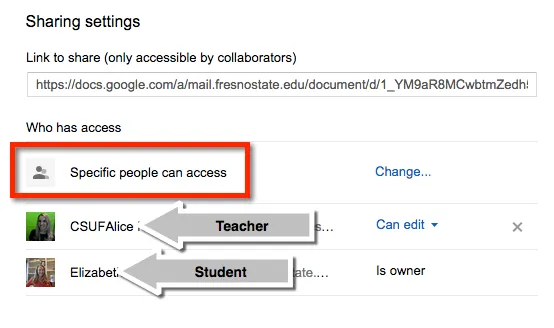
9. Encourage Classroom Collabor...
Table of contents
- Foreword
- Introduction
- Introduction to Google Classroom
- Overview of Google Drive and Docs
- Getting Started
- Teacher View: A Quick Tour
- Student View: A Quick Tour
- Google Classroom App
- 50 Things You Can Do with Google Classroom
- Conclusion
- Acknowledgments
- More from Dave Burgess Consulting, Inc
- About the Authors