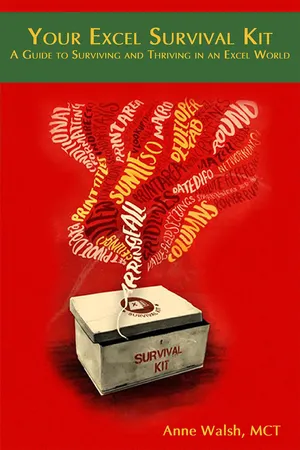
Your Excel Survival Kit
eBook - ePub

Your Excel Survival Kit

A Guide to Surviving and Thriving in an Excel World

  1. 160 pages
  2. English
  3. ePUB (mobile friendly)
  4. Available on iOS & Android
eBook - ePub

Your Excel Survival Kit

A Guide to Surviving and Thriving in an Excel World

About this book

Master Excel and Thrive in Today's Data-Driven WorldAre you ready to take control of Excel and transform your data analysis skills? Your Excel Survival Kit is your comprehensive guide to navigating the complexities of Excel, designed to help you not just survive, but thrive. Whether you're struggling with vlookups, pivot tables, or the powerful Power Query, this book provides clear, accessible instructions to empower you.

Inside, you'll discover how to:

  • Clean and organize your data for maximum efficiency
  • Master essential Excel functions and formulas
  • Create dynamic pivot tables to summarize and analyze data
  • Automate tasks with Power Query to save time and reduce errors
  • Present your findings with compelling charts and visualizations

Transform from an Excel novice to a confident user, capable of tackling any data challenge. This book is for Excel users, accountants, business professionals, and data analysts. Anne Walsh, a Microsoft Certified Trainer, provides the tools and techniques to make Excel your ally, not your adversary. Visit www.the-excel-expert.com for more resources.

Trusted by 375,005 students

Access to over 1.5 million titles for a fair monthly price.

Study more efficiently using our study tools.

Information

Year
2016
Print ISBN
9781615470457
Edition
1
eBook ISBN
9781615473526
Chapter 1 - Back to Basics: What Do You Know Already?
Before you really get going on any journey, it’s a good idea to step back and check what you know already and what tools you already have. This chapter is essentially a refresher chapter. It reminds you about (or reacquaints you with) the basics—the stuff you really need—so you can get your bearings as you head out into the Excel wilderness.
The goal of this chapter is to remind you of what you know already and to fill in any gaps in your basic Excel knowledge. It begins with getting text and numbers into Excel and then moves on to basic functions and some other worksheet basics. If you think you have forgotten any of this material, now is the time to dust it down out of the Excel attic.
This is meant to be a hands-on book, so to play along, open up a blank Excel workbook and get ready to walk through all the step-by-step procedures presented in this chapter.
Note This book shows Excel 2010 in use, but what this chapter covers is true for all versions of Excel (even if you are rocking an Excel 2003 version).
Data Entry Tips and Tricks
Before you read any further, here are some tips that will make your Excel life a lot easier:
  • If you plan to do any calculations with a number, do not put any text in the cell with it. When you mix text with numbers and then try to do calculations, Excel gives you a #VALUE! message.
  • Try to keep your entries separate. For example, if you are entering names and addresses, and you think that in the future you may want to sort the names by surname, put first name in one cell and surname in the cell beside it.
  • If you need to enter phone numbers or any other numbers that have leading zeros (e.g., 00353111155555), type in an apostrophe (') before entering the number. This is how you tell Excel to treat it as text so that it keeps the first two zeros. If you don’t do this, Excel keeps removing the first two zeros so you get 353111155555. And like a dog playing fetch, you will spend the rest of the day trying to add those two zeros at the beginning.
    Note Have I mentioned that I’m Irish? My spelling and some of my examples may be a bit foreign to those of you from the United States and other places. I’m told that U.S. phone numbers never start with two zeros but that a zip code could, in fact, start this way. You may also find other situations where you need to preserve leading zeros.
  • Place entries side by side and underneath each other. If you don’t, you create a lot of extra work for yourself. Why? Later on, if all your entries are together and you need to sort or filter your list, Excel will naturally sort and filter all items in the list.
  • Before you can format numbers or text, you need to highlight them. The quickest way to do that is to click on the first cell. Then, keeping your left mouse button pressed down, drag the selection down until you have highlighted the cells you want to apply your formatting to.
Creating a Text Series
1. Click in cell B2 and type January. No...

Table of contents

  1. About the Author
  2. Dedication
  3. Acknowledgements
  4. Introduction
  5. Who This Book Is For
  6. What This Book Covers
  7. Typographical Conventions and Special Elements
  8. Chapter 1 - Back to Basics: What Do You Know Already?
  9. Data Entry Tips and Tricks
  10. Dropping Your Dread of Formulas
  11. Getting to Know the Common Excel Functions
  12. Understanding the Copying Functions
  13. Rolling in the Worksheets
  14. Printing in Excel
  15. Charts, Charts, Charts
  16. Keyboard Navigation
  17. Summary
  18. Chapter 2 Getting Your Data Together: Catching Your File
  19. Creating a Spreadsheet List from Scratch
  20. Getting Data from a Data Dump
  21. Sorting and Filtering
  22. Summary
  23. Chapter 3 Further Cleaning, Slicing, and Dicing
  24. Removing/Completing Blank Columns/Rows/Cells
  25. Cleaning, Combining, and Amending Existing Data
  26. Extracting Specific Pieces of Data from a Cell to Refine a Data Set
  27. Using the Iferror() Function
  28. Summary
  29. Chapter 4 The Vlookup() Function: An Excel Essential
  30. Understanding the Vlookup() Function Syntax
  31. Troubleshooting Vlookup(): Dealing with #N/A Errors
  32. Understanding When to Use Vlookup()
  33. How to Solve Common Vlookup() Problems
  34. Summary
  35. Chapter 5 Creating Pivot Tables
  36. Assembling Data for a Pivot Table
  37. Creating Your First Pivot Table
  38. Understanding Summarize Values By
  39. Tidying Up the Numbers in a Pivot Table
  40. Refreshing Data in a Pivot Table
  41. Grouping by Dates
  42. Grouping by Amounts
  43. Showing Values As
  44. Using Report Filters
  45. Setting Up Slicers (but Only if You Have Excel 2010 or Later)
  46. Changing Pivot Table Layout
  47. Adding a Chart
  48. Adding Conditional Formatting
  49. Troubleshooting Pivot Tables
  50. Summary
  51. Chapter 6 Using Power Query to Quickly Clean Up Data
  52. Cleaning Up an Accounting Data Dump
  53. Converting Unpivoted Data to a Pivoted Format
  54. Creating a Query in Power Query to Merge Data Sets
  55. Summary
  56. Chapter 7 Beyond the Pivot Table: Power Pivot
  57. Installing and Locating Power Pivot
  58. Before You Start Using Power Pivot
  59. Getting Your Data into Power Pivot
  60. Linking the Data Sets Together
  61. Creating a Pivot Table from the Combined Data
  62. Recommended Resources
  63. Summary
  64. Appendix Data Validation Techniques
  65. Restricting Number Sizes
  66. Restricting Date Entries
  67. Restricting Text Length
  68. Extending Data Validation
  69. Applying Data Validation to Another Part of a Sheet
  70. Identifying Duplicate Entries in a List
  71. Simple Normalization (Getting Crossways Data to Go Lengthwise or Vice Versa)
  72. Unpivoting Data
  73. Index

Frequently asked questions

Yes, you can cancel anytime from the Subscription tab in your account settings on the Perlego website. Your subscription will stay active until the end of your current billing period. Learn how to cancel your subscription
No, books cannot be downloaded as external files, such as PDFs, for use outside of Perlego. However, you can download books within the Perlego app for offline reading on mobile or tablet. Learn how to download books offline
Perlego offers two plans: Essential and Complete
  • Essential is ideal for learners and professionals who enjoy exploring a wide range of subjects. Access the Essential Library with 800,000+ trusted titles and best-sellers across business, personal growth, and the humanities. Includes unlimited reading time and Standard Read Aloud voice.
  • Complete: Perfect for advanced learners and researchers needing full, unrestricted access. Unlock 1.5M+ books across hundreds of subjects, including academic and specialized titles. The Complete Plan also includes advanced features like Premium Read Aloud and Research Assistant.
Both plans are available with monthly, semester, or annual billing cycles.
We are an online textbook subscription service, where you can get access to an entire online library for less than the price of a single book per month. With over 1.5 million books across 990+ topics, we’ve got you covered! Learn about our mission
Look out for the read-aloud symbol on your next book to see if you can listen to it. The read-aloud tool reads text aloud for you, highlighting the text as it is being read. You can pause it, speed it up and slow it down. Learn more about Read Aloud
Yes! You can use the Perlego app on both iOS and Android devices to read anytime, anywhere — even offline. Perfect for commutes or when you’re on the go.
Please note we cannot support devices running on iOS 13 and Android 7 or earlier. Learn more about using the app
Yes, you can access Your Excel Survival Kit by Anne Walsh in PDF and/or ePUB format, as well as other popular books in Computer Science & Business Skills. We have over 1.5 million books available in our catalogue for you to explore.