eBook - ePub
Don't Fear the Spreadsheet
A Beginner's Guide to Overcoming Excel's Frustrations
- 200 pages
- English
- ePUB (mobile friendly)
- Available on iOS & Android
eBook - ePub
Don't Fear the Spreadsheet
A Beginner's Guide to Overcoming Excel's Frustrations
About this book
Written in a question-and-answer format, this lowest-level beginner book covers the extreme basics of using spreadsheets in Excel. Instead of delving into advanced topics that scare most Excel novices away, the guide starts at a much more basic level, quickly providing a passable knowledge of the program and allowing users to overcome their fears and frustrations. It answers hundreds of common questions, including Can I delete data from a spreadsheet without changing the formatting? How can I merge two cells, columns, or rows? How do I use text-wrapping? How do I create custom functions? and What is a Macro and how do I go about creating it? Intended for the roughly 40 percent Excel users who have never even entered a formula, this book will demystify the problems and confusion that prevent them from using the program to its potential.
Information
Chapter 1 - Excel Basics
Why Do We Need Excel?
What is it for? What does it do? When should I use it?
To understand what Excel is good at, it might help to go back to 1978. At that time, if you had to keep track of any numbers, you had a toolkit with the following items:
- A pad of green ledger paper
- A mechanical pencil
- A Pink Pearl eraser
- An Xacto knife
- An electronic adding machine
Say that you were keeping track of time for a project so you could submit your invoice at the end of the week. You would use the mechanical pencil to log hours on the green ledger paper. You would use the adding machine to keep a column of running total hours and a running total of the money you had earned.
You were erasing a lot, and re-doing the same calculations
The eraser was used any time that you discovered a mistake in the earlier numbers. You would erase that number and enter the correct number. However, changing that one early number meant that you had to change all of the calculations that came after that number. This would mean that you would be erasing a lot, and doing the calculations all over again.
Sometimes, if you were working on a project that changed frequently such as an annual budget, you would erase a number over and over and over. Eventually, you would erase a hole in the paper! You would then use the Xacto knife to cut a fresh bit of paper from the last page in the tablet and glue it over the hole in your spreadsheet so you could keep using the spreadsheet.
Back in 1978, Dan Bricklin was a college student. For his business classes, he noticed that he was doing the same paper spreadsheets over and over. A case study might have five scenarios, each with a different interest rate. All of the calculations that came after the interest rate entry were identical, but he still had to do them by hand, over and over and over. One of Dan’s ideas was to create a calculator with a trackball in the bottom. The ball would let you scroll back through your calculations to the interest rate entry, change the number, and then roll forward to see all of the calculations performed again using the new interest rate. Working with his friend Bob Frankston, they invented a Visible Calculator on the Apple IIe computer. In the fall of 1979, Dan and Bob started selling VisiCalc and sales of VisiCalc and the personal computer skyrocketed. Over the years, many companies sold spreadsheets. VisiCalc, Lotus 1-2-3, Multiplan, Quattro Pro, and Excel became popular. Today, Excel is the leading spreadsheet program, in use on 750 million Windows computers (and 5 million Macs).
- Excel is good at doing calculations, particularly when the numbers used in the calculation might change frequently. Change one number early in the spreadsheet and you get to see all of the calculations reflect the new number.
- Excel is good for creating charts and graphs from numbers.
- Excel is good for holding a lot of rows of data. You can sort that data to find the largest sales, the smallest sales, the earliest sales. You can filter the data to find only sales of red cars to people over the age of 65. You can also use a feature called a Pivot Table to summarize thousands of rows of data down to one page to spot trends in the data.
- And, because it is easy to change the widths of the columns and the height of the rows, it is easy to use Excel any time that you need to do something like a table in Microsoft Word. The big difference… Excel can hold a bigger table than you can create in Word. Even if you need 20 columns, Excel can do it. Even if you need 16,384 columns and 1.1 million rows, Excel can do it.
If you have never used Excel, take an hour and walk through the case studies in the book (the first one is in "Is There a Way to Make a Sheet with Only a Few Cells and Columns?"). You will gain confidence and learn what Excel can do for you.
What Practical Uses Does Excel Have?
And how do I do ANY of it? Ex: calendar, managing personal finances, address book, and the like?
Excel can be used to do anything. The possibilities are limitless. If you have Excel 2007, you can browse a whole bunch of finished workbooks that you can use.
Open Excel. Go to File. From the left navigation of the File menu, choose New. Excel will show you a whole bunch of files available. In the image below, you can see Agendas, Budgets, Invoices, Labels, Schedules and Time Sheets.
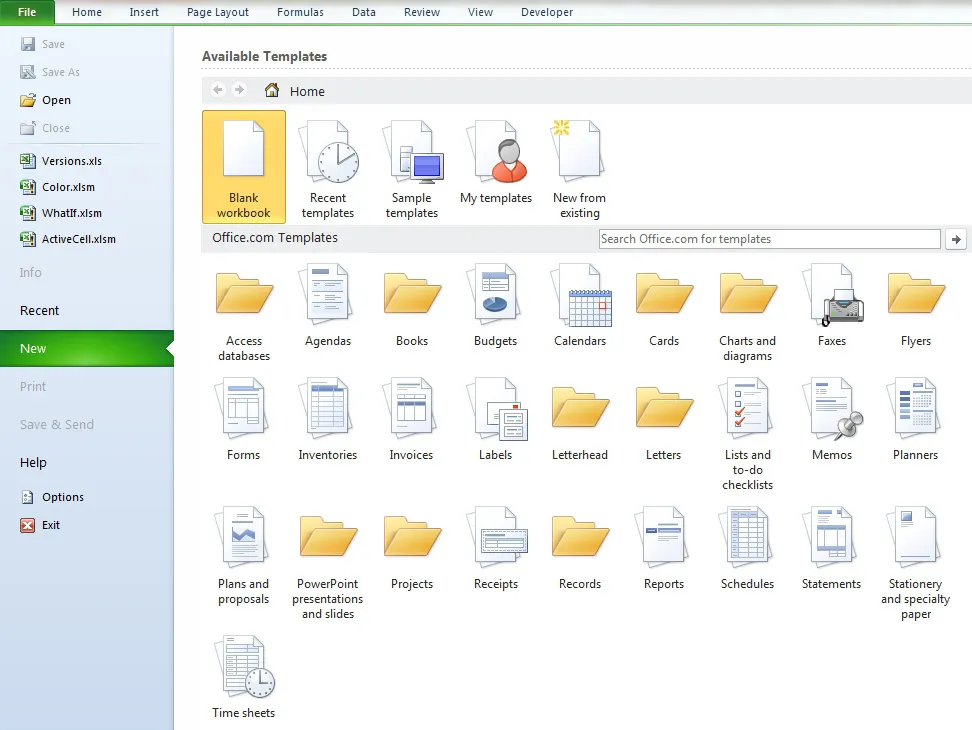
Figure 2 The templates on this opening screen are the tip of an iceberg.
There are free templates available. Use the Search Office Online box. Type: Personal Finance. You have these free choices available:
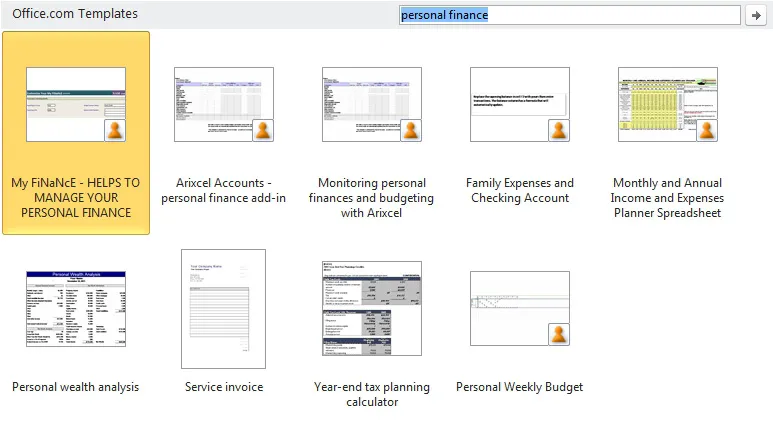
Figure 3 Personal finance? How about check registers, monthly budgets, tax planning, all for free.
Try typing anything in the box. I’ve found NCAA Brackets. I tried Menu and found a variety of grocery planners, dinner party planners, and more.
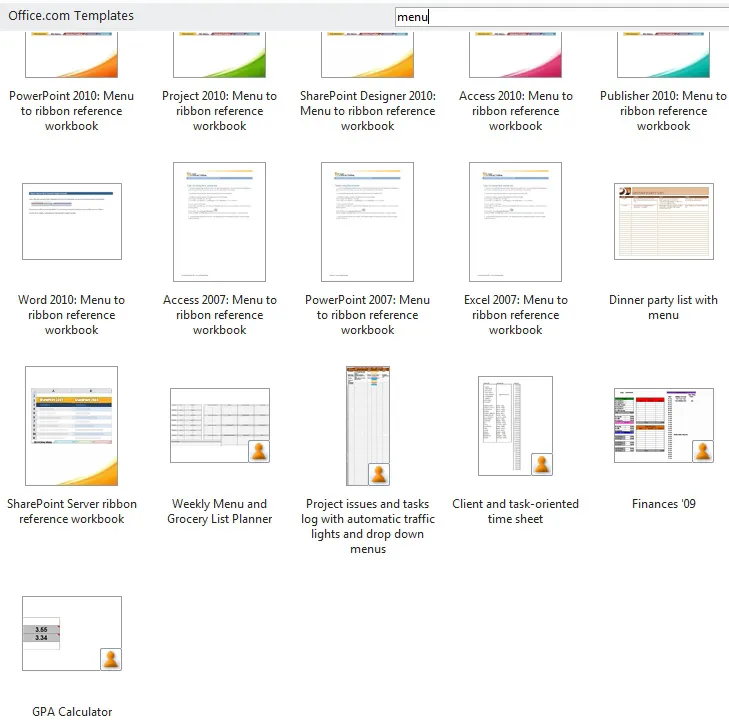
Figure 4 Menu planners, grocery lists, dinner parties.
What Is th...
Table of contents
- Don’t Fear the Spreadsheet
- About the Authors
- Dedication
- Acknowledgments
- Foreword
- Introduction
- Chapter 1 - Excel Basics
- Chapter 2 - Formatting
- Chapter 3 - Formulas I
- Chapter 3 - More Advanced Topics
- Chapter 4 - Charts
- CHapter 5 - Formulas II
- Chapter 6 - Other Applications
- CHapter 7 - Every Way To
- Chapter 8 - Data Analysis Intro
- Chapter 9 - Formulas III
- Chapter 10 - Other Resources
- Quick Reference
- Excel Aptitude Test
- To Learn More
Trusted by 375,005 students
Access to over 1.5 million titles for a fair monthly price.
Study more efficiently using our study tools.
Frequently asked questions
Yes, you can cancel anytime from the Subscription tab in your account settings on the Perlego website. Your subscription will stay active until the end of your current billing period. Learn how to cancel your subscription
No, books cannot be downloaded as external files, such as PDFs, for use outside of Perlego. However, you can download books within the Perlego app for offline reading on mobile or tablet. Learn how to download books offline
Perlego offers two plans: Essential and Complete
- Essential is ideal for learners and professionals who enjoy exploring a wide range of subjects. Access the Essential Library with 800,000+ trusted titles and best-sellers across business, personal growth, and the humanities. Includes unlimited reading time and Standard Read Aloud voice.
- Complete: Perfect for advanced learners and researchers needing full, unrestricted access. Unlock 1.5M+ books across hundreds of subjects, including academic and specialized titles. The Complete Plan also includes advanced features like Premium Read Aloud and Research Assistant.
We are an online textbook subscription service, where you can get access to an entire online library for less than the price of a single book per month. With over 1.5 million books across 990+ topics, we’ve got you covered! Learn about our mission
Look out for the read-aloud symbol on your next book to see if you can listen to it. The read-aloud tool reads text aloud for you, highlighting the text as it is being read. You can pause it, speed it up and slow it down. Learn more about Read Aloud
Yes! You can use the Perlego app on both iOS and Android devices to read anytime, anywhere — even offline. Perfect for commutes or when you’re on the go.
Please note we cannot support devices running on iOS 13 and Android 7 or earlier. Learn more about using the app
Please note we cannot support devices running on iOS 13 and Android 7 or earlier. Learn more about using the app
Yes, you can access Don't Fear the Spreadsheet by Tyler Nash,Bill Jelen,Kevin Jones,Tom Urtis in PDF and/or ePUB format, as well as other popular books in Computer Science & Desktop Applications. We have over 1.5 million books available in our catalogue for you to explore.