Designed with the Excel guru in mind, this handbook introduces advanced and creative solutions, and hacks to the software's most challenging problems. Through a series of more than 50 techniques, tables, formulas, and charts, this guide details processes that may be used in any Excel application, across all disciplines. Creative approaches for building formulas within formulas, pivot tables, conditional formatting, and mastering array formulas are just some of the numerous challenges explained. Other higher level solutions discussed include using VBA macro code to override cell calculations, solve for sums from a text string, and trimming and cleaning all cells on a worksheet. This is the all-encompassing resource for advanced users of Excel wanting to learn more techniques to broaden and empower their use of Excel.
- 256 pages
- English
- ePUB (mobile friendly)
- Available on iOS & Android
eBook - ePub
About this book
Information
Chapter 1 - Techniques
1-A Dilemma with Relative References
Figure 1 and Figure 2 show a simple worksheet normally and with formulas showing:
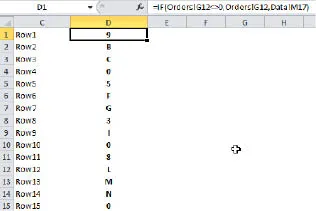
Figure 1
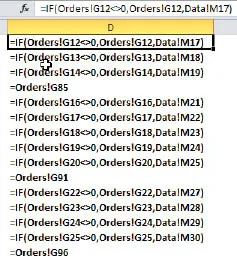
Figure 2
Assume this goes on for hundreds of rows.
Also assume you discovered that most of the formulas are wrong – you really wanted those cells which refer to Data to be 3 rows down. That is, in cell D1 you wanted the reference to be to cell M20, not M17. How can you fix it? There’s nothing to replace – replacing 17 with 20 certainly won’t help. You can’t fix the first one and fill down because of the cells which are not of a like formula – for example, filling down would destroy the formula in cell D4. Figure 3 is what you want, how can you get there?
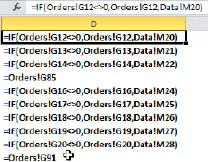
Figure 3
The answer (well, one answer, anyway) is to switch to R1C1 format. Yes, it actually does have a really good use! It’s done here in the File menu, Options.
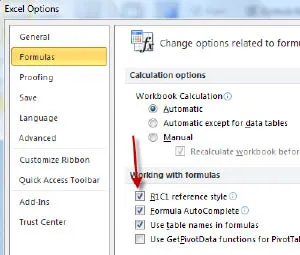
Figure 4
How does that help? Look at the underlying formulas here:
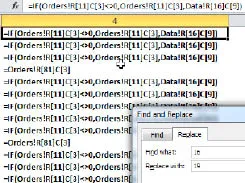
Figure 5
See those [16]’s? All you need to do is change them to [19]’s, with the result shown below:
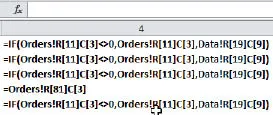
Figure 6
When you switch back to A1 notation (uncheck R1C1) you have this:
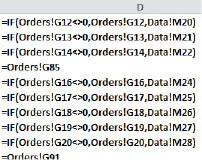
Figure 7
And you’re done! But wait – here’s an entirely different approach which also works well. First, create a new sheet, say that’s Sheet4. It will remain empty for this process, but will serve an important function as you will soon see. Change the above formulas by changing the reference from Data to Sheet4, as seen here:
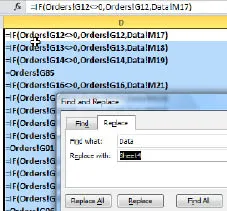
Figure 8
And afterwards as you see here:
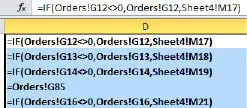
Figure 9
Now go to Sheet4, select cells M1:M3, Insert cells (Home tab), shifting down:
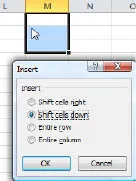
Figure 10
Return to the main sheet and look at the formulas:
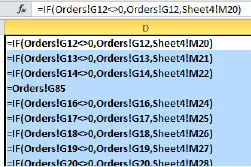
Figure 11
Now change Sheet4 back to Data and you’re done:
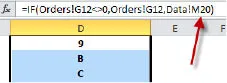
Figure 12
2-Build a Formula with a Formula
Look ...
Table of contents
- Introduction
- Chapter 1 - Techniques
- Chapter 2 - Pivot Tables
- Chapter 4 - Formulas
- Chapter 5 - Array Formulas
- Chapter 6 - Charts
- Chapter 7 - VBA
- Chapter 8 - Miscellaneous
Trusted by 375,005 students
Access to over 1.5 million titles for a fair monthly price.
Study more efficiently using our study tools.
Frequently asked questions
Yes, you can cancel anytime from the Subscription tab in your account settings on the Perlego website. Your subscription will stay active until the end of your current billing period. Learn how to cancel your subscription
No, books cannot be downloaded as external files, such as PDFs, for use outside of Perlego. However, you can download books within the Perlego app for offline reading on mobile or tablet. Learn how to download books offline
Perlego offers two plans: Essential and Complete
- Essential is ideal for learners and professionals who enjoy exploring a wide range of subjects. Access the Essential Library with 800,000+ trusted titles and best-sellers across business, personal growth, and the humanities. Includes unlimited reading time and Standard Read Aloud voice.
- Complete: Perfect for advanced learners and researchers needing full, unrestricted access. Unlock 1.5M+ books across hundreds of subjects, including academic and specialized titles. The Complete Plan also includes advanced features like Premium Read Aloud and Research Assistant.
We are an online textbook subscription service, where you can get access to an entire online library for less than the price of a single book per month. With over 1.5 million books across 990+ topics, we’ve got you covered! Learn about our mission
Look out for the read-aloud symbol on your next book to see if you can listen to it. The read-aloud tool reads text aloud for you, highlighting the text as it is being read. You can pause it, speed it up and slow it down. Learn more about Read Aloud
Yes! You can use the Perlego app on both iOS and Android devices to read anytime, anywhere — even offline. Perfect for commutes or when you’re on the go.
Please note we cannot support devices running on iOS 13 and Android 7 or earlier. Learn more about using the app
Please note we cannot support devices running on iOS 13 and Android 7 or earlier. Learn more about using the app
Yes, you can access Excel Outside the Box by Bob Umlas in PDF and/or ePUB format, as well as other popular books in Computer Science & Desktop Applications. We have over 1.5 million books available in our catalogue for you to explore.