eBook - ePub
Office VBA Macros You Can Use Today
Over 100 Amazing Ways to Automate Word, Excel, PowerPoint, Outlook, and Access
- 425 pages
- English
- ePUB (mobile friendly)
- Available on iOS & Android
eBook - ePub
Office VBA Macros You Can Use Today
Over 100 Amazing Ways to Automate Word, Excel, PowerPoint, Outlook, and Access
About this book
For any Microsoft Office user familiar with Word, Excel, PowerPoint, Access, or Outlook, this book provides tutorials on the tools and tricks that automate these programs for increased productivity. Each lesson includes instructions and a downloadable file on which to test the VBA macros and procedures provided. Tasks covered include how to run several mail merges at once, removing duplicates from data, and saving email attachments.
Information
Word Procedures
Applying Your Favorite Bullet/Number Format
This procedure demonstrates how to record a macro to quickly apply a favorite number format and to assign the macro to a toolbar button.
Scenario: To change the default numbering or bullets applied when clicking the numbering or bullets buttons on the Formatting toolbar requires a macro. Word offers no direct way to do this.
Example file:
There is no sample macro for this solution, because it is one based on individual preferences.
There is no sample macro for this solution, because it is one based on individual preferences.
Don’t be afraid to create this macro yourself! It is very easy to do. Once you determine the desired settings, you simply record the steps using the macro recorder. This is one of the few macros that IS easier and better to record than to write from scratch.
Follow these steps:
- 1.First, decide exactly how the numbering (or list, to use Word jargon) should look. Practice setting the options in Format | Bullets and Numbering | [type of list wanted] | Customize until the steps are familiar.
- 2.Start the macro recorder using Tools | Macro | Record new macro or by double-clicking the REC button in the Word window status bar.
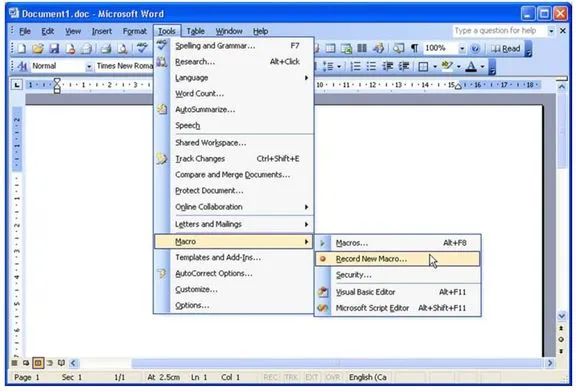
Figure 44 – Recording a Macro in Word
- 3.In the dialog box that appears, give the macro a descriptive name.
Tip:
Macro names cannot contain spaces or punctuation and cannot begin with a number.
- 4.Type a detailed description about what the macro does. Select an appropriate place to save the macro so that it will be available all the time. Normal.dot or another global template is a good place. If it is needed only in a particular document, choose that document from the Store macro in list. For a set of documents created from a particular template, choose that template from the list.
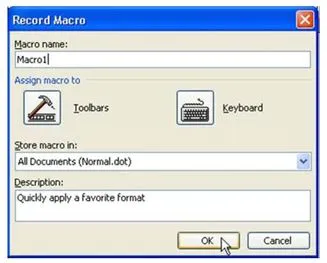
Figure 45 – Naming and Storing a Macro in Word
- 5.Once you click OK in the Customize dialog box, the macro recording begins. Go to Format | Bullets and Numbering and follow the steps required to create the preferred numbering format.
- 6.When you have finished making the settings and dismissed the Bullets and Numbering dialog box, stop the macro recorder by clicking the Stop button on the Stop recording toolbar, by double-clicking the REC button on the status bar, or by using the Tools | Macro | Stop Recording command.
- 7.Test the macro by selecting some paragraphs, then clicking on the new button.
Tip:
If you make a mistake, simply start over. The macro recorder will overwrite the first macro if you give it the same name.
In order to view the macro, open the New Macros module in the project where the macro was created.
View the Appendix to learn how to open the VBE and locate the NewMacros module.
The macro recorder generates code for formatting all nine outline numbering levels, even if changes are only made to the settings for a few of the top levels.
Finding and Replacing in Multiple Documents
This procedure demonstrates how to use common Office dialogs and how to loop Find through all parts of a document.
Scenario: The macro recorder is useful, but when the result is played back, the behavior does not always correspond to what happens in the user interface. One excellent example of this is recording Edit | Find or Edit | Replace. In the user interface, Find and Replace processes the entire document, including headers, footers, footnotes and drawing objects. It is rather a nasty surprise to find out that the recorded macro only works in the current “document story”; that is, the main body OR the header, OR the footer, OR the drawing objects.
The macro recorder also cannot record looping through and processing all the files in a selected folder.
Example file:
W002_1.doc and
W002_2.doc
W002_1.doc and
W002_2.doc
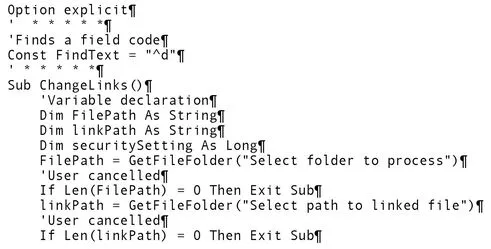
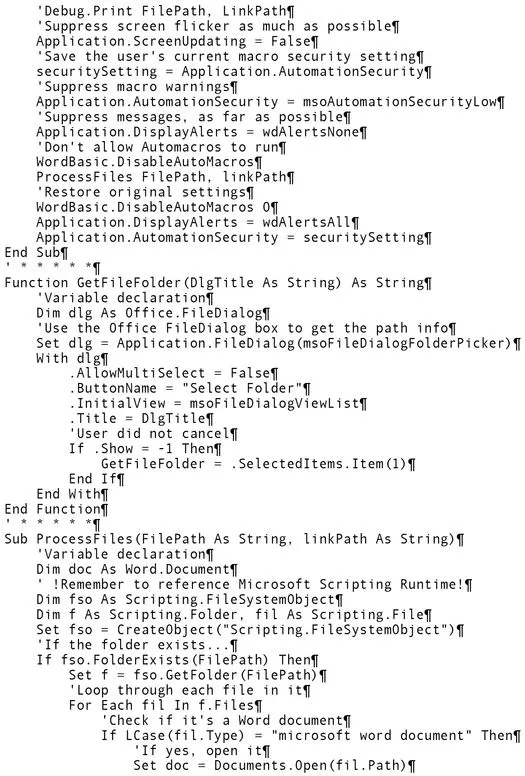
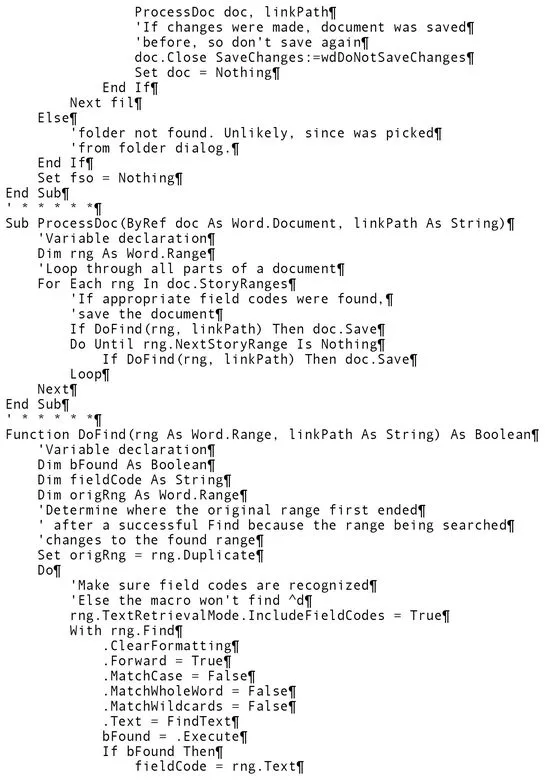
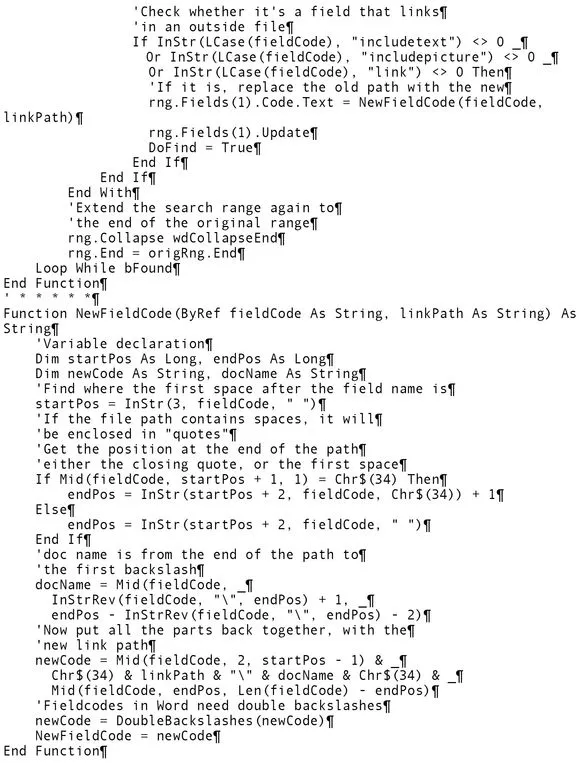
This macro combines these two tasks. It loops through all Word files in the folder selected from the dialog box, opens each one in turn, searches for fields that link to outside files, and changes the file path. This approach can be adapted to find other things, such as the need to replace a company logo or to take a desired action.
View the Appendix to learn how to store this procedure in a Standard module.
...
Table of contents
- Title Page
- Copyright Page
- Table of Contents
- Foreword
- About the Authors and Contributors
- Introduction
- How to Use This Book
- Introducing the Visual Basic Editor
- Excel Procedures
- Word Procedures
- Outlook Procedures
- PowerPoint Procedures
- Access Procedures
- Combined Procedures
- Appendix A
- Appendix B
- HOLY MACRO! BOOKS QUICK ORDER FORM
Trusted by 375,005 students
Access to over 1.5 million titles for a fair monthly price.
Study more efficiently using our study tools.
Frequently asked questions
Yes, you can cancel anytime from the Subscription tab in your account settings on the Perlego website. Your subscription will stay active until the end of your current billing period. Learn how to cancel your subscription
No, books cannot be downloaded as external files, such as PDFs, for use outside of Perlego. However, you can download books within the Perlego app for offline reading on mobile or tablet. Learn how to download books offline
Perlego offers two plans: Essential and Complete
- Essential is ideal for learners and professionals who enjoy exploring a wide range of subjects. Access the Essential Library with 800,000+ trusted titles and best-sellers across business, personal growth, and the humanities. Includes unlimited reading time and Standard Read Aloud voice.
- Complete: Perfect for advanced learners and researchers needing full, unrestricted access. Unlock 1.5M+ books across hundreds of subjects, including academic and specialized titles. The Complete Plan also includes advanced features like Premium Read Aloud and Research Assistant.
We are an online textbook subscription service, where you can get access to an entire online library for less than the price of a single book per month. With over 1.5 million books across 990+ topics, we’ve got you covered! Learn about our mission
Look out for the read-aloud symbol on your next book to see if you can listen to it. The read-aloud tool reads text aloud for you, highlighting the text as it is being read. You can pause it, speed it up and slow it down. Learn more about Read Aloud
Yes! You can use the Perlego app on both iOS and Android devices to read anytime, anywhere — even offline. Perfect for commutes or when you’re on the go.
Please note we cannot support devices running on iOS 13 and Android 7 or earlier. Learn more about using the app
Please note we cannot support devices running on iOS 13 and Android 7 or earlier. Learn more about using the app
Yes, you can access Office VBA Macros You Can Use Today by Juan Pablo González,Cindy Meister,Suat Ozgur,Bill Dilworth,Anne Troy,T J Brandt in PDF and/or ePUB format, as well as other popular books in Computer Science & Artificial Intelligence (AI) & Semantics. We have over 1.5 million books available in our catalogue for you to explore.