
eBook - ePub
Slaying Excel Dragons
A Beginners Guide to Conquering Excel's Frustrations and Making Excel Fun
- 532 pages
- English
- ePUB (mobile friendly)
- Available on iOS & Android
eBook - ePub
Slaying Excel Dragons
A Beginners Guide to Conquering Excel's Frustrations and Making Excel Fun
About this book
This enthusiastic introduction provides support for Excel beginners and focuses on using the program immediately for maximum efficiency. With 1,104 screenshots and explicit information on everything from rows, columns, and cells to subtotaling, sorting, and pivot tables, this guide aims to alleviate the frustrations that come with using the program for the first time. This manual offers strategies for avoiding problems and streamlining efficiency and assists readers from start to finish, turning Excel 2010 novices into experts.
Information
5
Formulas and Functions
So far in this book, we have created a few formulas; for example, to add with one condition, to calculate the number of days an invoice is overdue, and even to calculate the number hours worked. In this chapter, you’ll learn more about formulas and functions. The discussion here of all the different aspects of formulas will empower you to accomplish any calculating or data analysis goal you set. In particular, this rather long chapter covers the following topics:
- Formulas defined
- Types of formulas
- Creating formulas
- Formula elements
- Order of operations
- Three ways to put a cell reference into a formula
- Cell references
- Formula input setup (assumption tables)
- Five ways to enter formulas
- Efficient formulas that use ranges
- Built-in functions
- Defined names
Formulas Defined
What is a formula? Formulas do things for us such as add numbers, calculate the number of hours worked, look up a product price, create a label for a report, or tell us whether two accounts are in balance (examples of all coming up later). Those are things that formulas can do, but let’s get more specific about what makes a formula a formula by considering the following:
- Types of formulas
- Creating formulas
- Formula elements (what can go into a formula)
Five Types of Formulas
In general, we can create five types of formulas:
- Calculating formulas that calculate a number answer (like adding)
- Lookup formulas that look up an item in a table (like looking up a tax rate or customer phone number).
- Text formulas that deliver a word to a cell or create labels for reports (like an income statement label).
- Logical formulas that give you a logical value, either TRUE or FALSE (like formulas that say whether two accounts are in balance)
- Array formulas are advanced formulas that act on arrays (ranges) instead of individual cell references.
Creating Formulas
When creating formulas, you must follow these guidelines:
- Most of the time, you put formulas in cells. But you can also build a formula in the Name Manager – New Name dialog box or the Conditional Formatting dialog box (examples later).
- You must enter an equal sign as the first character in the cell (or dialog box) to signal to Excel that what you are creating is a formula and not simply typing a number or word.
- If you have a space before the equal sign, the formula won’t calculate.
- If a cell is preformatted with the Text number formatting, the formula will not calculate.
- Formulas deliver a single item to a cell (or dialog box), such as a number, word, or logical value. Here we are referring to nonarray formulas; later we will discuss how array formulas can act on more than a single item.
Formula Elements
Here is a list of the different sorts of things that we can put into formulas:
- Equal sign (starts all formulas)
- Cell references (also defined names, sheet references, workbook references)
- Math operators (plus, subtract, multiply, and so on)
- Numbers (if the number will not change; for example, 12 months, 24 hours)
- Built-in functions (AVERAGE, SUM, COUNTIF, DOLLAR, PMT, and so forth)
- Comparative operators (=, >, >=, <, <=, <>)
- The ampersand join symbol (&) (Shift + 7)
- Text within quotation marks (for example, “For the Month Ended”)
- Array constants (for example, {1,2,3})
In this section, we take a look at 10 examples that will help to illustrate how to use the previously mentioned formula elements.
In our first example, we look at the equal sign and see how it must always be the first character in a cell in order for a formula to calculate correctly.
To follow along, open the file named excelisfun-Start.xlsm and navigate to the Formula(1) sheet.
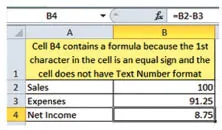
Figure 276
This is a formula because the first character in the cell is an equal sign and the cell does not have Text...
Table of contents
- Table of Contents
- Foreword
- Introduction
- How to Use This Book
- Working Along With This Book
- How Excel Is Set Up
- Keyboard Shortcuts
- Data in Excel
- Style Formatting and Page Setup
- Formulas and Functions
- Data Analysis Features
- Charts
- Conditional Formatting
- Find and Replace and Go To Features
- Excel Efficiency-Robust Rules
- Index
Trusted by 375,005 students
Access to over 1.5 million titles for a fair monthly price.
Study more efficiently using our study tools.
Frequently asked questions
Yes, you can cancel anytime from the Subscription tab in your account settings on the Perlego website. Your subscription will stay active until the end of your current billing period. Learn how to cancel your subscription
No, books cannot be downloaded as external files, such as PDFs, for use outside of Perlego. However, you can download books within the Perlego app for offline reading on mobile or tablet. Learn how to download books offline
Perlego offers two plans: Essential and Complete
- Essential is ideal for learners and professionals who enjoy exploring a wide range of subjects. Access the Essential Library with 800,000+ trusted titles and best-sellers across business, personal growth, and the humanities. Includes unlimited reading time and Standard Read Aloud voice.
- Complete: Perfect for advanced learners and researchers needing full, unrestricted access. Unlock 1.5M+ books across hundreds of subjects, including academic and specialized titles. The Complete Plan also includes advanced features like Premium Read Aloud and Research Assistant.
We are an online textbook subscription service, where you can get access to an entire online library for less than the price of a single book per month. With over 1.5 million books across 990+ topics, we’ve got you covered! Learn about our mission
Look out for the read-aloud symbol on your next book to see if you can listen to it. The read-aloud tool reads text aloud for you, highlighting the text as it is being read. You can pause it, speed it up and slow it down. Learn more about Read Aloud
Yes! You can use the Perlego app on both iOS and Android devices to read anytime, anywhere — even offline. Perfect for commutes or when you’re on the go.
Please note we cannot support devices running on iOS 13 and Android 7 or earlier. Learn more about using the app
Please note we cannot support devices running on iOS 13 and Android 7 or earlier. Learn more about using the app
Yes, you can access Slaying Excel Dragons by Mike ExcelisFun Girvin in PDF and/or ePUB format, as well as other popular books in Computer Science & Desktop Applications. We have over 1.5 million books available in our catalogue for you to explore.