- 836 pages
- English
- ePUB (mobile friendly)
- Available on iOS & Android
eBook - ePub
About this book
Containing 277 business case studies that illustrate nearly every aspect of Excel, this book presents real-life business problems and works them through to their solutions. In addition to exemplary solutions, each case analysis considers alternate approaches and gotchas, and includes a summary of the necessary commands and functions. Excel files that can be downloaded and worked through step-by-step are included for each case.
Information
PART 1
THE EXCEL ENVIRONMENT
dp n="25" folio="" ? dp n="26" folio="3" ?SHOW FULL MENUS ALL THE TIME
Problem: You are trying to learn Excel. Microsoft only shows you the most common menu choices under each menu.
Fig. 1 shows a menu from one computer on my desk.
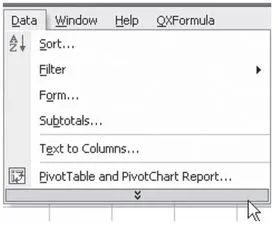
Fig. 1
Fig. 2 is a screenshot from another computer on my desk.
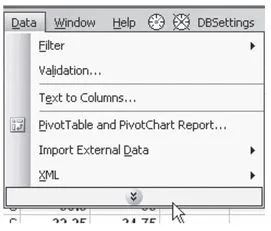
Fig. 2
A screenshot of the data menu of the third computer on my desk is seen here in Fig. 3.
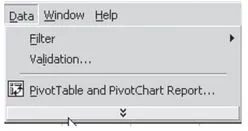
Fig. 3
This is maddening. How can you learn that there is a Sort option under the Data menu if Excel will not show you all of the options? Furthermore, Microsoft customizes the menu on the basis of items you use regularly.
First, this is insane; you cannot learn to regularly use something if you don’t know it is there. Second, when you go to a new computer, one of the options that you think should be there may not show up. It is very difficult to learn Excel when the menus are not consistent across computers.
Strategy: Turn off Adaptive Menus. This will show you the complete menu every time that you access that menu. Follow these steps:
- Go to the Tools menu, as shown in Fig. 4.
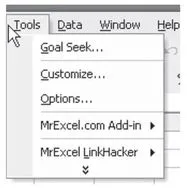 Fig. 4
 - If the Customize option is not shown, select the double-down arrow at the bottom of the list in order to expand the menu.
- Select Customize… from the Tools menu, as shown in Fig. 5.
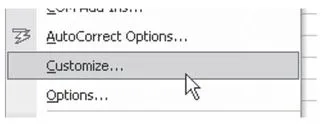 Fig. 5
 - As you will see in Fig. 6, there are three tabs across the top of the Customize dialog. Choose the Options tab and then choose the box for Always Show Full Menus.
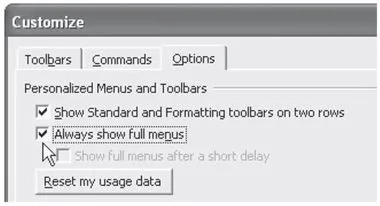 Fig. 6
Additional Details: If you are in the process of learning Excel, it also helps to choose the Show Standard and Formatting Toolbars on Two Rows option. This will enable you to see all of the icons on the important Standard and Formatting toolbars. In Excel 2000, this setting appears as Standard and Formatting Toolbars Share One Row. In that version, you will want to uncheck the option.
Gotcha: Changing this setting in Excel will also affect Word and other Office products. There is no way to have Excel show full menus while Word shows the abbreviated menus.
Summary: While learning Excel, use the Tools – Customize feature to show the complete list of commands on each menu.
Commands Discussed: Tools – Customize
SHOW FULL TOOLBARS ALL THE TIME
Problem: You are trying to learn Excel. By default, Microsoft only shows you the most common menu choices from Excel’s two most important toolbars: Standard and Formatting.
The Standard toolbar has icons for a New Workbook, Saving, Printing, Print Preview, Spell Check, Cut, Copy, Paste, Undo, and Redo. These are all fairly important items.
The Formatting toolbar has icons for Font, Font Size, Bold, Italic, Underline, Left Align, Center, Right Align, Number, Bullets, Indent, Out-dent, Borders, Cell Color, and Font Color. These are also all fairly important items.
The complete Standard toolbar can be seen here in Fig. 7. Note that my toolbar has some extra icons from various add-ins that I use.

Fig. 7
Although this is the complete toolbar, most default installations will only show a subset of the icons on the toolbar. An example of the abbreviated toolbar follows in Fig. 8.

Fig. 8
In order to use any of the other icons on the Standard toolbar, you have to choose the double-right arrow on the toolbar, as shown in Fig. 9.
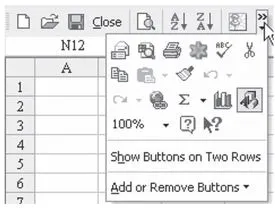
Fig. 9
The complete Formatting toolbar follows in Fig. 10.

Fig. 10
Most users with a default installation will only see a portion of these icons and will have to use ...
Table of contents
- Title Page
- Copyright Page
- Table of Contents
- ABOUT THE AUTHOR
- ACKNOWLEDGMENTS
- DEDICATION
- FOREWORD
- PART 1 - THE EXCEL ENVIRONMENT
- PART 2 - CALCULATING WITH EXCEL
- PART 3 - WRANGLING DATA
- PART 4 - MAKING THINGS LOOK GOOD
- AFTERWORD
Trusted by 375,005 students
Access to over 1.5 million titles for a fair monthly price.
Study more efficiently using our study tools.
Frequently asked questions
Yes, you can cancel anytime from the Subscription tab in your account settings on the Perlego website. Your subscription will stay active until the end of your current billing period. Learn how to cancel your subscription
No, books cannot be downloaded as external files, such as PDFs, for use outside of Perlego. However, you can download books within the Perlego app for offline reading on mobile or tablet. Learn how to download books offline
Perlego offers two plans: Essential and Complete
- Essential is ideal for learners and professionals who enjoy exploring a wide range of subjects. Access the Essential Library with 800,000+ trusted titles and best-sellers across business, personal growth, and the humanities. Includes unlimited reading time and Standard Read Aloud voice.
- Complete: Perfect for advanced learners and researchers needing full, unrestricted access. Unlock 1.5M+ books across hundreds of subjects, including academic and specialized titles. The Complete Plan also includes advanced features like Premium Read Aloud and Research Assistant.
We are an online textbook subscription service, where you can get access to an entire online library for less than the price of a single book per month. With over 1.5 million books across 990+ topics, we’ve got you covered! Learn about our mission
Look out for the read-aloud symbol on your next book to see if you can listen to it. The read-aloud tool reads text aloud for you, highlighting the text as it is being read. You can pause it, speed it up and slow it down. Learn more about Read Aloud
Yes! You can use the Perlego app on both iOS and Android devices to read anytime, anywhere — even offline. Perfect for commutes or when you’re on the go.
Please note we cannot support devices running on iOS 13 and Android 7 or earlier. Learn more about using the app
Please note we cannot support devices running on iOS 13 and Android 7 or earlier. Learn more about using the app
Yes, you can access Learn Excel from Mr. Excel by Bill Jelen in PDF and/or ePUB format, as well as other popular books in Computer Science & Desktop Applications. We have over 1.5 million books available in our catalogue for you to explore.