
- 150 pages
- English
- ePUB (mobile friendly)
- Available on iOS & Android
eBook - ePub
Excel for Marketing Managers
About this book
The most powerful Microsoft Excel features that can be used to sort through data to produce meaningful marketing analyses are outlined in this manual. Marketing managers will learn the math functions to produce budgets and forecasts, and how to use survey analysis to quickly spot trends using pivot tables and other analysis tools. Ideas for launch schedules, life cycle management, and other date-related information are also presented.
Information
Disciplining Data
Developing marketing strategy is, by far, the most exhilarating and fun part of the marketing process. Absolutely nothing can beat the exhilaration of identifying that window of opportunity or niche that has been virtually ignored by the rest of the market. When you finally hit on an opportunity – isn’t it amazing how obvious it is?! Yet, no one has found it but you. How wonderful it would be if this were an expected part of the process and not just an unexpected magical “A-ha” moment!
Excel is the tool that you have at your disposal to turn “A-ha” moments into a standard by-product of your process. To do that, you’ll have to mine some data. There’s only one problem with that….data mining is much easier said than done.
More often than not, your data will simply NOT be ready to work with because it just doesn’t look the way you need it to. For example, customer names won’t be entered the same way, so when you want to create a table that calculates sales by industry or market segment, you’ll get fifteen listings for the same customer name – that appear as different records because someone used a dash instead of a comma; names will be in one field when you want them in two, or names will be in two fields when you need them to be in one.
All of these are frustrating and potentially time consuming – but no more. RELAX. Excel has your back with some simple and quick ways to get your data looking the way you want it.
Importing Data
Before you get to DO anything with data, you first need to GET the data.
Here’s the Situation
Many times, someone will provide data in a text format other than Excel. How can you accurately load this data into Excel so that you can do further data analysis?
Here’s What to Do
There are two basic styles of text files. Each style requires a different path through the Text to Columns Wizard.
In the first style, text files might have a comma or some other delimiter between each field, as shown in Figure 99. I’ve seen files delimited by commas, semi-colons, tabs, and pipe characters.
Figure 99
Commadelimited file
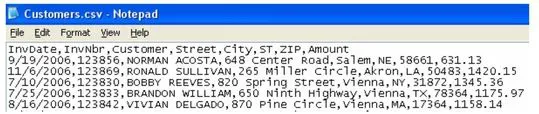
In the second style, the file will have fields that are neatly lined up when displayed in a fixed width font such as Courier New.
Figure 100
Fixed width file
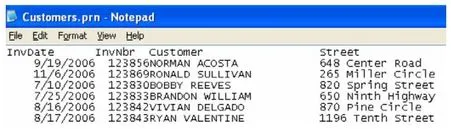
Each style requires a different path through the Text To Columns wizard.
- Take a look at the file in Notepad to determine if the file is delimited or fixed width.
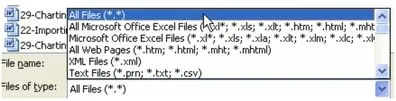
- From the Excel menu, select File – Open. In the “Files of type” dropdown, select All Files so that you can browse for a TXT, CSV, or PRN data file.
Figure 101
Selecting the All Files (*.*) option
Text to Columns – Wizard Step 1
- Choose the file to open. When Excel realizes that you have a text file, Excel will launch into the Text To Columns wizard.
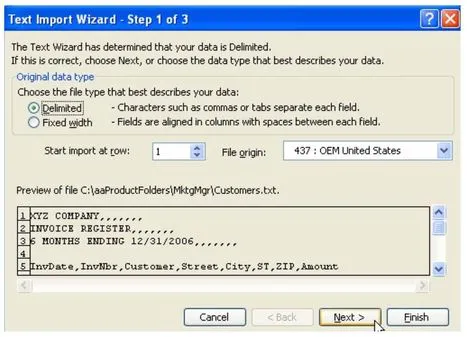
- In Step 1 of the wizard, you will choose whether your data is delimited like that in Figure 99, or if it is of fixed width like that in Figure 100.
- If you have commas or tabs or semi-colons in between each field, choose Delimited in Step 1.

- If you have data with fields neatly lined up in columns, choose Fixed Width in Step 1. Click Next.

Figure 102
Selecting file type in Step 1 of the wizard
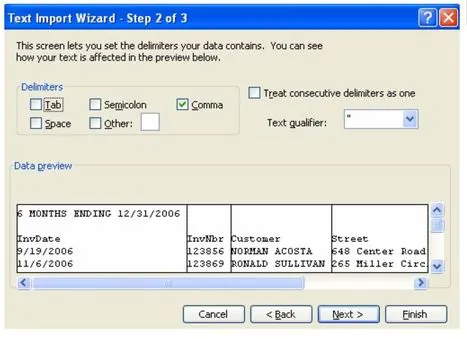
Wizard Step 2 for Delimited Files
Step 2 for Delimited is simple.
- 3. Choose a comma or whatever character your file is using to separate fields. If the file uses something other than tab, semicolon, comma, or spaces, you will have to choose the Other box and type the character.
Figure 103
Selecting comma as the delimiter for a comma-delimited file in Step 2 of the wizard
Wizard Step 2 for Fixed Width Files
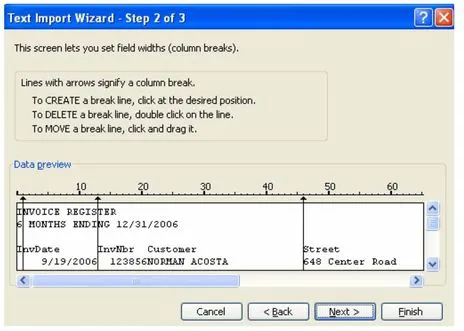
For fixed width, you will have to pay attention in Step 2 of the Wizard. Excel’s Intellisense attempts to draw lines between each field in the data preview area.
Figure 104
Checking lines drawn between fields in a fixed width file in Step 2 of the wizard
With some datasets, Excel can easily determine...
Table of contents
- Title Page
- Copyright Page
- Table of Contents
- Dedication
- Acknowledgements
- About the Authors
- What’s in This Book and What Isn’t?
- How to Use Excel to Become a Marketing Genius
- Excel-lent Beginnings
- Time-saving Tricks
- Formulas 101
- I’m the Marketing Manager – Now What?
- Compiling Your Survey Data
- Strategy Development
- Disciplining Data
- Competitive Analysis: Moving from Data to Information
- Building Your Case: Presenting and Reporting Your Data
- The Marketing Mix: Build an Irresistible Offering
- Trade Shows: Make the Most of them
- Measurement: Key to Market Management
- Not Really the End
- HOLY MACRO! BOOKS QUICK ORDER FORM
Trusted by 375,005 students
Access to over 1.5 million titles for a fair monthly price.
Study more efficiently using our study tools.
Frequently asked questions
Yes, you can cancel anytime from the Subscription tab in your account settings on the Perlego website. Your subscription will stay active until the end of your current billing period. Learn how to cancel your subscription
No, books cannot be downloaded as external files, such as PDFs, for use outside of Perlego. However, you can download books within the Perlego app for offline reading on mobile or tablet. Learn how to download books offline
Perlego offers two plans: Essential and Complete
- Essential is ideal for learners and professionals who enjoy exploring a wide range of subjects. Access the Essential Library with 800,000+ trusted titles and best-sellers across business, personal growth, and the humanities. Includes unlimited reading time and Standard Read Aloud voice.
- Complete: Perfect for advanced learners and researchers needing full, unrestricted access. Unlock 1.5M+ books across hundreds of subjects, including academic and specialized titles. The Complete Plan also includes advanced features like Premium Read Aloud and Research Assistant.
We are an online textbook subscription service, where you can get access to an entire online library for less than the price of a single book per month. With over 1.5 million books across 990+ topics, we’ve got you covered! Learn about our mission
Look out for the read-aloud symbol on your next book to see if you can listen to it. The read-aloud tool reads text aloud for you, highlighting the text as it is being read. You can pause it, speed it up and slow it down. Learn more about Read Aloud
Yes! You can use the Perlego app on both iOS and Android devices to read anytime, anywhere — even offline. Perfect for commutes or when you’re on the go.
Please note we cannot support devices running on iOS 13 and Android 7 or earlier. Learn more about using the app
Please note we cannot support devices running on iOS 13 and Android 7 or earlier. Learn more about using the app
Yes, you can access Excel for Marketing Managers by Ivana Taylor,Bill Jelen in PDF and/or ePUB format, as well as other popular books in Computer Science & Desktop Applications. We have over 1.5 million books available in our catalogue for you to explore.