- 299 pages
- English
- ePUB (mobile friendly)
- Available on iOS & Android
eBook - ePub
Power OneNote
About this book
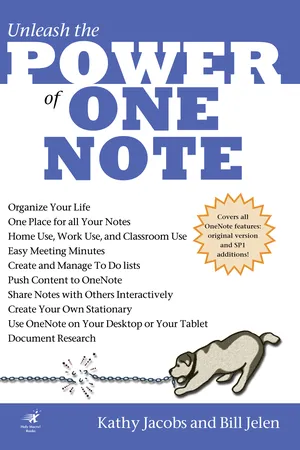
Covering the use of Microsoft OneNote in a wide variety of situations, this handbook provides tips for anyone who takes notes, organizes materials, or keeps a to-do list. In addition to providing the basic information on using the product's interface, this guide teaches how to use OneNote to do specific tasks such as brainstorming, mind mapping, storyboarding, and minutes taking. Also discussed are using OneNote on a Tablet PC, using the existing stationery files to organize notes for a wide variety of classes, and finding OneNote resources online.
Information
Chapter 1
What’s OneNote?
- The Obvious Uses

- The Not-So-Obvious Uses

- How did OneNote come to be?

- Where Does OneNote Store Things?

You’ve got OneNote. Now, you are wondering what you can do with it. Whether you bought it, are trying the trial version, or are just interested in learning more about the product, you have come to the right place to learn what you can do with it.
You know the official reasons for buying OneNote, the stuff from the box and Microsoft’s Web site. Instead of repeating all of that, this chapter is here to introduce you to all the things that OneNote can help you do.
THE OBVIOUS USES
Just from the name of the product, you have already guessed the number one use for OneNote: Putting all your notes in one place.
- A meeting attendee who needs to know what was said and who is going to take which action items
- A student who needs to take notes during class
- A writer who needs to organize thoughts for a piece
- A researcher who needs to track where source material came from
- A busy parent with a hefty to-do list who wants to keep the list at their fingertips
- A list maker who has a million scraps of paper with notes, lists, and numbers on them who wants to put it all in one place
What do all of these people have in common? OneNote can help them do better.
- For the meeting attendee, there are pre-designed note pages that have all the fields you need to take meeting minutes
- For the student, there are pre-designed note pages for different classes
- For the writer, there is built-in outlining functionality for organizing thoughts into articles, chapters, and books
- For the researcher, there is automatic annotation for information from the Web or other files
- For the busy parent, there are ordered lists of different types that can be manipulated to show what’s done, what’s hot, and what’s not
- For the list maker, there is a built-in hierarchy for information organization, as well as great search capabilities for finding just the note you need
All of these solutions rely on the basic capabilities of OneNote. I The built-in features that Microsoft knew you would want were provided as best they could. But that is only the beginning of what OneNote can do for you.
THE NOT-SO-OBVIOUS USES
Do design work? OneNote allows you to combine text and graphics on the same page; you can easily create rough sketches, annotate, and store them.
Create storyboards for presentations or videos? OneNote lets you create the basic storyboard content, move it around, add to it, remove items, and share it for review.
Create websites and pages? OneNote can act as your never-ending piece of paper to help you determine your basic layout. This is even easier than doing the design on paper. Because you can move elements anywhere on the page, changes become easy. Once you have the rough design done, you can even save your design as a Web file and bring it into your formal site creation environment.
Need to keep a kid occupied? OneNote can act like a giant, never filled drawing tablet or coloring book. Even better, any game you can play on paper can be created in OneNote. Use it on a Tablet PC or a Notebook, and you save resources and eliminate clean up.
Need to record a lecture or meeting? OneNote will let you record the sound and even the video while you continue to take notes. Even better, it will mark the multimedia files so that you can pull up what was being recorded while you were taking notes.
Listening to a piece of music you need to learn to play or sing? Record it with OneNote and you can add your own annotations to know what is going on in the piece. Need to create choreography for that piece? Listen to the piece and draw your dance movements as it plays.
HOW DID ONENOTE COME TO BE?
Before we go too far into how to do all these great and miraculous tricks with OneNote, let’s cover how OneNote came to be the tool you are using today.
NOTE
The information in this section is either summarizations or actual quotes of Chris Pratley’s Web blog. Chris is the Group Publishing Manager for Office Authoring Services. To you and me that means that he is the manager responsible for Microsoft’s Word, Publisher, and OneNote teams. Chris’s blog can be found on the Web at URL: http://weblogs.asp.net/chris_pratley/
In Chris’s January 30th blog entry, he discusses how OneNote got started: as an email exchange in November 2000 between Chris and Steven Sinofskey, the Senior VP for Office at Microsoft. The two discussed creating a new outlining tool that would allow Office users to more easily track information that “…was not yet a document.”
While Chris is a self-proclaimed non-outliner, the idea of meeting the need was very interesting to him. He started thinking about how to make work “drastically easier” for people who create unstructured notes, as well as those who were more used to a structured approach to information storage. To get a really great idea of what he ended up with, let’s read from the man himself:
Over the 2000-2001 holidays I thought about this more (not that I thought hard - it was more of a percolation). In January I blasted out a draft “vision” document to describe a new tool that would be what I would want to make my daily work life more effective. Of course it wasn’t just for work- it would be useful for all sorts of things. In fact when you break down work into its component parts, your non-work life or student life starts to be pretty similar: things to do, important stuff to remember, things to review, and a bunch of stuff you think you might need some day but can’t be sure. Not to mention phone numbers, passwords, frequent flyer numbers, people’s names and addresses, links, blah blah blah. Things that defy categorization (or do they?). The key insight I had at this point was that whatever this tool was, it had to let you capture the thought or piece of info as you had it without forcing you to deal with any software goo up front. To take a note in Outlook you had to find the place where you were allowed to take notes. But if it was a phone number, you were supposed to use Contacts, but you had to create a contact and name it before you could save the phone number. Post-its beat that hands down. This new tool, which I called “Scribbler” would be as close to electronic paper as we could get to make capturing information easy, but then have much more power than paper to help you deal with the stuff you put into it.
About this time the TabletPC was getting going, and that seemed like an interesting effort. It is always good when there is “synergy’ happening. New hardware that was sort of in the same space as the software I wanted to make would help. But realistically, it would take years for TabletPCs to take over the installed base even if they were a runaway hit, so with Scribbler I decided we should target desktop and laptops PCs, but be sure to be great on the tablet, where you’d have all the power of a laptop but also ink and pen UI. So we had to build a great keyboard app first and foremost.
During the product creation process, “Scribbler” was renamed as “OneNote.” Once the product was into the alpha testing stage, the team decided to offer it to some non-Microsoft employees in the Seattle area.
In February of 2004, Chris provided some historical information on the field trial of OneNote and how the trial impacted the development of the tool. The next couple of pages are Chris’s blog entry from February 4, 2003, “Field Trials.”
We built OneNote in relative secrecy during 2001-2002. Well, it wasn’t cloak and dagger stuff - we just didn’t make any effort to talk about it outside of Office - although rumours that Office was building some “TabletPC app” did spread to other parts of the company, a misconception which until recently was probably worse inside the company than outside, since we were able to communicate pretty clearly to the public the message we wanted to get across after we announced. The result of this lack of exposure was that we had become a little insular and no longer had a good perspective on the product as a whole - was it useful? Did it suck?
Although we kept the project secret, there was a select group of total outsiders whom we enlisted to burst our bubbles and give us raw real world feedback. Now, we had done usability tests on individual features, but we had not yet had the whole app up and functioning well enough to do real “dogfooding” - that is, living with the product and trying to do real work with it, rather than just test it or play with it. For that we wanted people in a variety of life situations - students, professionals - anyone who used a computer and tried to take notes or do research.
We recruited around 20 people in the Seattle area to become part of our “Field trial”. We narrowed down a pool of about a hundred people to a set of around 30 whom we thought would make good candidates based on their answers to our screening questions. We then approached these people personally to verify if they would be a good fit, and if they were, we invited them to join. Since we had 6 program managers on the team and I had decided about 3 participants per PM was a good ratio given the time investment we were going to make, we wanted 18 participants, with a few as backup in case some had to drop out. We got 20, and prepared the NDAs (non-disclosure agreements, whereby the participants agreed not to blab to others or the press about what they were doing for cheap glory). We had 6 students at the University of Washington, and the rest were spread across quite a spectrum, from a dean at the university, to a health care professional, to a writer, to a belly dancing instructor.
Although OneNote could barely stay up for a few minutes at a time, we already had very good file robustness, so people were not likely to lose any data even if they crashed. Always saving helps in that regard, as does a new file structure designed explicitly to prevent corruption and allow super-fast incremental saves. Although I am a huge XML fan, sometimes binary file formats just ARE better at some things. (Note: that doesn’t mean we won’t do XML in the future - you just gotta admit that XML isn’t always the best at everything)
We collected a bunch of tablets (mostly beta hardware and prototypes, since there were so few to go around in the fall of 2002 before they had launched) and gave out the machines with an “alpha” build of OneNote on them. We agreed with our participants that we would meet them for 2 hrs a week - one visit was to watch them in action doing whatever they do with the tablet and OneNote, and the other hour was an interview where we asked them to describe their experiences, what they liked and didn’t like, what they had discovered that week, etc. We also committed to be on call to save them if a disaster struck with their notes. We kept a tally of what featu...
Table of contents
- Title Page
- Copyright Page
- Dedication
- About the Author
- Acknowledgements
- Table of Contents
- Chapter 1 - What’s OneNote?
- Chapter 2 - The OneNote Interface
- Chapter 3 - Using OneNote with Your Tablet PC
- Chapter 4 - OneNote Audio and Video
- Chapter 5 - Side Notes
- Chapter 6 - Saving OneNote Content
- Chapter 7 - Sharing Notes
- Chapter 8 - Create Your Own Stationery
- Chapter 9 - Using OneNote with Outlook 2003
- Chapter 10 - To Do Lists in OneNote
- Chapter 11 - Using OneNote for Research
- Chapter 12 - Using OneNote with PowerPoint
- Chapter 13 - Using OneNote with Word
- Chapter 14 - Using OneNote with Excel
- Chapter 15 - OneNote in the Classroom
- Chapter 16 - Using OneNote at Home
- Chapter 17 - Using Office VBA to Programmatically Interact with OneNote
- Appendix A - Where to Get More Help
- Appendix B - Other OneNote Ideas
- Appendix C - One Note System Requirements and Dependencies
Trusted by 375,005 students
Access to over 1.5 million titles for a fair monthly price.
Study more efficiently using our study tools.
Frequently asked questions
Yes, you can cancel anytime from the Subscription tab in your account settings on the Perlego website. Your subscription will stay active until the end of your current billing period. Learn how to cancel your subscription
No, books cannot be downloaded as external files, such as PDFs, for use outside of Perlego. However, you can download books within the Perlego app for offline reading on mobile or tablet. Learn how to download books offline
Perlego offers two plans: Essential and Complete
- Essential is ideal for learners and professionals who enjoy exploring a wide range of subjects. Access the Essential Library with 800,000+ trusted titles and best-sellers across business, personal growth, and the humanities. Includes unlimited reading time and Standard Read Aloud voice.
- Complete: Perfect for advanced learners and researchers needing full, unrestricted access. Unlock 1.5M+ books across hundreds of subjects, including academic and specialized titles. The Complete Plan also includes advanced features like Premium Read Aloud and Research Assistant.
We are an online textbook subscription service, where you can get access to an entire online library for less than the price of a single book per month. With over 1.5 million books across 990+ topics, we’ve got you covered! Learn about our mission
Look out for the read-aloud symbol on your next book to see if you can listen to it. The read-aloud tool reads text aloud for you, highlighting the text as it is being read. You can pause it, speed it up and slow it down. Learn more about Read Aloud
Yes! You can use the Perlego app on both iOS and Android devices to read anytime, anywhere — even offline. Perfect for commutes or when you’re on the go.
Please note we cannot support devices running on iOS 13 and Android 7 or earlier. Learn more about using the app
Please note we cannot support devices running on iOS 13 and Android 7 or earlier. Learn more about using the app
Yes, you can access Power OneNote by Kathy Jacobs,Bill Jelen in PDF and/or ePUB format, as well as other popular books in Computer Science & Desktop Applications. We have over 1.5 million books available in our catalogue for you to explore.