- 247 pages
- English
- ePUB (mobile friendly)
- Available on iOS & Android
eBook - ePub
Excel for the CFO
About this book
Written specifically for finance managers,
Excel for the CFO explains the best features of Excel that allow for the automation of regular processes and help reduce the processing time spent on analytics. The book explores the entire gamut of finance-related functions and is focused on practical approaches to using Excel—including Pivot Tables, Goal Seek, Scenario Builder, and VBA—in problem solving to deliver quality results. Using case studies across all types of organizations to demonstrate the application of Excel-based automation, the scenarios covered include the automation of financial analysis models, the creation of income statement and balance sheet templates, converting numbers to words for check printing, and much more. Any finance executive who manages the company's business affairs and makes critical decisions by analyzing data would be directly benefitted by using the tips and techniques presented in this guide.
Information
1- Brushing Up on Excel 2010 Basics
Welcome aboard! This book is written based on actual experience using Excel 2010 for practical problem solving in the finance organization. The solutions and scenarios you will encounter here have been time tested and perfected. They will help jump-start your innovative thinking about new challenges that you encounter in your work.
Because this book is designed for finance professionals, it assumes that you are already aware of the fundamentals of Excel operations. However, you may be new to using Excel 2010 or find it handy to have a refresher, so this chapter provides a bit of guidance on the basics. (If you’re a power Excel user, you may want to take a quick glance through this chapter and then head for Chapter 2.)
Here’s what this chapter covers:
- • The parts of an Excel workbook
- • The ribbon in Excel 2010
- • The Backstage view
- • File-handling operations
- • Navigation and selection
- • Data editing and formatting
The Parts of an Excel Workbook
To make the best use of this book—and Excel 2010—you need to understand some basic terms and know the various parts of an Excel workbook. This section will re-familiarize you with Excel’s parts and terminology.
To begin, take a look at Figure 1, which shows the parts of a basic Excel workbook. The following sections examine each of the parts called out in this figure.
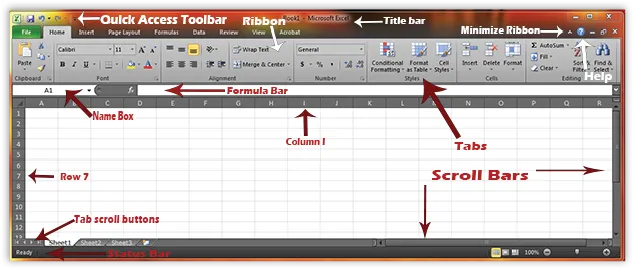
Figure 1 The parts of an Excel workbook
The Title Bar
The title bar shows the name of the active file (the file that is currently open) followed by the name of the application. For example, the title bar in Figure 1 says “Book1 - Microsoft Excel,” which indicates that Book1 is the active file and Excel is the application.
Note: Previous versions of Excel presented the information on the title bar in the opposite order: the application name followed by the name of the active file (for example, “Microsoft Excel – Book1”). What a simple, thoughtful change!
The Quick Access Toolbar
The Quick Access Toolbar is a customizable palette of the commands you use most often. By default, the Quick Access Toolbar has Save, Undo, and Redo buttons, but you can easily customize it. Here’s how you customize the Quick Access Toolbar:
1. Click the down arrow at the right end of the Quick Access Toolbar. A drop-down menu appears, showing some commonly used commands.
2. Select from the drop-down list those commands that you want to add to your Quick Access Toolbar. Deselect commands from this list to remove them from your Quick Access Toolbar.
3. To add to the Quick Access Toolbar commands that don’t appear in the drop-down menu, click More Commands. The Excel Options dialog appears, as shown below.
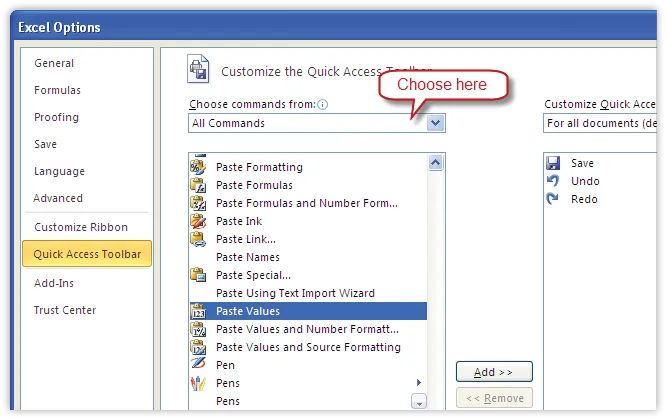
Figure 2 Customizing the Quick Access Toolbar
4. Select the Choose Commands From drop-down to see a huge variety of commands and macros.
5. If you see a command or macro you want to add to your Quick Access Toolbar, select it in the box under Choose Commands From and click Add. Excel adds it to the Customize Quick Access Toolbar list on the right.
Note: You can use the Customize Quick Access Toolbar drop-down on the right side of the Excel Options dialog to choose whether to apply your customizations to the current workbook only or to all documents.
6. When you’re done adding commands and macros to your Quick Access Toolbar, click OK to close the Excel Options dialog. Excel adds your choices to the Quick Access Toolbar.
Tip: Finance folks commonly add favorites such as Paste Values, Print Preview, Trace Precedents, and Trace Dependents to the Quick Access Toolbar. You can choose to add these or any other commands you use often.
The Ribbon
Office 2007 introduced the ribbon as a replacement for the traditional menu bar. Each of the tabs in the ribbon more or less replicates the earlier menu groups—but in a more orderly and comprehensive grouping. You’ll learn more details about the ribbon a little later in this chapter.
Tip: You can click the Minimize Ribbon button (or press Ctrl+F1) to temporarily hide the ribbon if you want to view a larger work area.
The Help Button
The Help button, as you might guess, takes you to a search box that offers you options of both online and offline Help topics. In Excel 2010, as in other Office applications, you can press the F1 key instead of clicking the Help button to bring up Help.
The Minimize, Maximize, and Close Buttons
There are two sets of minimize, maximize, and close buttons: one at the application level and another one at the worksheet level. You can use these buttons to minimize, maximize (or restore), and close Excel or the current worksheet.
Tip: Microsoft generally offers a few ways to approach a task. For example, instead of using your mouse to click the minimize, maximize, and close buttons, you can use the following keyboard shortcuts:
Ctrl+F9: Minimize the active file.
Ctrl+F10: Maximize/restore the active file.
Ctrl+W: Close the active file.
Alt+F4: Close Excel.
Rows and Columns
A worksheet is a collection ...
Table of contents
- 1- Brushing Up on Excel 2010 Basics
- 2- Data, Data Everywhere
- 3- Using Financial Functions
- 4- Getting to Know Pivot Tables
- 5- What’s in the Data Tab?
- 6- Building Business Models Using Excel
- 7- Using Excel’s Security and Audit Features
- 8- Common Issues and Uncommon Solutions
- 9- Using VBA with Excel
- 10- Excel Interoperability with Other Office Apps
- 11- Excel for the CFO: Case Studies
Trusted by 375,005 students
Access to over 1.5 million titles for a fair monthly price.
Study more efficiently using our study tools.
Frequently asked questions
Yes, you can cancel anytime from the Subscription tab in your account settings on the Perlego website. Your subscription will stay active until the end of your current billing period. Learn how to cancel your subscription
No, books cannot be downloaded as external files, such as PDFs, for use outside of Perlego. However, you can download books within the Perlego app for offline reading on mobile or tablet. Learn how to download books offline
Perlego offers two plans: Essential and Complete
- Essential is ideal for learners and professionals who enjoy exploring a wide range of subjects. Access the Essential Library with 800,000+ trusted titles and best-sellers across business, personal growth, and the humanities. Includes unlimited reading time and Standard Read Aloud voice.
- Complete: Perfect for advanced learners and researchers needing full, unrestricted access. Unlock 1.5M+ books across hundreds of subjects, including academic and specialized titles. The Complete Plan also includes advanced features like Premium Read Aloud and Research Assistant.
We are an online textbook subscription service, where you can get access to an entire online library for less than the price of a single book per month. With over 1.5 million books across 990+ topics, we’ve got you covered! Learn about our mission
Look out for the read-aloud symbol on your next book to see if you can listen to it. The read-aloud tool reads text aloud for you, highlighting the text as it is being read. You can pause it, speed it up and slow it down. Learn more about Read Aloud
Yes! You can use the Perlego app on both iOS and Android devices to read anytime, anywhere — even offline. Perfect for commutes or when you’re on the go.
Please note we cannot support devices running on iOS 13 and Android 7 or earlier. Learn more about using the app
Please note we cannot support devices running on iOS 13 and Android 7 or earlier. Learn more about using the app
Yes, you can access Excel for the CFO by P. K. Hari in PDF and/or ePUB format, as well as other popular books in Computer Science & Desktop Applications. We have over 1.5 million books available in our catalogue for you to explore.