![]()
Inside the Box
An Introduction to ePub, HTML & CSS for the Independent Author/Publisher
by
David Kudler
![]()
Inside the Box: The Anatomy of an Ebook
Over the following chapters, I’ll be showing you how ebooks are coded and formatted.
You've heard me call an ebook a website in a box. Well, now we're going to talk about what's inside the box.
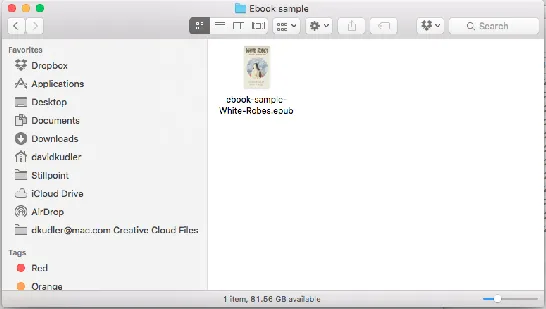
First thing's first: let me share an ebook with you. It's the ePub file for a short story of mine called White Robes.
You’re welcome to read it, obviously, but for the purposes of this post (and the next two), we’re going to be opening up the box and dissecting the ebook.
This is the actual production file that I’ve uploaded to Amazon, by the way — it includes all of the coding and formatting that I typically include in creating an ebook. It will be the model that I’ll be using over the next few posts in discussing an ebook’s innards.
Opening the Box
What we’re going to look this time is the structure of the ebook — the collection of files that an ePub-ready ereader like Apple’s iBooks or Barnes & Noble’s Nook or Readium or Calibre or any of thousands of other apps can open.1
So now we have our website in a box. Let’s open the box and see what we’ve got!2
There are just three steps:
- Duplicate your file (Never work on the original!)
- Convert the file ZIP format
- UnZIP the file
Step 1: Duplicate your file
Now, I’m going to assume that you’re using a Windows or Mac computer.3
We’re duplicating the file so that the original doesn’t get destroyed. Just a good habit to stay in, right?
In Windows, select the file in Windows Explorer by dragging over it or left-clicking on it once. From the Organize menu at the top of the window, select Copy. (You can do the same thing by right-clicking on the file and selecting Copy.)
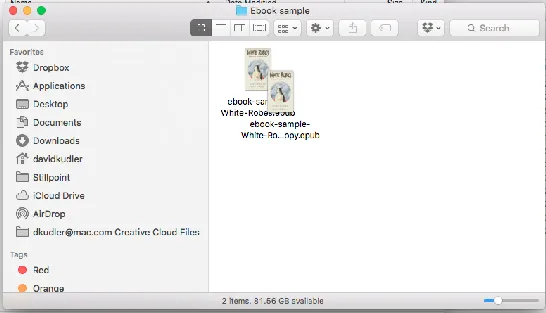
In Mac OS X, select the file in the Finder by dragging over it or clicking on it once. Now hit command-D or go to the File menu and select Duplicate. (You can also control-click/right-click on the file and select Duplicate.)
You should now have a duplicate copy of the file:
Step 2: Convert to ZIP format
This is actually a much simpler process than you might think: an ePub file is just a carefully constructed ZIP archive with a different extension (the last three or four letters at the end of the file name).
If you don’t see the .epub extension at the end of your new file, click on/drag over the file to select it.
In Windows, go to the Organize menu and select Folder and Search Options. De-select the Hide known file extensions option. Click OK.
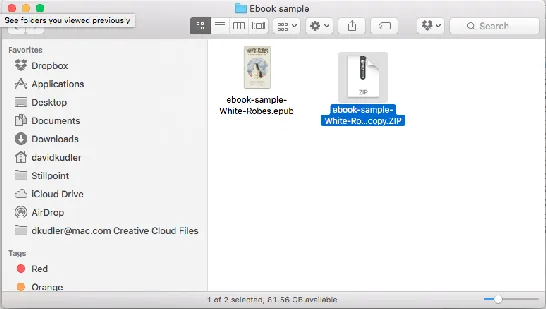
In Mac OS X, go to the File menu and select Get Info or hit command-I. If not already open, click on the triangle next to the Name and Extension heading to reveal the Hide extension option and deselect it. Close the Info window.
Now rename the file.
In Windows, right-click the file name and select Rename (or left-click and hold down the button for one second). Double-click the epub file extension (not including the period!) and replace it with the extension zip. Hit the Enter button.
In Mac OS X, click once on the file and hit the Return button. Double-click the epub file extension (not including the period!) and replace it with the extension zip. Hit the Return button.
Voilà! You’ve turned your ePub ebook into a ZIP archive.
Step 3: UnZIP the file
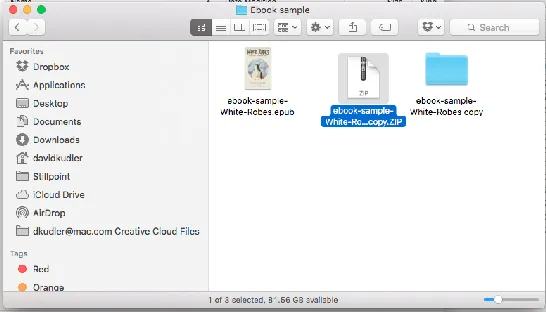
Whether you’ve got a Mac or Windows computer, you can simply double-click on the file now to expand the archive, turning it into a regular folder/directory on your desktop.
What’s inside the Box?
What’s inside, you ask?
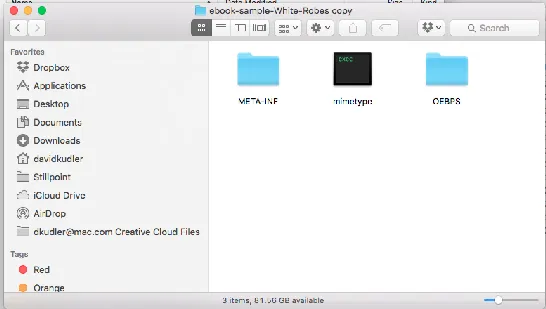
Well, the first thing you’ll see is two more directories (we’ll talk about those in a minute) and a file called mimetype.
The mimetype file is a one-line piece of code that lets the ereader know what kind of file it’s reading — and that one line always reads as follows:
application/epub+zip
It’s telling the ereader that, in fact, this is an ePub file wrapped inside a ZIP archive. As if we didn’t already know that.
How about those two folders?
Well, one of them isn’t any more exciting. The META-INF folder usually contains just one file (container.xml),4 and its sole purpose is to tell the ereader where to find the all-important OPF file. The OPF file is the traffic cop for the ebook, telling the ereader where to find everything, and what everything is. The folder where the OPF is located is called the root directory.
Sometimes the OPF is actually on the outermost level of the archive. Most often, however, you’ll find it in the OEBPS folder.
The root of the ebook: the OEBPS folder
OEBPS (Open eBook Publication Structure) is an XML-based specification for the content, structure, and presentation of electronic books. It is the blueprint on which any ePub file is built.
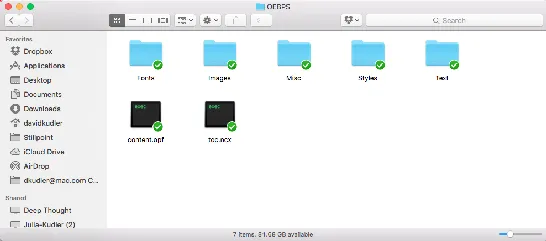
The OEBPS folder in any ebook will contain a number of important files, including our friend the OPS file, as well as a number of folders we’ll look at later.
Here’s the White Robes OEBPS folder:
Remember: this is the root directory. Every file reference given in the ebook will be given relative to this folder.
Now the two files are of great interest:
- The OPF file is our traffic cop
- The NCX is the navigation file5
The traffic cop: The OPF file
OPF stands for Open Packaging Format — s...



-520x50-plgo-compressed.webp)