An ebook is just a website in a box
But what's inside the box? In this clear, concise guide, ebook designer and indie author David Kudler folds back the lid of ePub, the universal ebook format. He introduces you to the nuts and bolts that make an ebook work. Includes overviews of the ePub format and internal structure as well as basic guides to the HTML and CSS (Cascading Style Sheets) that you need to know to make your ebooks look professional. (Self-Publishing & Ebook Creation) David Kudler is an independent publisher and author. He has been designing ebooks since 2010. He blogs about ebook creation, publishing, and marketing on Huffington Post, Stillpoint Digital Press, and The Book Designer.
eBook - ePub
Inside the Box
An Introduction to ePub, HTML & CSS for the Independent Author/Publisher (Self-Publishing & Ebook Creation)
- English
- ePUB (mobile friendly)
- Available on iOS & Android
eBook - ePub
Inside the Box
An Introduction to ePub, HTML & CSS for the Independent Author/Publisher (Self-Publishing & Ebook Creation)
About this book
Information
Subtopic
Computer Science GeneralIndex
Computer ScienceInside the Box
An Introduction to ePub, HTML & CSS for the Independent Author/Publisher
by
David Kudler
-520x50-plgo-compressed.webp)
Inside the Box: The Anatomy of an Ebook
Over the following chapters, I’ll be showing you how ebooks are coded and formatted.
You've heard me call an ebook a website in a box. Well, now we're going to talk about what's inside the box.
First thing's first: let me share an ebook with you. It's the ePub file for a short story of mine called White Robes.
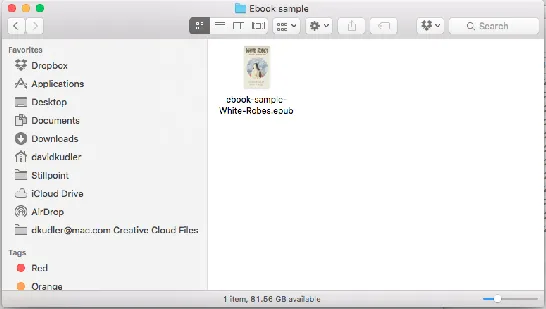
You’re welcome to read it, obviously, but for the purposes of this post (and the next two), we’re going to be opening up the box and dissecting the ebook.
This is the actual production file that I’ve uploaded to Amazon, by the way — it includes all of the coding and formatting that I typically include in creating an ebook. It will be the model that I’ll be using over the next few posts in discussing an ebook’s innards.
Opening the Box
What we’re going to look this time is the structure of the ebook — the collection of files that an ePub-ready ereader like Apple’s iBooks or Barnes & Noble’s Nook or Readium or Calibre or any of thousands of other apps can open.1
So now we have our website in a box. Let’s open the box and see what we’ve got!2
There are just three steps:
- Duplicate your file (Never work on the original!)
- Convert the file ZIP format
- UnZIP the file
Step 1: Duplicate your file
Now, I’m going to assume that you’re using a Windows or Mac computer.3
We’re duplicating the file so that the original doesn’t get destroyed. Just a good habit to stay in, right?
In Windows, select the file in Windows Explorer by dragging over it or left-clicking on it once. From the Organize menu at the top of the window, select Copy. (You can do the same thing by right-clicking on the file and selecting Copy.)
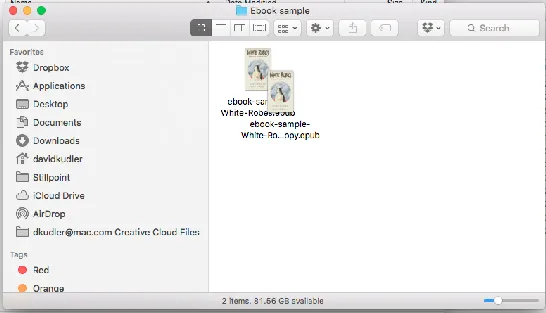
In Mac OS X, select the file in the Finder by dragging over it or clicking on it once. Now hit command-D or go to the File menu and select Duplicate. (You can also control-click/right-click on the file and select Duplicate.)
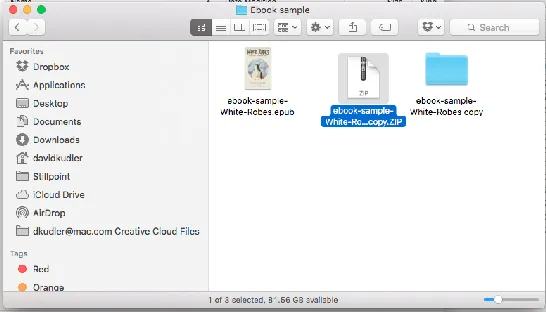
You should now have a duplicate copy of the file:
Step 2: Convert to ZIP format
This is actually a much simpler process than you might think: an ePub file is just a carefully constructed ZIP archive with a different extension (the last three or four letters at the end of the file name).
If you don’t see the .epub extension at the end of your new file, click on/drag over the file to select it.
In Windows, go to the Organize menu and select Folder and Search Options. De-select the Hide known file extensions option. Click OK.
In Mac OS X, go to the File menu and select Get Info or hit command-I. If not already open, click on the triangle next to the Name and Extension heading to reveal the Hide extension option and deselect it. Close the Info window.
Now rename the file.
In Windows, right-click the file name and select Rename (or left-click and hold down the button for one second). Double-click the epub file extension (not including the period!) and replace it with the extension zip. Hit the Enter button.
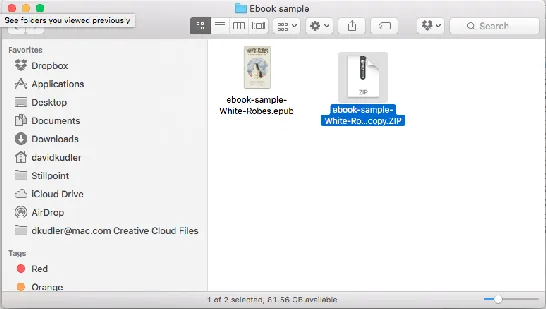
In Mac OS X, click once on the file and hit the Return button. Double-click the epub file extension (not including the period!) and replace it with the extension zip. Hit the Return button.
Voilà! You’ve turned your ePub ebook into a ZIP archive.
Step 3: UnZIP the file
Whether you’ve got a Mac or Windows computer, you can simply double-click on the file now to expand the archive, turning it into a regular folder/directory on your desktop.
What’s inside the Box?
What’s inside, you ask?
Well, the first thing you’ll see is two more directories (we’ll talk about those in a minute) and a file called mimetype.
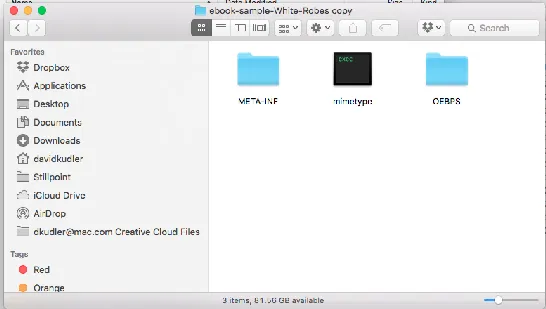
The mimetype file is a one-line piece of code that lets the ereader know what kind of file it’s reading — and that one line always reads as follows:
application/epub+zip
It’s telling the ereader that, in fact, this is an ePub file wrapped inside a ZIP archive. As if we didn’t already know that.
How about those two folders?
Well, one of them isn’t any more exciting. The META-INF folder usually contains just one file (container.xml),4 and its sole purpose is to tell the ereader where to find the all-important OPF file. The OPF file is the traffic cop for the ebook, telling the ereader where to find everything, and what everything is. The folder where the OPF is located is called the root directory.
Sometimes the OPF is actually on the outermost level of the archive. Most often, however, you’ll find it in the OEBPS folder.
The root of the ebook: the OEBPS folder
OEBPS (Open eBook Publication Structure) is an XML-based specification for the content, structure, and presentation of electronic books. It is the blueprint on which any ePub file is built.
The OEBPS folder in any ebook will contain a number of important files, including our friend the OPS file, as well as a number of folders we’ll look at later.
Here’s the White Robes OEBPS folder:
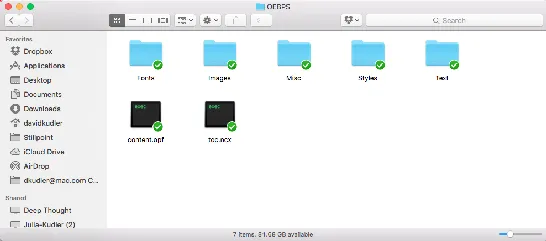
Remember: this is the root directory. Every file reference given in the ebook will be given relative to this folder.
Now the two files are of great interest:
- The OPF file is our traffic cop
- The NCX is the navigation file5
The traffic cop: The OPF file
OPF stands for Open Packaging Format — s...
Table of contents
- Inside the Box: The Anatomy of an Ebook
- Speaking in Code: Ebook HTML basics
- Elements of Style: CSS for Ebooks
- Elements of Style: CSS for Ebooks #2
- Styling Priorities: CSS for Ebooks #3
- Notes
Trusted by 375,005 students
Access to over 1.5 million titles for a fair monthly price.
Study more efficiently using our study tools.
Frequently asked questions
Yes, you can cancel anytime from the Subscription tab in your account settings on the Perlego website. Your subscription will stay active until the end of your current billing period. Learn how to cancel your subscription
No, books cannot be downloaded as external files, such as PDFs, for use outside of Perlego. However, you can download books within the Perlego app for offline reading on mobile or tablet. Learn how to download books offline
Perlego offers two plans: Essential and Complete
- Essential is ideal for learners and professionals who enjoy exploring a wide range of subjects. Access the Essential Library with 800,000+ trusted titles and best-sellers across business, personal growth, and the humanities. Includes unlimited reading time and Standard Read Aloud voice.
- Complete: Perfect for advanced learners and researchers needing full, unrestricted access. Unlock 1.5M+ books across hundreds of subjects, including academic and specialized titles. The Complete Plan also includes advanced features like Premium Read Aloud and Research Assistant.
We are an online textbook subscription service, where you can get access to an entire online library for less than the price of a single book per month. With over 1.5 million books across 990+ topics, we’ve got you covered! Learn about our mission
Look out for the read-aloud symbol on your next book to see if you can listen to it. The read-aloud tool reads text aloud for you, highlighting the text as it is being read. You can pause it, speed it up and slow it down. Learn more about Read Aloud
Yes! You can use the Perlego app on both iOS and Android devices to read anytime, anywhere — even offline. Perfect for commutes or when you’re on the go.
Please note we cannot support devices running on iOS 13 and Android 7 or earlier. Learn more about using the app
Please note we cannot support devices running on iOS 13 and Android 7 or earlier. Learn more about using the app
Yes, you can access Inside the Box by David Kudler in PDF and/or ePUB format, as well as other popular books in Computer Science & Computer Science General. We have over 1.5 million books available in our catalogue for you to explore.