AutoCAD 2018 and AutoCAD LT 2018 Essentials
eBook - ePub

AutoCAD 2018 and AutoCAD LT 2018 Essentials

  1. English
  2. ePUB (mobile friendly)
  3. Available on iOS & Android
eBook - ePub

AutoCAD 2018 and AutoCAD LT 2018 Essentials

About this book

The step-by-step, full-color AutoCAD 2018 guide with real-world practicality

AutoCAD 2018 and AutoCAD LT 2018 Essentials provides a full-color, task-based approach to mastering this powerful software. Straightforward, easy-to-follow instruction pairs with real-world, hands-on exercises to help you quickly get up to speed with core features and functions; screenshots illustrate tutorial steps to help you follow along, and each chapter concludes with a more open-ended project so you can dive in and explore a specific topic in-depth. From 2D drawing and organization to 3D modeling, dimensioning, presenting, and more, this helpful guide walks you through everything you need to know to become productive with AutoCAD 2018 and AutoCAD LT 2018. The companion website features downloadable starting and ending files for each exercise, so you can jump in at any point and compare your work to the pros, as well as additional tutorials to help you go as deep as you need to go.

Exercises walk you through the real-world process of drafting while teaching you critical skills along the way.

  • Understand the AutoCAD interface and foundational concepts
  • Master essential drawing and visualization tools
  • Stay organized with layers, groups, and blocks
  • Experiment with 3D modeling, add text and dimensions, and much more

AutoCAD is the industry-leading technical drawing software, and complete mastery is a vital skill for any design and drafting professional. AutoCAD 2018 and AutoCAD LT 2018 Essentials is a smart, quick resource that will help you get up to speed with real-world practical instruction.
Frequently asked questions

Yes, you can cancel anytime from the Subscription tab in your account settings on the Perlego website. Your subscription will stay active until the end of your current billing period. Learn how to cancel your subscription.
No, books cannot be downloaded as external files, such as PDFs, for use outside of Perlego. However, you can download books within the Perlego app for offline reading on mobile or tablet. Learn more here.
Perlego offers two plans: Essential and Complete
  • Essential is ideal for learners and professionals who enjoy exploring a wide range of subjects. Access the Essential Library with 800,000+ trusted titles and best-sellers across business, personal growth, and the humanities. Includes unlimited reading time and Standard Read Aloud voice.
  • Complete: Perfect for advanced learners and researchers needing full, unrestricted access. Unlock 1.4M+ books across hundreds of subjects, including academic and specialized titles. The Complete Plan also includes advanced features like Premium Read Aloud and Research Assistant.
Both plans are available with monthly, semester, or annual billing cycles.
We are an online textbook subscription service, where you can get access to an entire online library for less than the price of a single book per month. With over 1 million books across 1000+ topics, we’ve got you covered! Learn more here.
Look out for the read-aloud symbol on your next book to see if you can listen to it. The read-aloud tool reads text aloud for you, highlighting the text as it is being read. You can pause it, speed it up and slow it down. Learn more here.
Yes! You can use the Perlego app on both iOS or Android devices to read anytime, anywhere — even offline. Perfect for commutes or when you’re on the go.
Please note we cannot support devices running on iOS 13 and Android 7 or earlier. Learn more about using the app.
Yes, you can access AutoCAD 2018 and AutoCAD LT 2018 Essentials by Scott Onstott in PDF and/or ePUB format, as well as other popular books in Computer Science & Digital Media. We have over one million books available in our catalogue for you to explore.

Information

Publisher
Sybex
Year
2017
Print ISBN
9781119386780
eBook ISBN
9781119414292

CHAPTER 1
Getting Started

As we begin this book on the AutoCAD® program, I’m reminded of a quote by Chinese philosopher Lao-Tzu: “A journey of a thousand miles begins with a single step.” In much the same way, learning AutoCAD is something anyone can do by taking it one step at a time. And I promise that AutoCAD is much easier than walking a thousand miles!
By buying this book, you have already taken the first step in this journey. When you finish, you will have a solid understanding of AutoCAD.
In this chapter, you’ll learn to do the following:
  • Sign in to Autodesk® 360 on the Start tab
  • Explore the AutoCAD 2018 for Windows user interface
  • Set drawing units

Sign In to Autodesk 360 on the Start Tab

Autodesk 360 is a cloud-based service that is integrated with AutoCAD. You have the option of automatically storing up to 5 GB of your drawing files in the cloud for free. The files you store in the cloud can be edited online and shared with others with your permission.
The Start tab appears when you launch the program. You can create new drawings, access existing drawings, connect to AutoCAD 360, receive notifications, and access a live chat with sales on the Try page that appears on trial versions, all on the Start tab.

Exercise 1.1: Configure Autodesk 360

To begin, launch AutoCAD 2018.
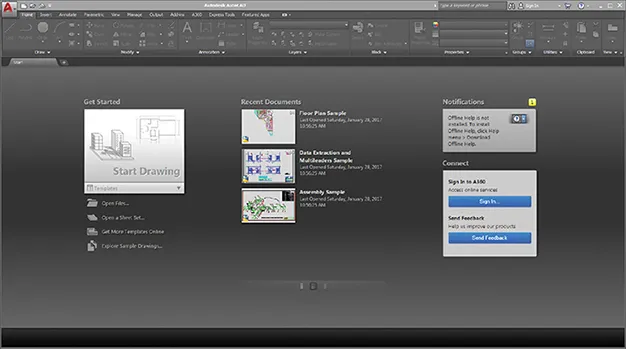
  1. Click the Sign In button in the Connect section of the Start tab (see Figure 1.1).
    Window shows Autodesk AutoCAD with start tab and options like get started (open files, open sheet set), recent documents, notifications, and connect (sign in to A360, send feedback).
    FIGURE 1.1 Clicking Sign In on the AutoCAD Start tab
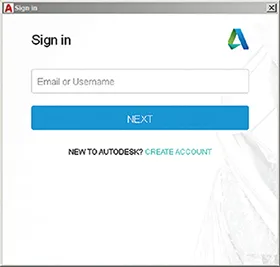
  2. Sign in with an Autodesk ID or email address and password. If you don’t already have an Autodesk ID, click the Create Account link and create one online (see Figure 1.2).
    Image described by caption.
    FIGURE 1.2 Signing in or creating an Autodesk ID
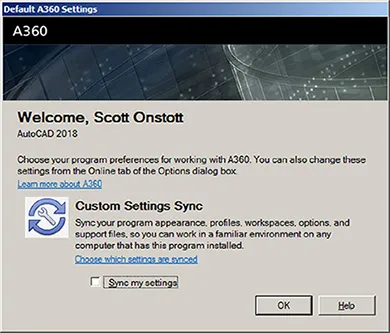
  3. After you sign in using an Autodesk ID, the Default Autodesk 360 Settings dialog box appears. Select Sync My Settings (see Figure 1.3).
    Window shows default A360 settings with options for custom settings sync, check box for sync my settings, and buttons for ok and help on bottom.
    FIGURE 1.3 Setting Autodesk 360 options

    Take advantage of free cloud storage while you use this book. Storing your files offsite in the cloud is an effective backup strategy.
  4. Click the large Start Drawing button in the Get Started section of the Start tab.
This loads the full AutoCAD user interface, which you will learn about in the next exercise.

USING AUTODESK 360

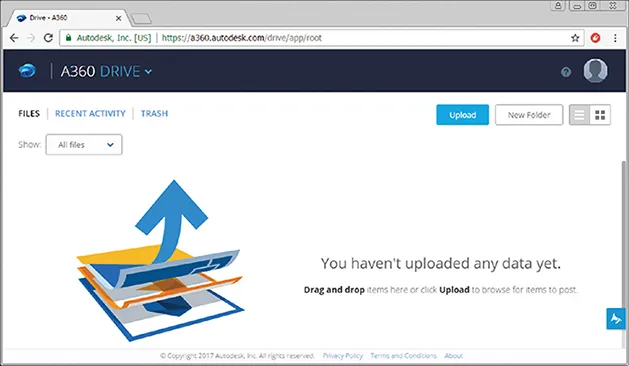
Whenever you save your work in AutoCAD, a copy of your file will be uploaded to Autodesk 360 in the background. You can access this content at http://a360 .autodesk.com (as shown here) or within AutoCAD from the A360 tab on the ribbon. You will learn about the ribbon in Exercise 1.3.
Window shows tab of Drive - A360 in Google chrome browser with buttons for files, recent activity, trash, upload, and new folder, to upload any data.

Explore the AutoCAD 2018 for Windows User Interface

Autodesk has recently released new versions of AutoCAD, including the AutoCAD® 2018 and AutoCAD LT® 2018 software. The two Windows versions look nearly identical and function in almost the same way. The main difference between them is that AutoCAD LT doesn’t support automation and some of the advanced 3D functions. Although this book was written using AutoCAD 2018 running on Windows 7, you can use it to learn any of the current versions of AutoCAD.

AutoCAD for Mac has a user interfa...

Table of contents

  1. Cover
  2. Title page
  3. Copyright
  4. About the Author
  5. Acknowledgments
  6. Introduction
  7. CHAPTER 1 Getting Started
  8. CHAPTER 2 Gaining Basic Drawing Skills
  9. CHAPTER 3 Using Drawing Aids
  10. CHAPTER 4 Editing Entities
  11. CHAPTER 5 Shaping Curves
  12. CHAPTER 6 Controlling Object Visibility and Appearance
  13. CHAPTER 7 Organizing Objects
  14. CHAPTER 8 Hatching and Gradients
  15. CHAPTER 9 Working with Blocks and Xrefs
  16. CHAPTER 10 Creating and Editing Text
  17. CHAPTER 11 Dimensioning
  18. CHAPTER 12 Keeping In Control with Constraints
  19. CHAPTER 13 Working with Layouts and Annotative Objects
  20. CHAPTER 14 Printing and Plotting
  21. CHAPTER 15 Working with Data
  22. CHAPTER 16 Navigating 3D Models
  23. CHAPTER 17 Modeling in 3D
  24. CHAPTER 18 Presenting and Documenting 3D Design
  25. Appendix A Making Isometric Drawings
  26. Appendix B Autodesk™ AutoCAD™ 2018 Certification
  27. Eula