Office 2019 For Seniors For Dummies
eBook - ePub

Office 2019 For Seniors For Dummies

  1. English
  2. ePUB (mobile friendly)
  3. Available on iOS & Android
eBook - ePub

Office 2019 For Seniors For Dummies

About this book

Make sense of Office 2019

Just like using a computer for the first time, learning Microsoft Office applications can be confusing and intimidating at any age. Office 2019 For Seniors For Dummies helps seniors get up to speed quickly with clear-cut, easy-to-read-and-understand steps on how to get the most out of Microsoft Word, Excel, PowerPoint, and Outlook.

The book assumes no prior information and starts with showing how to start each application, how to navigate the interface, dress up documents in Word, create spreadsheets in Excel, create a PowerPoint presentation, and use Outlook as an email client. You'll also find templates for each application for letters, faxes, a budget grid in Excel, and more.

  • Use Word, Excel, Outlook, and PowerPoint
  • Dress up your letters, invitations, and other documents
  • Manage your finances with Excel
  • Use your email to stay in touch with friends and family

If you're an over-50 PC user looking for some gentle instruction on making the most of Office 2019, you've come to the right place!

Frequently asked questions

Yes, you can cancel anytime from the Subscription tab in your account settings on the Perlego website. Your subscription will stay active until the end of your current billing period. Learn how to cancel your subscription.
No, books cannot be downloaded as external files, such as PDFs, for use outside of Perlego. However, you can download books within the Perlego app for offline reading on mobile or tablet. Learn more here.
Perlego offers two plans: Essential and Complete
  • Essential is ideal for learners and professionals who enjoy exploring a wide range of subjects. Access the Essential Library with 800,000+ trusted titles and best-sellers across business, personal growth, and the humanities. Includes unlimited reading time and Standard Read Aloud voice.
  • Complete: Perfect for advanced learners and researchers needing full, unrestricted access. Unlock 1.4M+ books across hundreds of subjects, including academic and specialized titles. The Complete Plan also includes advanced features like Premium Read Aloud and Research Assistant.
Both plans are available with monthly, semester, or annual billing cycles.
We are an online textbook subscription service, where you can get access to an entire online library for less than the price of a single book per month. With over 1 million books across 1000+ topics, we’ve got you covered! Learn more here.
Look out for the read-aloud symbol on your next book to see if you can listen to it. The read-aloud tool reads text aloud for you, highlighting the text as it is being read. You can pause it, speed it up and slow it down. Learn more here.
Yes! You can use the Perlego app on both iOS or Android devices to read anytime, anywhere — even offline. Perfect for commutes or when you’re on the go.
Please note we cannot support devices running on iOS 13 and Android 7 or earlier. Learn more about using the app.
Yes, you can access Office 2019 For Seniors For Dummies by Faithe Wempen in PDF and/or ePUB format, as well as other popular books in Computer Science & Desktop Applications. We have over one million books available in our catalogue for you to explore.

Information

Part 1

Getting Started with Office 2019

IN THIS PART …
Learn what applications make up the Microsoft Office suite and what each one does
Get familiar with the Office features that are common to all the applications
Find out how to open, save, and print files
Chapter 1

The Two-Dollar Tour

IN THIS CHAPTER
Bullet
Start an Office Application
Bullet
Start a New Document
Bullet
Explore the Office Ribbon and Tabs
Bullet
Understand the File Menu (Backstage View)
Bullet
Create a Document
Bullet
Type Text
Bullet
Insert a Picture
Bullet
Move Around in a Document
Bullet
Select Content
Bullet
Zoom In and Out
Bullet
Change the View
Step right up for a tour of Microsoft Office, the most popular suite of applications in the world!
Here are some of the things you can do with Office:
  • Write letters, reports, and newsletters.
  • Track bank account balances and investments.
  • Create presentations to support speeches and meetings.
  • Send and receive email.
The Office suite consists of several very powerful applications (programs), each with its own features and interface, but the applications also have a lot in common with one another. Learning about one application gives you a head start in learning the others.
In this chapter (and Chapter 2), I take you on a quick tour of some of the features that multiple Office applications have in common, including the tabbed Ribbon area. I also show you how to insert text and graphics in the various applications, and how to move around and zoom in and out.
In these first few chapters, I use Microsoft Word, PowerPoint, and Excel as the example applications because all of them work more or less the same way: They let you open and save data files that contain your work on various projects. Microsoft Outlook works a bit differently, as I show you in Chapters 11 through 13.

Start an Office Application

Follow these steps to start an Office application:
  1. Click the Start button in the lower left corner of the Windows desktop, opening the Start menu.
  2. Do any of the following (your choice!)
    • Look for a shortcut tile for the application on the right side of the Start menu. If you see one, click it.
    • Scroll down in the Start menu’s left pane until you get to the section for the letter of the alphabet for the desired application (for example, P for PowerPoint) and click the application name.
    • Start typing the first few letters of the application name (for example, po for PowerPoint) and then click the application name on the filtered list that appears.

Start a New Document
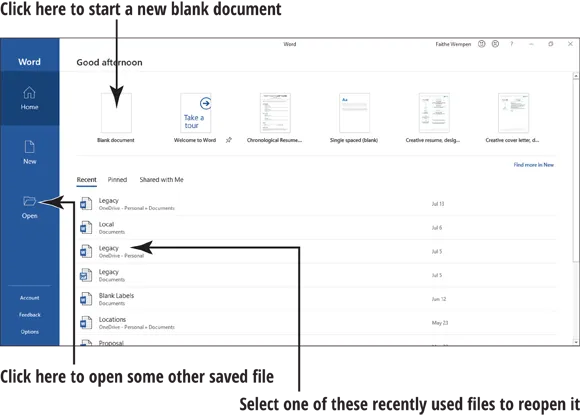
When you open Word, Excel, or PowerPoint, a Start screen appears (no relation to the Windows Start menu), containing a list of recently used documents and thumbnail images of templates you can use to start new documents. To start a new blank document (which you’ll want to do in order to follow along with this chapter), you can press the Esc key, or you can click the Blank template. The template has a slightly different name depending on the application; in Word it is called Blank document, in Excel it’s Blank workbook, and so on. Figure 1-1 shows the Start screen for Microsoft Word, for example.
Start screen for Microsoft Word with arrows labeled Click here to start a new blank document, Click here to open some other saved file, and Select one of these recently used files to reopen it.
FIGURE 1-1
To create an additional new blank document after the application is already up-and-running, press Ctrl+N at any time.
Tip
Office 2010 and earlier started a blank document automatically in Word, Excel, and PowerPoint, without having to go through a Start screen. If you want that old-style behavior back, click File and then click Options. On the General page, scroll down to the bottom and clear the Show the Start Screen When This Application Starts check box.

Explore the Office Ribbon and Tabs

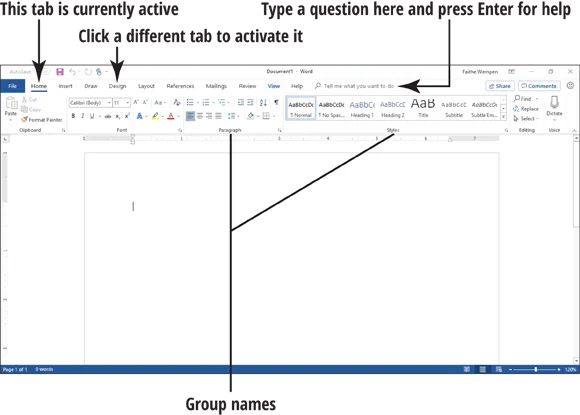
All Office applications have a common system of navigation called the Ribbon, which is a tabbed bar across the top of the application window. Each tab is like a page of buttons. You click different tabs to access different sets of buttons and features.
Figure 1-2 shows the Ribbon in Microsoft Word, with the Home tab displayed. Within a tab, buttons are organized into groups. In Figure 1-2, the Home tab’s groups are Clipboard, Font, Paragraph, Styles, Editing, and Voice.
Ribbon in Microsoft Word with arrows to the Home tab labeled This tab is currently active, to Design tab labeled Click a different tab to activate it, and to Search tab labeled Type a question here and press Enter for Help.
FIGURE 1-2
Each Office application has a set of tabs for the tasks it performs. For example, Word has a Mailings tab that holds the commands for doing mail merges. Excel has a Formulas tab that holds the commands for setting up calculations.
Tip
If you run Office applications on a device that has a touchscreen, you get an extra tab in the Ribbon: Draw. This contains tools for drawing with a finger or a stylus. The figures in this book were captured from a touchscr...

Table of contents

  1. Cover
  2. Table of Contents
  3. Introduction
  4. Part 1: Getting Started with Office 2019
  5. Part 2: Word
  6. Part 3: Excel
  7. Part 4: Outlook
  8. Part 5: PowerPoint
  9. Appendix: Customizing Office Applications
  10. Index
  11. About the Author
  12. Advertisement Page
  13. Connect with Dummies
  14. End User License Agreement