QuickBooks Online For Dummies
eBook - ePub

QuickBooks Online For Dummies

  1. English
  2. ePUB (mobile friendly)
  3. Available on iOS & Android
eBook - ePub

QuickBooks Online For Dummies

About this book

Organise business finances with the latest cloud-based accounting innovation

QuickBooks Online For Dummies, Australian Edition is your key guide to getting business finances under control. From budgeting and payroll to tax, inventory, accounts and beyond, this book shows you everything you need to know to keep the cash flow flowing. Whether you're a small business owner, accountant or bookkeeper, this guide walks you through essential bookkeeping tasks, and hands-on tutorials provide quick and practical instruction using the QuickBooks Online and QuickBooks Online Accountant cloud-based accounting solution. Stop juggling files and notes and calendars, stressing about what's due, what's coming and what you may have overlooked; this book shows you how to track and manage everything in one place, with alerts, reminders and detailed reports that help you gain a clearer picture of the business's financial state — and all you need is an internet connection.

Using the many helpful, timesaving features of QuickBooks Online and QuickBooks Online Accountant to their utmost capability requires a little insider knowledge and hands-on instruction; this book has you covered, with clear, practical guidance to help you:

  • Manage payroll, invoices and accounts payable
  • Track inventory, costs and expenses
  • Create reports and simplify tax return preparation
  • Organise finances in one intuitive place

Wouldn't you enjoy the peace of mind that comes from knowing that your finances are under control? Wouldn't you prefer the freedom to access the books on any device, at any time? QuickBooks Online can help with that, and QuickBooks Online For Dummies, Australian Edition is the ultimate guide to working with the latest innovation in cloud-based accounting.

Frequently asked questions

Yes, you can cancel anytime from the Subscription tab in your account settings on the Perlego website. Your subscription will stay active until the end of your current billing period. Learn how to cancel your subscription.
No, books cannot be downloaded as external files, such as PDFs, for use outside of Perlego. However, you can download books within the Perlego app for offline reading on mobile or tablet. Learn more here.
Perlego offers two plans: Essential and Complete
  • Essential is ideal for learners and professionals who enjoy exploring a wide range of subjects. Access the Essential Library with 800,000+ trusted titles and best-sellers across business, personal growth, and the humanities. Includes unlimited reading time and Standard Read Aloud voice.
  • Complete: Perfect for advanced learners and researchers needing full, unrestricted access. Unlock 1.4M+ books across hundreds of subjects, including academic and specialized titles. The Complete Plan also includes advanced features like Premium Read Aloud and Research Assistant.
Both plans are available with monthly, semester, or annual billing cycles.
We are an online textbook subscription service, where you can get access to an entire online library for less than the price of a single book per month. With over 1 million books across 1000+ topics, we’ve got you covered! Learn more here.
Look out for the read-aloud symbol on your next book to see if you can listen to it. The read-aloud tool reads text aloud for you, highlighting the text as it is being read. You can pause it, speed it up and slow it down. Learn more here.
Yes! You can use the Perlego app on both iOS or Android devices to read anytime, anywhere — even offline. Perfect for commutes or when you’re on the go.
Please note we cannot support devices running on iOS 13 and Android 7 or earlier. Learn more about using the app.
Yes, you can access QuickBooks Online For Dummies by Priscilla Meli,Elaine Marmel in PDF and/or ePUB format, as well as other popular books in Computer Science & Entreprise Applications. We have over one million books available in our catalogue for you to explore.

Information

Part 1

Getting Started with QBO and QBOA

IN THIS PART …
Compare the differences between QBO products.
Learn the requirements to use QBO.
Meet the QBO interface.
Chapter 1

Introducing QBO and QBOA

IN THIS CHAPTER
check
Taking a first look at QuickBooks Online and QuickBooks Online Accountant
check
Considering the cloud
check
Meeting requirements to use QBO and QBOA
QuickBooks Online (QBO) and QuickBooks Online Accountant (QBOA) are web-based products you can use to manage your business’s accounting. This chapter introduces these products and discusses whether you should move into the cloud to manage your accounting. It also examines the system requirements for these products.

QBO for the Business User and QBOA for the Accountant

QuickBooks Online offers you the ability to manage your business’s accounting in the cloud. The software is divided into two products: One for the business user and the other for accountants. QBO and QBOA work on multiple devices, such as PC, Mac, smartphone, tablet and mobile devices.
QuickBooks Online (QBO) is the cloud-based product for business users who need to perform typical accounting tasks.
QuickBooks Online Accountant (QBOA) is the cloud-based portal that accountants use to access their clients’ QBO companies, work in them, and communicate with clients and other members of their accounting team. QBOA also comes with one free company that accountants can use to track their own businesses.

Comparing interfaces

QBO and QBOA were initially written and optimised to be used in the major web browsers — Chrome, Safari and Firefox. Later, Intuit added QBO apps that you can use for Windows, Mac and Android mobile devices. In this section, you explore what QBO and QBOA look like in a browser and in the Windows app.
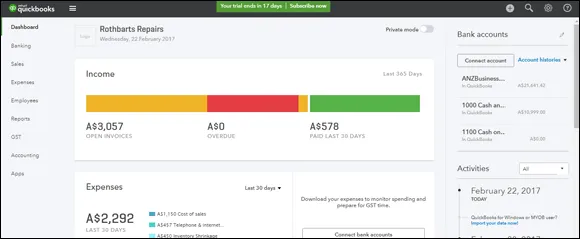
In a browser, an open company in QBO looks similar to the one shown in Figure 1-1. We cover the interface in more detail in Chapter 3 but, for the time being, the most important thing to notice is the Navigation bar that runs down the left side of the screen. If you've been a QuickBooks desktop user and you’ve used the Left Icon bar in that product, you might find the Navigation bar a familiar tool. The Left Icon bar and the Navigation bar work the same way; you click a link in either of them to navigate to a portion of the program.
image
FIGURE 1-1: An open company in QBO.
When you collapse the Navigation bar, you have more screen real estate to view the right side of the QBO interface.
At the top of the screen on the far right side, you see tools that help QBO users create transactions, search for existing transactions and view recent transactions. These tools are marked by icons as follows:
image
Quick Create Tool: Shortcut to frequently used transactions
image
Search Function: Including basic and advanced search options
image
Settings Menu (Gear icon): Links to advanced settings and more complex functions
image
Help Menu: Shortcut to support feature, including Online Chat and Forums
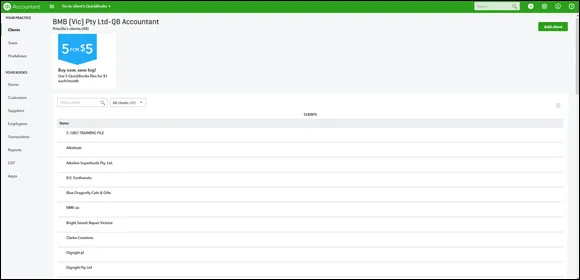
Figure 1-2 shows what an accountant sees immediately upon logging in to QBOA. The Navigation bar changes to support an accountant’s needs; you can read more about the QBOA interface in Chapter 13.
image
FIGURE 1-2: The first view an accountant sees when he opens QBOA.
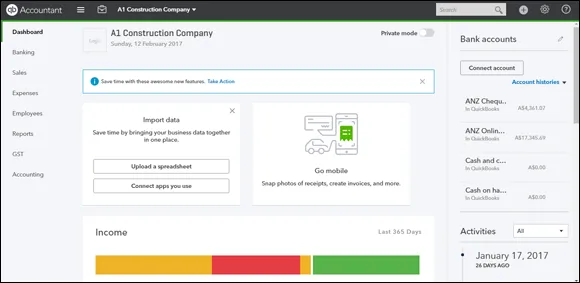
When an accountant opens a client’s company from within QBOA (see Figure 1-3), the interface resembles what a client sees, with some minor differences — compare, for example, Figure 1-1 with Figure 1-3. First, you know you’re using QBOA because the top of the Navigation bar shows QuickBooks Accountant. Second, the tools used to search for a transaction, go to a report and view recent transactions are combined into one Search box near the right side of the screen. And third, the Accountant Tools menu (the briefcase icon) displays tools not found in QBO that help accountants manage client companies.
image
FIGURE 1-3: An open company in QBOA.
Even though an open company looks a bit different depending on whether it is opened using QBO or QBOA, the basic functionality doesn’t really change, other than accountants having more options than business users have.
remember
Because QBOA contains functionality that QBO doesn’t have, we’ve organised this book so that QBO users can focus on Part 2 when using the product, and QBOA users can use the information in both Parts 2 and 3 to work with a company file.

To browse or not to browse …

In addition to working in a browser, you also can work in mobile apps. To find the app that works best for you, visit the Intuit Mobile App website (www.intuit.com.au/mobile).
tip
Mobile apps are also available for Macs and iPhone, iPad and Android devices. You’ll find Pinch and Zoom functionality is now available in the mobile apps and in browsers on mobile devices.
So take your choice: Work in a browser, work in a mobile app or work in both, depending on your needs at the moment! You’re not limited; you don’t have to choose between an app and a browser. Work in one or the other, or both. The free app is a great resource for businesses with people on the road or offsite. They can have their customers sign off on orders via the tablet app, issue invoices, input expenses and receipts while all the time collaborating instantly with their teammates in the office.
tip
An example Priscilla uses all the time to highlight the benefits of the free app is that when she wakes up, she checks her bank accounts via her mobile phone to see what has gone out and what has come in overnight (hopefully more has come in t...

Table of contents

  1. Cover
  2. Title Page
  3. Table of Contents
  4. Foreword
  5. Introduction
  6. Part 1: Getting Started with QBO and QBOA
  7. Part 2: Managing the Books for the Business User
  8. Part 3: Working in QuickBooks Online Accountant
  9. Part 4: The Part of Tens
  10. Appendix: QBO, QuickBooks Desktop and Data Conversion
  11. About the Authors
  12. Connect with Dummies
  13. End User License Agreement