Windows 10 At Work For Dummies
eBook - ePub

Windows 10 At Work For Dummies

  1. English
  2. ePUB (mobile friendly)
  3. Available on iOS & Android
eBook - ePub

Windows 10 At Work For Dummies

About this book

The fast and easy way to get up and running with Windows 10 at work

If you want to spend less time figuring out Windows and more time getting things accomplished, you've come to the right place. Covering Windows 10 and packed with time-saving tips to help you get the most out of the software, Windows 10 At Work For Dummies offers everything you need to get back precious hours of your work day and make Windows work for you, rather than against you.

This full-color, all-encompassing guide breaks down the most common Windows tasks into easily digestible parts, providing you with illustrated, step-by-step instructions on everything you'll encounter in Windows 10. From setting up your desktop with your favorite apps to finding the files and applications you need—and everything in between—this hands-on, friendly guide takes the headache out of working with Windows.

  • Provides over 300 tasks broken into core steps
  • Provides easy-to-follow answers to all of your Windows questions
  • Illustrates the new features of Windows 10
  • If you're a time-pressed professional looking to find answers to all of your Windows-related questions, this is the one-stop resource you'll turn to again and again.


Frequently asked questions

Yes, you can cancel anytime from the Subscription tab in your account settings on the Perlego website. Your subscription will stay active until the end of your current billing period. Learn how to cancel your subscription.
No, books cannot be downloaded as external files, such as PDFs, for use outside of Perlego. However, you can download books within the Perlego app for offline reading on mobile or tablet. Learn more here.
Perlego offers two plans: Essential and Complete
  • Essential is ideal for learners and professionals who enjoy exploring a wide range of subjects. Access the Essential Library with 800,000+ trusted titles and best-sellers across business, personal growth, and the humanities. Includes unlimited reading time and Standard Read Aloud voice.
  • Complete: Perfect for advanced learners and researchers needing full, unrestricted access. Unlock 1.4M+ books across hundreds of subjects, including academic and specialized titles. The Complete Plan also includes advanced features like Premium Read Aloud and Research Assistant.
Both plans are available with monthly, semester, or annual billing cycles.
We are an online textbook subscription service, where you can get access to an entire online library for less than the price of a single book per month. With over 1 million books across 1000+ topics, we’ve got you covered! Learn more here.
Look out for the read-aloud symbol on your next book to see if you can listen to it. The read-aloud tool reads text aloud for you, highlighting the text as it is being read. You can pause it, speed it up and slow it down. Learn more here.
Yes! You can use the Perlego app on both iOS or Android devices to read anytime, anywhere — even offline. Perfect for commutes or when you’re on the go.
Please note we cannot support devices running on iOS 13 and Android 7 or earlier. Learn more about using the app.
Yes, you can access Windows 10 At Work For Dummies by Ciprian Adrian Rusen,Ciprian Rusen in PDF and/or ePUB format, as well as other popular books in Computer Science & Operating Systems. We have over one million books available in our catalogue for you to explore.

Information

Chapter One

Getting Started with Windows 10

In This Chapter
arrow
Getting past the Lock Screen and signing in to Windows
arrow
Using the new Start Menu to start your apps
arrow
Using the hidden WinX menu
arrow
Accessing the Desktop
arrow
Accessing Settings and Control Panel
arrow
Performing simple searches
arrow
Using notifications
arrow
Working with multiple apps and Desktops at once
arrow
Closing apps and desktops
arrow
Signing out and locking your Windows 10 device
arrow
Shutting down and restarting Windows
Windows 10 is another revolution in the world of Microsoft operating systems. It’s the first operating system to work on a huge number of devices, such as smartphones, tablets, traditional desktop PCs, consoles, and industrial devices. That also means it’s designed to minimize hardware requirements. A Windows this slim and fast hasn’t been built in a long time.
To make Windows 10 work on a variety of devices, with very different form factors, Microsoft developed a new user interface that’s different from what you may have used with Windows 7 or Windows XP. Getting the first steps right when using Windows 10, goes a long way in having a pleasant user experience with this operating system. This chapter is your introduction to doing so.
Windows 10 uses concepts that may be new to you, such as the Lock Screen (introduced in Windows 8); a completely new Start Menu; the WinX menu (introduced in Windows 8); a new Settings panel that replaces the old Control Panel; the new Task View; and a new Action Center. Some items in this chapter are very simple, but you need to get them right in order to use Windows 10 productively. So, roll up your sleeves and arm yourself with a bit of patience. It’s time to go to work!

Use the Lock Screen

The first screen you see after Windows 10 loads on your computer or device is the Lock Screen. This concept was introduced in Windows 8 and continues in Windows 10. The Lock Screen is basically a full-screen wallpaper. By default, it shows you the time and the date and whether you’re connected to a network (see Figure 1-1). You can customize it to also show the detailed status of an app as well as small icons of your favorite apps so that you can see the status of those apps without leaving the Lock Screen. Along with all that, you can customize the Lock Screen’s image.
image
Figure 1-1: The Lock Screen in Windows 10.
How you unlock the Lock Screen depends on the type of computer you’re using:
  • A Windows 10 desktop computer without touch:
    • Press any key on the keyboard.
    • Click the mouse anywhere on the screen.
    • Drag upward from the bottom of the screen.
  • A Windows 10 laptop with a touchpad:
    • Press any key on the keyboard.
    • Click the mouse or the left-click trackpad button anywhere on the screen.
    • Hold down the left trackpad button and drag your cursor upward.
  • Any Windows 10 device with a touchscreen (such as a tablet or a 2-in-1 device):
    • Place your finger anywhere near the middle or bottom of the screen and flick upward.
tip
Chapter 8 shows how to customize the Lock Screen.

Sign In to Windows 10

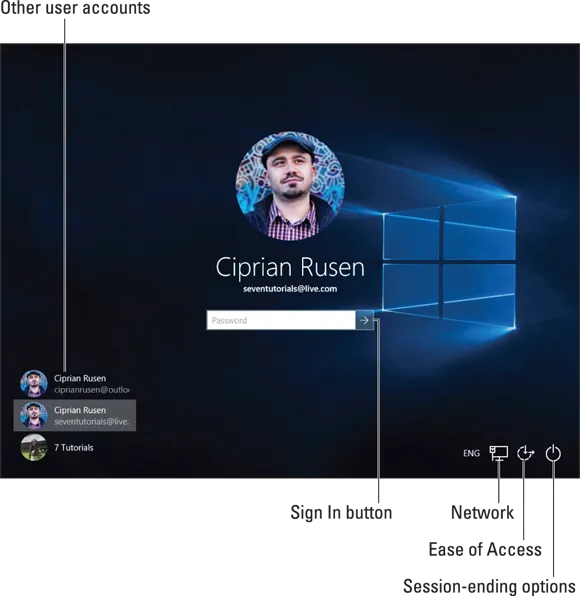
Once you get past the Lock Screen, you can sign in to Windows 10. You’re asked to enter the password and click or tap the Sign In button for your user account (or the last account that was used on your device). The Sign In button is a right-pointing arrow (see Figure 1-2).
image
Figure 1-2: The Sign In screen in Windows 10.
If there are other user accounts on this computer, they’re listed on the bottom-left side of the Sign In screen. To sign in with one of these ot...

Table of contents

  1. Cover
  2. Title Page
  3. Table of Contents
  4. Introduction
  5. Chapter 1: Getting Started with Windows 10
  6. Chapter 2: Using the New Start Menu
  7. Chapter 3: Using Touch and Touchpads
  8. Chapter 4: Connecting to Wi-Fi Networks and the Internet
  9. Chapter 5: Using Internet Explorer
  10. Chapter 6: Managing Files and Folders
  11. Chapter 7: Customizing File Explorer
  12. Chapter 8: Customizing Windows 10
  13. Chapter 9: Using Mail and Calendar
  14. Chapter 10: Using Skype
  15. Chapter 11: Using OneDrive
  16. Chapter 12: Using OneNote
  17. Chapter 13: Using Office Online and Office Apps
  18. Chapter 14: Using Cortana
  19. Chapter 15: Capturing Pictures, Screenshots, and Video
  20. Chapter 16: Working with Apps
  21. Chapter 17: Working with Devices
  22. Chapter 18: Working on the Road
  23. Chapter 19: Doing Your Job in Windows 10
  24. Chapter 20: Protecting Your Data
  25. Chapter 21: Personalizing User Accounts
  26. Chapter 22: Sharing with Others on a Network
  27. Chapter 23: Improving Your Privacy and Security
  28. Chapter 24: Preventing Problems with Windows 10
  29. Chapter 25: Fixing Common Problems with Windows 10
  30. About the Author
  31. Cheat Sheet
  32. Advertisement Page
  33. Connect with Dummies
  34. End User License Agreement