In This Chapter
Setting up your computer for Swift
Defining your development preferences
Creating and exploring your first project
Swift is Appleâs new language for developers to use with iOS and OS X devices. As such, it is the successor to Appleâs existing iOS/OS X development language, Objective-C, but Swift has been designed to cooperate with and work alongside Objective-C, so this should be a slow transition to power.
Some Swift beginners come to the language with proficiency in other languages, ranging from C and its offshoots such as C++ and Objective-C, to newer languages such as Ruby, Python, and Java, as well as scripting languages such as PHP and JavaScript.
Whether youâre just starting out as an Apple developer or are an experienced developer who wants to add Swift to your skills, this chapter helps you get started. Thereâs one very important point to remember: As of this writing, the iOS API (application programming interface) and SDK (software development kit) are less than ten years old. (They were launched in early 2008, six months after the launch of iPhone.) The early years of iOS development were an exciting period as the pieces of todayâs hardware and software environment fell into place. Only as thousands of developers and millions of users started actually using these devices and the languages that support them did some issues â bugs as well as great enhancements â begin to take shape.
Arguably, it took several years for the SDK to reach maturity. Many developers (including your humble author) believe that it was only with the release of iOS 4 in 2010 that the platform more or less stabilized as the operating system we recognize today. This was the first version to be called âiOSâ rather than âiPhone OS,â and, with the release of iOS 4.2.1 in the fall of 2010, it was the first to support both iPhone and iPad. The first version of multitasking was present, and preparations were made for iCloud that was first released in iOS 5.
If you havenât looked at iOS since that time, a lot has changed. The release of Swift and iOS 8 is a good opportunity to look around and get up to date with iOS (and, for that matter, OS X). This chapter helps you do that.
In this book, youâll occasionally find warnings like this one about serious issues you should avoid. The warnings are used sparingly, so pay attention to them when they appear. The focus in this book is on getting you up and running as a Swift developer. That involves giving you the information you need as well as helping you along the way with encouragement and, from time to time, reminding you that youâre not the first person to learn Swift. Others have been there before, and, in most cases, others (most definitely including the author) have encountered the problems you may be facing. There are a multitude of warnings in this chapter. This isnât intended to scare you off: Rather, itâs designed to help you over that first hump of becoming a Swift developer. After you have your first clean compile and have finished a build of a project (in the section, âPlanning Your Environment,â later in this chapter), youâll be on your way.
Looking Ahead to the End
As you make progress in Swift, this book helps you build an app â a real, live app â based on one of the built-in Xcode templates. Sure, you're probably thinking, thatâs just what I need â another âHello Worldâ app.
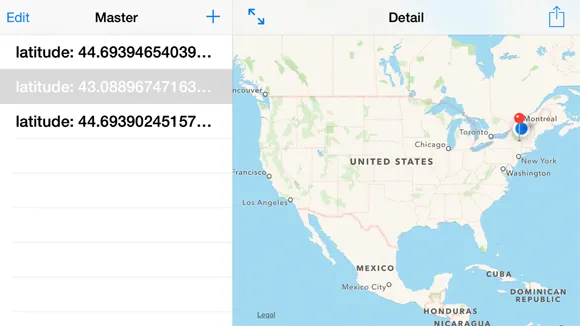
Actually, no. Thereâs no âHello Worldâ here. Instead, the app youâll be building, called Locatapp, is a full-fledged Swift app created using the Master-Detail Application template that's built into Xcode, and it uses Cocoa Touch and a number of its frameworks to do its work. Locatapp uses location services on Cocoa Touch and the iOS mobile devices to find your location, as you see in Figure 1-1.
If you prefer, you can download Locatapp from this bookâs companion website, as described in the Introduction, but be warned â some of the details of registering as a developer described later in this chapter are needed to get Locatapp to run on your own device.
The pulsing blue dot shows your current location. Locatapp lets you store other locations you've visited. The latitude and longitude values of locations that have been visited are shown in the list at the left of Figure 1-1. Tap one of them, and you'll see a map with your current location and with the tapped location indicated by a red pin.
You can zoom in on the map (see Figure 1-2). This zoom-in functionality is all built into MapKit and the device so you don't have to write any code. As you zoom in, you can see that the two locations shown in Figure 1-1 are actually over 100 miles apart. The annotation for Current Location is also part of the framework.
In addition to the built-in annotation for Current Location, you can write your own annotations in Locatapp. Figure 1-3 shows a custom annotation that you'll write in the course of this book.
That action button at the right of the bar in the interface (the box with the arrow poking out of the top) is an interface element you can drag from the Xcode library into your user interface (called a storyboard). What happens when you tap that action button depends on a method youâll build in this book. This method uses the built-in actions such as Messages, Mail, Twitter, Facebook, and so forth, a...