
Mastering Skype for Business 2015
eBook - ePub

Mastering Skype for Business 2015

  1. English
  2. ePUB (mobile friendly)
  3. Available on iOS & Android
eBook - ePub

Mastering Skype for Business 2015

About this book

Authoritative, hands-on guidance for Skype Business administrators

Mastering Skype for Business 2015 gives administrators the comprehensive coverage they need to effectively utilize Skype for Business. Fully up to date for the 2015 release, this guide walks you through industry best practices for planning, design, configuration, deployment, and management with clear instruction and plenty of hands-on exercises. Case studies illustrate the real-world benefits of Unified Communication, and provide expert experiences working with Skype for Business. From server roles, infrastructure, topology, and security to telephony, cloud deployment, and troubleshooting, this guide provides the answers you need and the insight that will make your job easier. Sample automation scripts help streamline your workflow, and full, detailed coverage helps you exploit every capability Skype for Business has to offer.

Skype for Business enables more robust video conferencing, and integrates with Office, Exchange, and SharePoint for better on-premises and cloud operations. Organizations are turning to Skype for Business as a viable PBX replacement, and admins need to be up to speed and ready to go. This book provides the clear, explicit instructions you need to:

  • Design, configure, and manage IM, voice mail, PBX, and VoIP
  • Connect to Exchange and deploy Skype for Business in the cloud
  • Manage UC clients and devices, remote access, federation, and public IM
  • Automate management tasks, and implement cross-team backup-and-restore

The 2015 version is the first Skype to take advantage of the Windows 10 'touch first' capabilities to provide fast, natural, hands-on control of communications, and users are eager to run VoIP, HD video conferencing, collaboration, instant messaging, and other UC features on their mobile devices. Mastering Skype for Business 2015 helps you get Skype for Business up and running quickly, with hands-on guidance and expert insight.
Frequently asked questions

Yes, you can cancel anytime from the Subscription tab in your account settings on the Perlego website. Your subscription will stay active until the end of your current billing period. Learn how to cancel your subscription.
No, books cannot be downloaded as external files, such as PDFs, for use outside of Perlego. However, you can download books within the Perlego app for offline reading on mobile or tablet. Learn more here.
Perlego offers two plans: Essential and Complete
  • Essential is ideal for learners and professionals who enjoy exploring a wide range of subjects. Access the Essential Library with 800,000+ trusted titles and best-sellers across business, personal growth, and the humanities. Includes unlimited reading time and Standard Read Aloud voice.
  • Complete: Perfect for advanced learners and researchers needing full, unrestricted access. Unlock 1.4M+ books across hundreds of subjects, including academic and specialized titles. The Complete Plan also includes advanced features like Premium Read Aloud and Research Assistant.
Both plans are available with monthly, semester, or annual billing cycles.
We are an online textbook subscription service, where you can get access to an entire online library for less than the price of a single book per month. With over 1 million books across 1000+ topics, we’ve got you covered! Learn more here.
Look out for the read-aloud symbol on your next book to see if you can listen to it. The read-aloud tool reads text aloud for you, highlighting the text as it is being read. You can pause it, speed it up and slow it down. Learn more here.
Yes! You can use the Perlego app on both iOS or Android devices to read anytime, anywhere — even offline. Perfect for commutes or when you’re on the go.
Please note we cannot support devices running on iOS 13 and Android 7 or earlier. Learn more about using the app.
Yes, you can access Mastering Skype for Business 2015 by Keith Hanna in PDF and/or ePUB format, as well as other popular books in Computer Science & Entreprise Applications. We have over one million books available in our catalogue for you to explore.

Information

Part 1
Fundamentals

  1. Chapter 1 What’s in Skype for Business?
  2. Chapter 2 Standards and Protocols
  3. Chapter 3 Security
  4. Chapter 4 Desktop Clients
  5. Chapter 5 Mobile Devices
  6. Chapter 6 Devices

Chapter 1
What’s in Skype for Business?

Skype for Business 2015 is the latest in the line of the Communications Server platforms from Microsoft. The platform originally started with Live Communications Server 2003 (some would say with Exchange Conference Server 2000!) and continued through Live Communications Server 2005, Office Communications Server (OCS) 2007, Office Communications Server 2007 R2, and the two incarnations of Lync: Lync Server 2010 and Lync Server 2013.
For those of you experienced with either version Lync Server (or indeed previous versions of OCS/LCS), this chapter will call out some of the core capabilities introduced in previous versions as well as the new capabilities specific to Skype for Business, so some of this content may be a refresher to knowledge you already have.
In this chapter, you will learn to
  • Describe the features of the client
  • Describe the features of the server
  • Describe the voice features

Understanding the Skype for Business Client

As an administrator, the first thing you’ll see is the Setup tool; however, the users will see the client. Therefore, understanding what the client can and will provide is important for administrators trying to sell the business justification. It is also important in terms of what policies will need to be configured to enable (or disable) features. The Microsoft Unified Communications family is so much more than a simple instant messaging (IM) tool or a phone, and treating it as either end of the messaging scale will impact the way you deploy it to users. At one end, the IM capabilities can be deployed quite simply, whereas the phone integration will take significant planning and should not be underestimated. Some of the additional training capabilities freely provided by Microsoft are covered in Chapter 14, “Planning for Adoption.”
With OCS (and to some extent LCS), the user experience was made up of a number of clients.
  • Communicator
  • Live Meeting
  • Group Chat
Lync 2010 consolidated the Communicator and Live Meeting clients into one; however, that still left the Group Chat client as a separate installation requirement. A number of large financial institutions that have a heavy reliance upon the Group Chat functionality have been asking for some time for the consolidation of this client. Group Chat (now known as Persistent Chat) was incorporated into the Communicator client in Lync 2013, so there’s only a single installation required. In addition, Persistent Chat is now a “full” function of Lync 2013 rather than a download add-on as it was previously—more on this later.
Chapter 5, “Mobile Clients,” covers in detail the mobility capability; this was first introduced with Cumulative Update 4 in Lync Server 2010 and has been expanded with each new iteration of the product.
With the Skype for Business branding, the client has had a facelift; new features introduced with Lync 2013, such as user photos, have been further improved, and other features have been moved around to make them easier to find for users.
In addition, device selection has been considered, with the clients being adapted to tablet devices as well as the expected mobile and desktop/laptop-style devices.
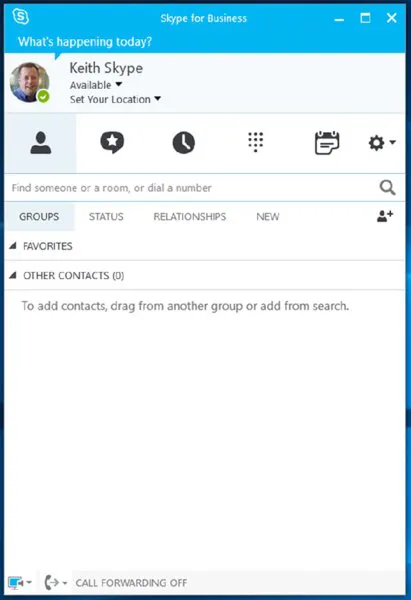
The Communicator client is also now part of the Office suite and is no longer available separately. Figure 1.1 shows the client when a user is first logged in.
Screenshot shows user startup screen with user name, status, location and selected contact tab.  The subtabs for groups, status, relationships and new is shown along with search field for finding contacts.
Figure 1.1 The client startup screen

Connecting via the Skype for Business 2016 Client

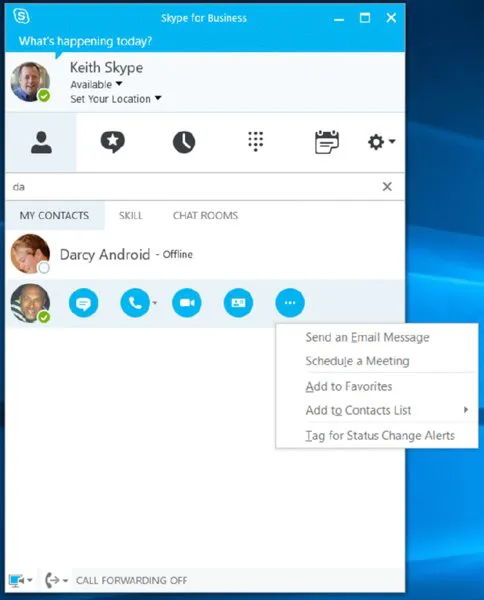
To communicate and collaborate, Skype for Business client users need to be able to locate and connect to each other on the network. Over time, users will build their own contacts list (sometimes called a buddy list); however, they need to find other users to be able to create and add to the list. The basic search functionality from previous versions has been retained and has been expanded to include integration and key-skills searching within SharePoint as well as the expected Address Book search. Also available (introduced in Lync 2010) is the ability to remove the Address Book download capability and provide only an online web-based search function. Figure 1.2 shows the client search bar and results window when data has been entered into the search bar.
Screenshot shows a user's Skype window with da typed in the search field. The search result shows two contacts and a popup showing options such as send an email message, schedule a meeting, add to favorites et cetera.
Figure 1.2 The client search bar and results window
From these results, you can initiate any type of communications modality. The submenu is opened by selecting the ellipsis (…).
To find more information from the user (the contact card), you have to at least appear to begin a conversation with them. Starting an IM conversation has the least impact in that until you actually send a message, there is no prompt to the recipient. Figure 1.3 shows the new-style contact card, which you can see once you initiate communications and...

Table of contents

  1. Cover
  2. Title page
  3. Copyright
  4. Dedication
  5. Acknowledgments
  6. About the Author
  7. Introduction
  8. Part 1 Fundamentals
  9. Part 2 Getting Skype for Business Up and Running
  10. Part 3 Administration
  11. Part 4 Voice
  12. Part 5 Other Dependent Infrastructure
  13. Appendices
  14. EULA