Professional Visual Studio 2015
eBook - ePub

Professional Visual Studio 2015

  1. English
  2. ePUB (mobile friendly)
  3. Available on iOS & Android
eBook - ePub

Professional Visual Studio 2015

About this book

In-depth coverage of the major Visual Studio 2015 revamp

Professional Visual Studio 2015 is the leading pro's guide to new and upgraded features of Microsoft Visual Studio. With a unique IDE-centric approach and deep dive into the software's many nooks and crannies, this book will bring you up to speed quickly on everything Visual Studio 2015 has to offer. Whether you're new to Visual Studio or just upgrading, you'll appreciate in-depth, professional explanation of updates, features, and support. Visual Studio 2015 is packed with improvements that increase productivity, and this book walks you through each one in succession to help you smooth your workflow and get more accomplished. From customization and the interface to code snippets and debugging, the Visual Studio upgrade expands your options — and this book is your fast-track guide to getting on board quickly.

The Visual Studios 2015 release fixes a number of issues that deterred many professionals from adopting VS 2013. Old products have been retooled, and new features are aimed at productivity enhancement and fixes to UI. Fully aligned with VS 2015, this guide walks you through the changes and helps you incorporate helpful new features into the way you work.

  • Discover new options for themes, displays, and settings
  • Learn the new workflow and shortcuts to ASP.NET code
  • Master improved debugging and unit testing support capabilities
  • Exploit changes to Windows STORE apps, phone apps, Azure, and SharePoint
Frequently asked questions

Yes, you can cancel anytime from the Subscription tab in your account settings on the Perlego website. Your subscription will stay active until the end of your current billing period. Learn how to cancel your subscription.
At the moment all of our mobile-responsive ePub books are available to download via the app. Most of our PDFs are also available to download and we're working on making the final remaining ones downloadable now. Learn more here.
Perlego offers two plans: Essential and Complete
  • Essential is ideal for learners and professionals who enjoy exploring a wide range of subjects. Access the Essential Library with 800,000+ trusted titles and best-sellers across business, personal growth, and the humanities. Includes unlimited reading time and Standard Read Aloud voice.
  • Complete: Perfect for advanced learners and researchers needing full, unrestricted access. Unlock 1.4M+ books across hundreds of subjects, including academic and specialized titles. The Complete Plan also includes advanced features like Premium Read Aloud and Research Assistant.
Both plans are available with monthly, semester, or annual billing cycles.
We are an online textbook subscription service, where you can get access to an entire online library for less than the price of a single book per month. With over 1 million books across 1000+ topics, we’ve got you covered! Learn more here.
Look out for the read-aloud symbol on your next book to see if you can listen to it. The read-aloud tool reads text aloud for you, highlighting the text as it is being read. You can pause it, speed it up and slow it down. Learn more here.
Yes! You can use the Perlego app on both iOS or Android devices to read anytime, anywhere — even offline. Perfect for commutes or when you’re on the go.
Please note we cannot support devices running on iOS 13 and Android 7 or earlier. Learn more about using the app.
Yes, you can access Professional Visual Studio 2015 by Bruce Johnson in PDF and/or ePUB format, as well as other popular books in Computer Science & Microsoft Programming. We have over one million books available in our catalogue for you to explore.

Information

Part I

Integrated Development Environment

  1. Chapter 1: A Quick Tour
  2. Chapter 2: The Solution Explorer, Toolbox, and Properties
  3. Chapter 3: Options and Customizations
  4. Chapter 4: The Visual Studio Workspace
  5. Chapter 5: Find and Replace and Help

Chapter 1
A Quick Tour

What's in This Chapter?

  • Installing and getting started with Visual Studio 2015
  • Creating and running your first application
  • Debugging and deploying an application
Ever since software has been developed, there has been a need for tools to help write, compile, debug, and deploy applications. Microsoft Visual Studio 2015 is the next iteration in the continual evolution of a best-of-breed integrated development environment (IDE).
This chapter introduces the Visual Studio 2015 user experience and shows you how to work with the various menus, toolbars, and windows. It serves as a quick tour of the IDE, and as such it doesn't go into detail about what settings can be changed or how to go about customizing the layout because these topics are explored in the following chapters.

Getting Started

With each iteration of the Visual Studio product, the installation process has been incrementally improved, meaning that you can get up and running with Visual Studio 2015 with minimal fuss. This section walks you through the installation process and getting started with the IDE.

Installing Visual Studio 2015

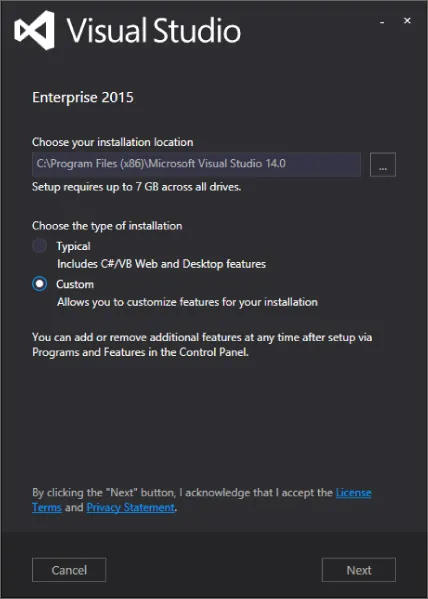
When you launch Visual Studio 2015 setup, you'll see the dialog in Figure 1.1, which enables you to specify the location for the installation. After you have read (in great detail, of course) the licensing information and privacy statements available by clicking on the link at the bottom, you can click the check box to accept the terms and move to the next screen in the installation sequence.
Dialog box of the Visual Studio 2015 installation setup. It displays options to choose an installation location and type of installation (Typical or Custom) and its corresponding features.
Figure 1.1
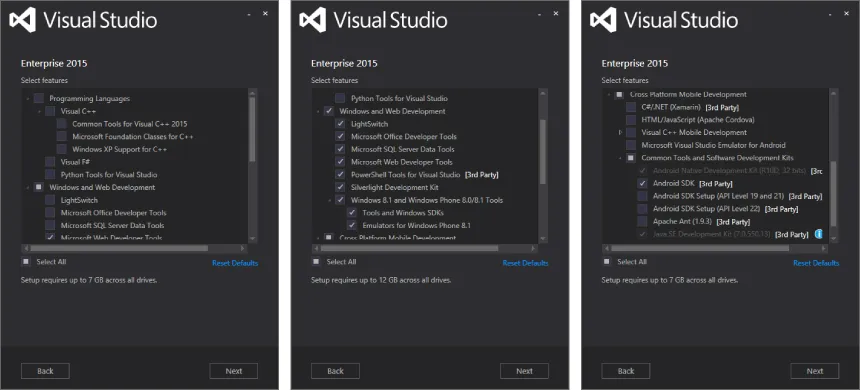
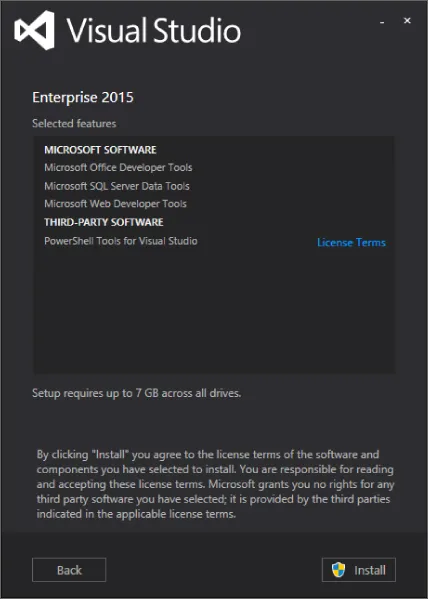
Visual Studio 2015 naturally has a number of mandatory features. Because these features are built in, the installation process doesn't bother mentioning them. However, you can select from a number of optional features collected into three separate groups. The first group, as shown on the left of Figure 1.2, lets you select additional programming languages. Naturally, C# and VB.NET are included with no additional steps. But you can also add C++, F#, and some tools for use with Python at this point. The second group, shown in the middle of Figure 1.2, is made up of tools that are related to Windows and web development projects. Pick and choose the items that pertain to your development life. The third group, on the right of Figure 1.2, allows you to install tools that focus on cross-platform development tasks, including Xamarin and Android tools. Choose the features you believe you need (keeping in mind that you can always add or remove them later) and click Next. You'll see an installation preview dialog (visible in Figure 1.3) that describes what is about to be installed and lets you see any special license terms that might be required. A click on Install begins the process.
Image described by surrounding text.
Figure 1.2
Image described by surrounding text.
Figure 1.3
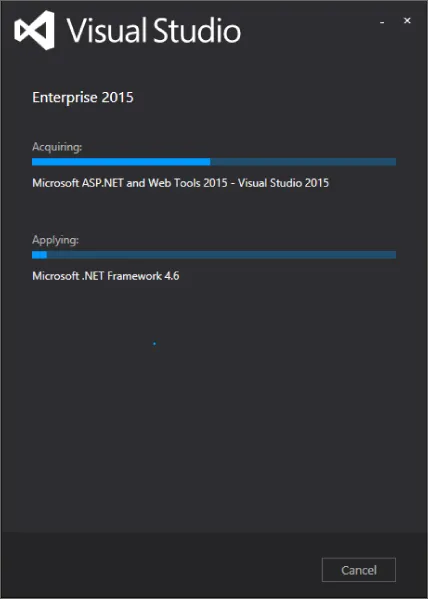
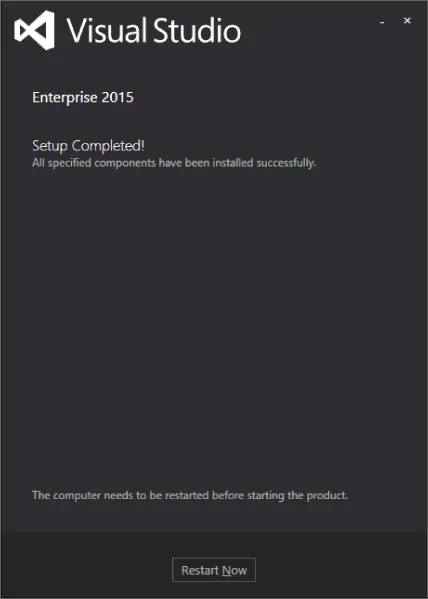
At this point, you'll see the progress dialog, an example of which is seen in Figure 1.4. Depending on which components you already have installed on your computer, you may be prompted to restart your computer midway through or at the end of the installation process. When all the components have been successfully installed, a Setup Completed dialog (Figure 1.5) indicates that there were no problems with the installation process.
Progress dialog of the Visual Studio 2015 installation setup. It presents data being acquired (top) and applied (bottom). A Cancel button is located on the lower right.
Figure 1.4
Dialog box of the Visual Studio 2015 installation setup displaying notification of completed installation. A Restart Now button is located at the bottom.
Figure 1.5

Running Visual Studio 2015

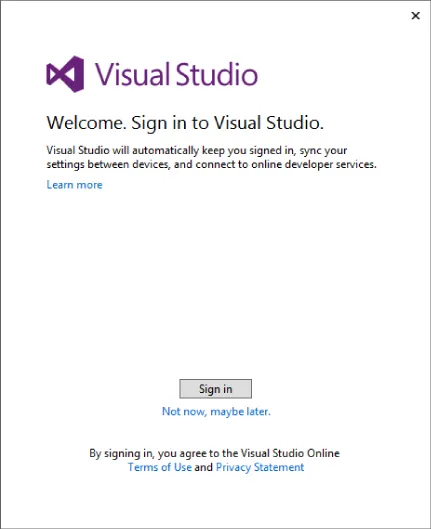
The first time you run Visual Studio 2015, you'll be given the opportunity to sign in, as shown in Figure 1.6.
Screenshot of Visual Studio sign-in dialog box with the “Welcome. Sign in to Visual Studio” message. The “Sign in” and “Not now, maybe later” buttons are at the lower center of the box.
Figure 1.6
This behavior is part of an effort to cloud-enable Visual Studio — to connect Visual Studio settings and functionality to assets that are available across the Internet. There is no requirement for you to log in. If you look below the Sign In button in Figure 1.6, there is a Not Now, Maybe Later link. Clicking on that link skips a number of steps (you still need to select the default environment settings) and lets you get to Visual Studio quickly. But there are some decent benefits that can be derived by signing in.

Is Visual Studio Really Cloud Enabled?

The quick answer is “Yes.” A more accurate answer is “Yes, if you want it to be.” Part of the research work behind creating this feature involved Microsoft gaining an understanding of how developers identified themselves to various online functions. In general, most developers have two or more Microsoft accounts that they use when they develop. There is a primary identity, which typically maps to the credentials used by the person while working. Then there are additional identities used to access external functions, such as Team Foundation Server, or to publish apps onto the various Microsoft stores.
To mimic how developers work with these multiple online identities, Microsoft introduces a hierarchical relationship between these identities within Visual Studio. When you sign in, the account you specify is the primary identity for the Visual Stud...

Table of contents

  1. Cover
  2. Table of Contents
  3. Introduction
  4. Part I: Integrated Development Environment
  5. Part II: Getting Started
  6. Part III: Digging Deeper
  7. Part IV: Rich Client Applications
  8. Part IV: Rich Client Applications
  9. Part VI: Data
  10. Part VII: Application Services
  11. Part VIII: Configuration and Resources
  12. Part IX: Debugging
  13. Part X: Build and Deployment
  14. Part XI: Customizing and Extending Visual Studio
  15. Part XII: Visual Studio Enterprise
  16. End User License Agreement